69
KorDSS software installation
ProDSS driver installation
NOTE: The ProDSS driver installation procedure allows the KorDSS software to recognize the instrument. To
connect more than one ProDSS instrument to KorDSS, perform the driver installation procedure for each
additional instrument.
The driver installation procedure is different for each operating system. Follow the applicable installation procedure
carefully.
Windows XP ProDSS driver on page 70
Windows 8 and 8.1 ProDSS driver on page 71
Windows 7 ProDSS driver
1. Turn the instrument on and connect it to the PC with the included USB cable.
If a message appears indicating successful download of the driver, proceed to the KorDSS Startup Wizard (page 72).
If you do not see a message indicating the successful download of the driver or if you see a message indicating
unsuccessful download of the driver, continue this driver installation procedure.
2. Open the Device Manager. To access: Click the Start button, click Control Panel, click System and Security,
and then, under System, click Device Manager.
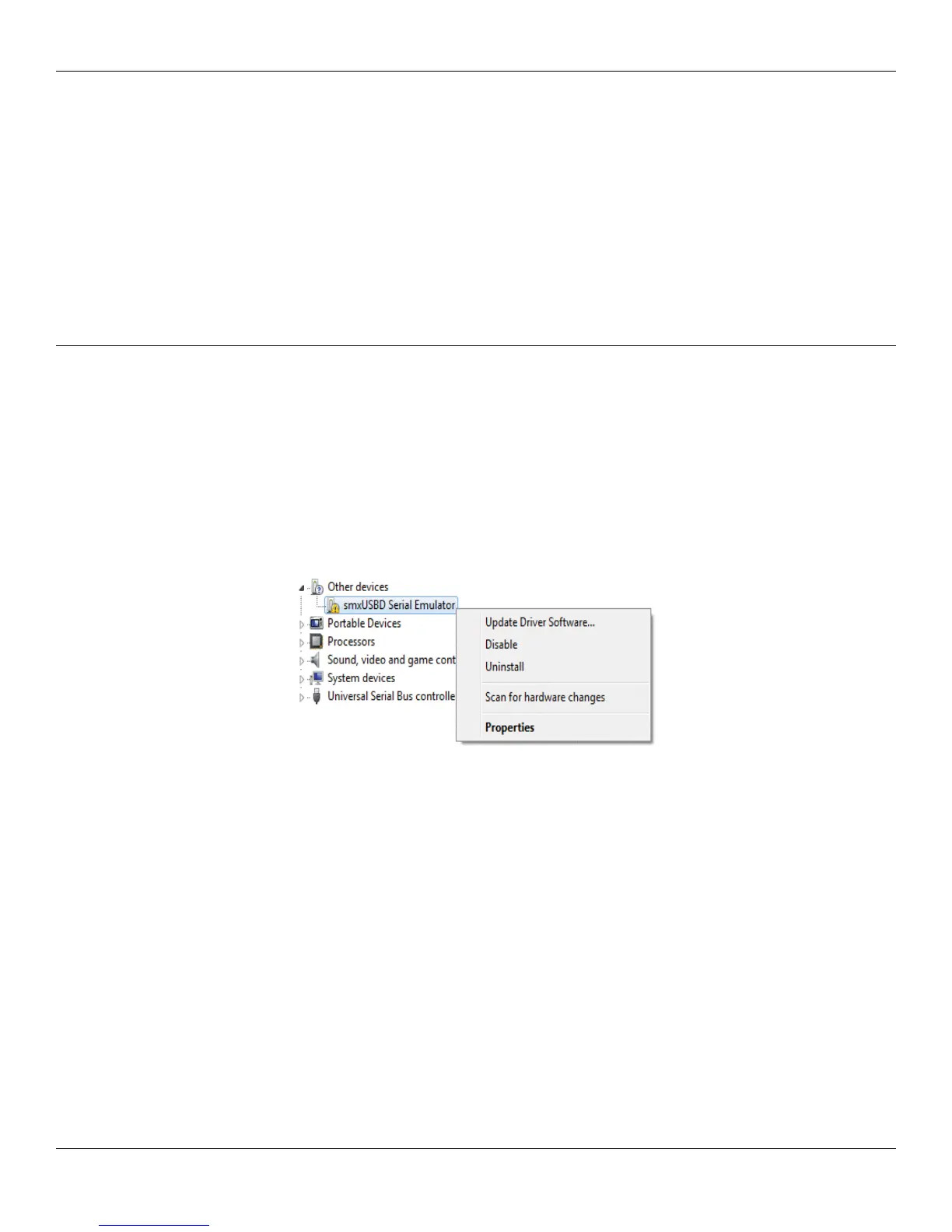
3. Under Other devices, right click on smxUSBD Serial Emulator and select Update Driver Software
(Figure 80).
Figure 80 Device Manager Windows 7
4. Click Browse my computer for driver software.
5. Click Browse, then navigate to the file location: C:\Program Files (x86)\YSI\KorDSS for 64 bit systems or
C:\Program Files\YSI\KorDSS for 32 bit systems. Click Next.
6. A warning will appear indicating that Windows can’t verify the publisher of the driver software. Select Install
this driver software anyway.
7. After driver installation, proceed to the KorDSS Startup Wizard (page 72).




 To Next Page