36
WATCHING TV / CHANNEL CONTROL
WATCHING TV / CHANNEL CONTROL
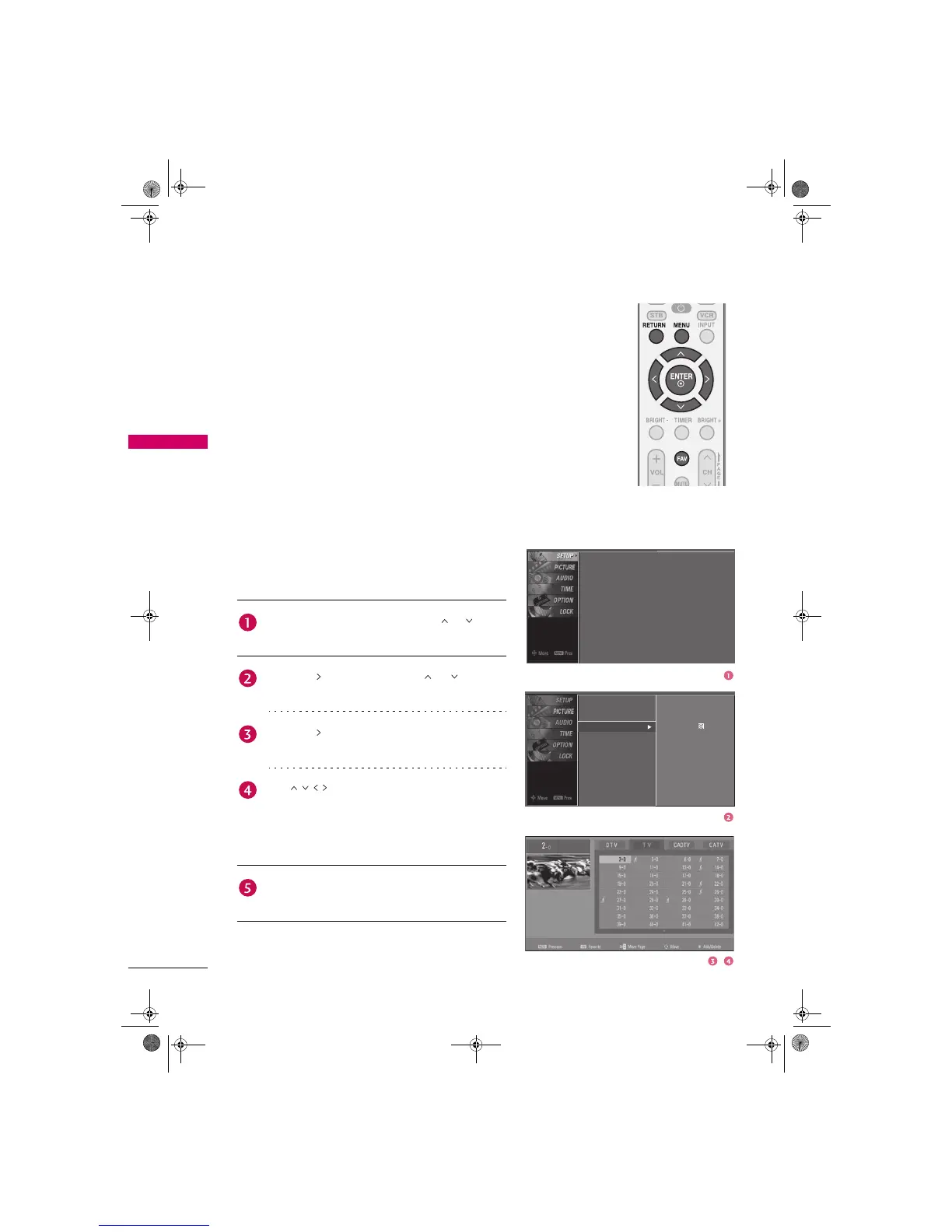
Channel Editing
From the default channel list created from the Auto Tuning
channel search, you can create two different types of channel
lists in memory: “custom list” and “favorite channel list”.
A custom list can be created by toggling each channel on or
off with ENTER button. The channels in the Custom List are
displayed in black and the channels deleted from the Custom
List are displayed in gray. Once a channel is highlighted you
can add or delete the channel by referring to the small
window at the top-left corner of the screen.
You can create your own Favorite List. Use the FAV button on
the remote control when a channel is highlighted and then
add or delete the channel to/from your Favorite List.
Auto Tuning
Manual Tuning
Channel Edit
Press the MENU button and then use or button
to select the SETUP menu.
Press the button and then use or button to
select Channel Edit.
Press the button. You will now see a screen filled
with channel numbers and a preview picture.
Use button to select a channel and then use
the ENTER button to add or delete it. Press FAV
button to add the channel to the Favorite List. The
surfing icon will appear in front of that channel
number.
Press RETURN button to return to TV viewing or
press MENU button to return to the previous menu.
Auto Tuning
Manual Tuning
Channel Edit
Selection (X or ) leads you
to the Auto Tuning screen.
Zenith.book Page 36 Wednesday, April 2, 2008 11:46 AM



 To Next Page