27
EXTERNAL EQUIPMENT SETUP
Screen Setup for PC mode
Overview
When the RGB input of the set is connected to a PC Output,
Select RGB-PC with using the INPUT button on the remote
control.
When you change the resolution, select the proper
resolution in present input to see the best picture
appearance.
osition,
Size, and Phase
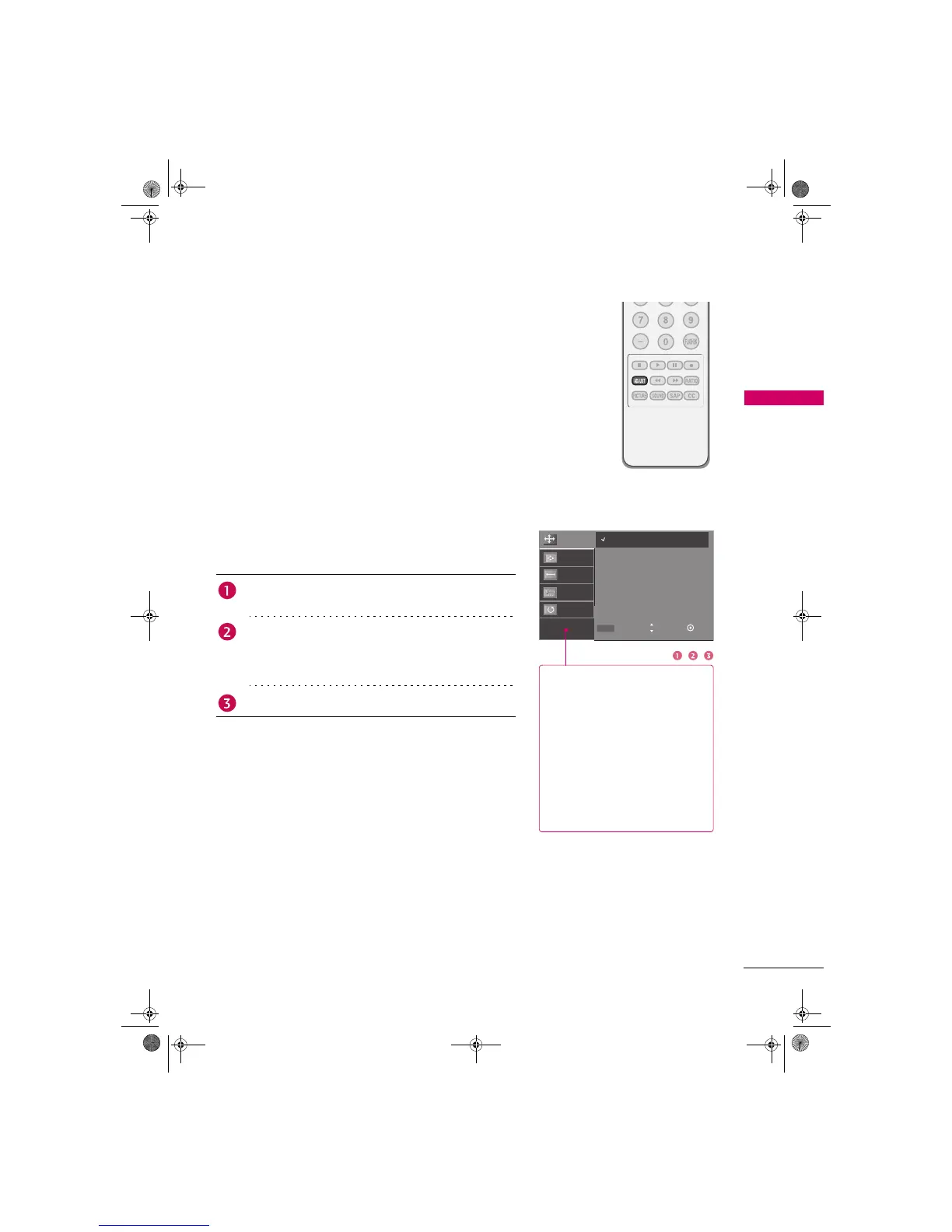
Press the ADJUST button and then use S or T button to
select Resolution, Position, Size, or Phase.
Press the ENTER button and then use S T W X button to
make appropriate adjustments.
The Phase adjustment range is -16 ~ +16.
The Size adjustment range is -30 ~ +30.
Press the ENTER button.
Resolution
Resolution
Size
Phase
Reset
1024 x 768
1280 x 768
1360 x 768
1366 x 768
MENU Prev Select Ok
Resolution This function allows you select
resolution of XGA/WXGA.
Position This function is to adjust
picture to left/right and up/
down as you prefer.
Size This function is to minimize any
vertical bars or stripes visible on
the screen background. And the
horizontal screen size will also
change.
Phase This function allows you to
remove any horizontal noise
and clear or sharpen the image
of characters.
Zenith.book Page 27 Wednesday, April 2, 2008 11:46 AM



 To Next Page