Vehicle “cloning” (creating a new vehicle with the GUI of another)
"Cloning" means that the GUI (name, image, function icons...) of an address is copied to another ad-
dress, so that two vehicles in the controller’s database are identical in all attributes but the address is
different.
"Cloning" always requires an "origin" (= the address with a GUI already defined) and
a "clone" (= the vehicle address this GUI is copied to).
Cloning saves a lot work when building a GUI, by exploiting the fact that there are often several of the
same or similar engine types on the layout. With little difference between GUIs of two models, it
makes sense to first "clone" the second engine from the first and then modify the GUI elements of the
clone,
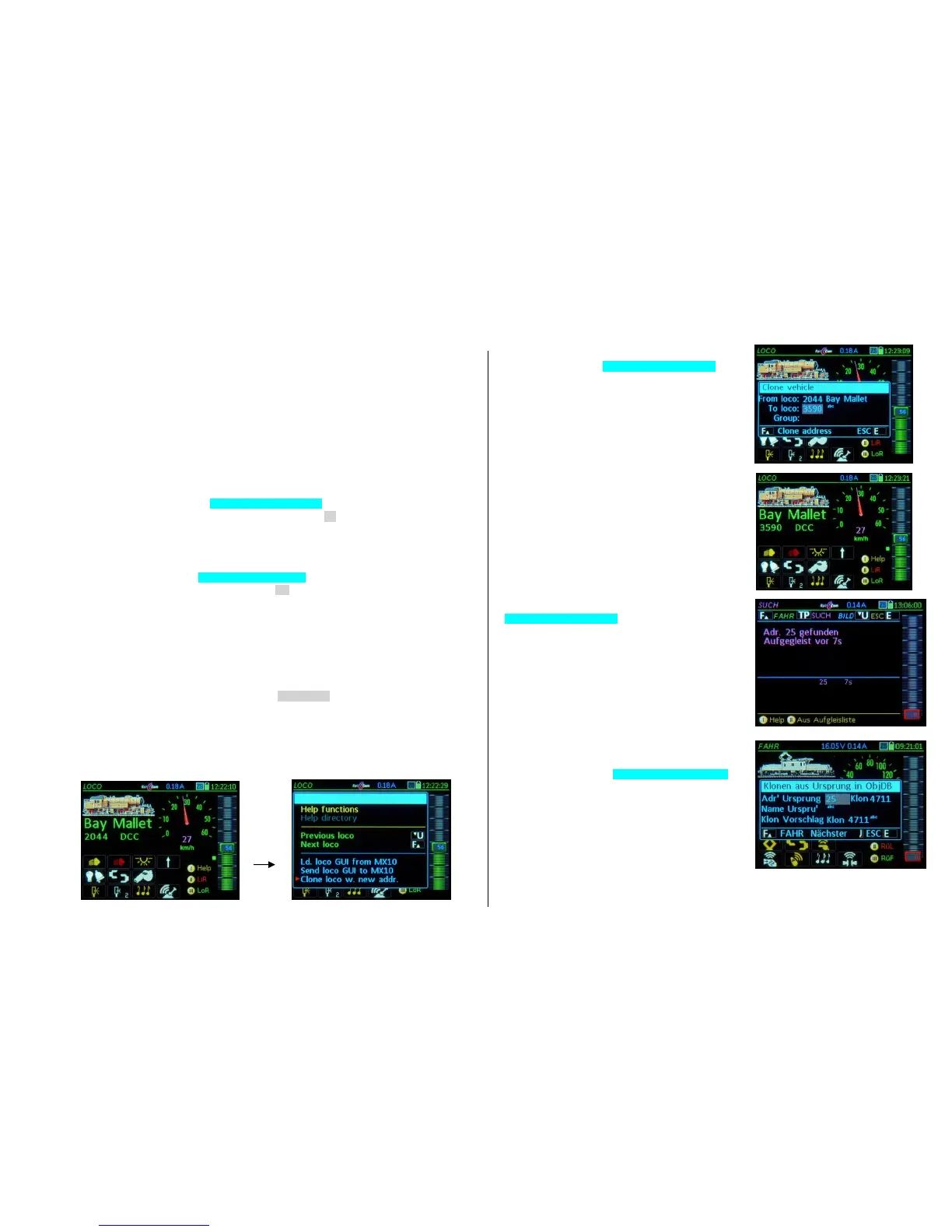
There are two different clone operations that can be called from the menu (using the softkey M) in
the operating mode LOCO; the clone window will then each have
the appropriate heading: Cloning from active address
Origin Address 765 Clone …. Address 765 is an example only!
The GUI (name, picture...) of the active address ("origin") is thereby copied to another address ("clone").
In this case, the source address (the active address) is given; the other address, called a "clone", must be
typed in; it may be a new address (not yet in the controller’s database) or one already "in use" (already in
the controller’s database).
or Cloning from ObjDB Origin
Origin Address ….. Clone 567 Address 567 is an example only
The GUI (name, picture...) of an existing address ("origin") is copied to the active address. In the second
line of the window, that existing address is typed in as the source address (Origin). The destination address,
which is referred to as "clone" (although not quite correct, because it already exists) is given (LOCO ad-
dress).
In both cases, a name for the "clone" is proposed in the clone window, this is a variant of the original name
with a “2” added (or consecutive number), which can be overwritten immediately (still in the same window)
with the desired name:
Origin Name Crocodile “Crocodile” is only an example
Clone Name Crocodile (2)
“Cloning” is available from the menu in the LOCO mode:
Softkey M Enters the Menu in LOCO mode
Scrolling wheel Select from the two menu lines “Clone…”
A-Key Start the selected cloning procedure
The clone window opens after the selected cloning pro-
cedure is started (here: “Cloning from active address”)
In it, the desired address (mandatory) and a name
(optional) for the clone is entered (by overwriting sug-
gestion).
A possible address conflict (when an address is al-
ready in the system) is detected automatically and a
corresponding alert appears in the window. The clon-
ing process however is not blocked, because it may
be desirable to have a duplicate address...
F-Key activates the clone, operating mode LOCO
The name of the clone in this example has not been
changed and is as suggested “Crocodile (2), however all
GUI elements are identical to the “Crocodile” origin. The
picture already shows the driving mode.
Cloning also takes over the individual function states (i.e.
headlights and sound are turned on immediately).
All of the clone’s GUI elements are totally independent
from its origin and can be changed at any time with the
usual E-procedures ADDR … FUMT, SPEEDO etc. or
with A+A-Key in the LOCO MOD screen (Name, Group).
Cloning in the “opposite direction”, that is
“Cloning from ObjDB Origin“ is often used to quickly and
easily find a fitting GUI for a new engine or for using it
as a template.
For this, the same kind or a similar vehicle on the layout is
used (which already has a GUI).
In the picture on the right, it is assumed that the address
of a new engine is unknown and therefore first read-out
with the track-On search feature (see chapter “LOCO IN
and LOCO MOD”). Then:
F-Key switches to the driving mode LOCO, in this
case only to get to the menu.
Softkey M enters the menu
Scroll, then A-Key opens the clone window
In the clone window (here: „ Cloning from ObjDB Origin“)
enter the address of the origin from which the clone (the
new engine) takes over the GUI; the destination address
(the clone) is however fixed.
F- Key the clone is activated, operating mode LOCO
U- Key optional: step by step search of the ObjDB
entries for a suitable origin (for a name or
address with the correct GUI).



 To Next Page
 Loading...