with T9 input method input by the ESC from the completion of T9
input method.
Directly press the "OK" button or scroll▲ / ▼ cursor keys will be
located in the "Registration fingerprint" button, then "OK" button,
enter the fingerprint registration.
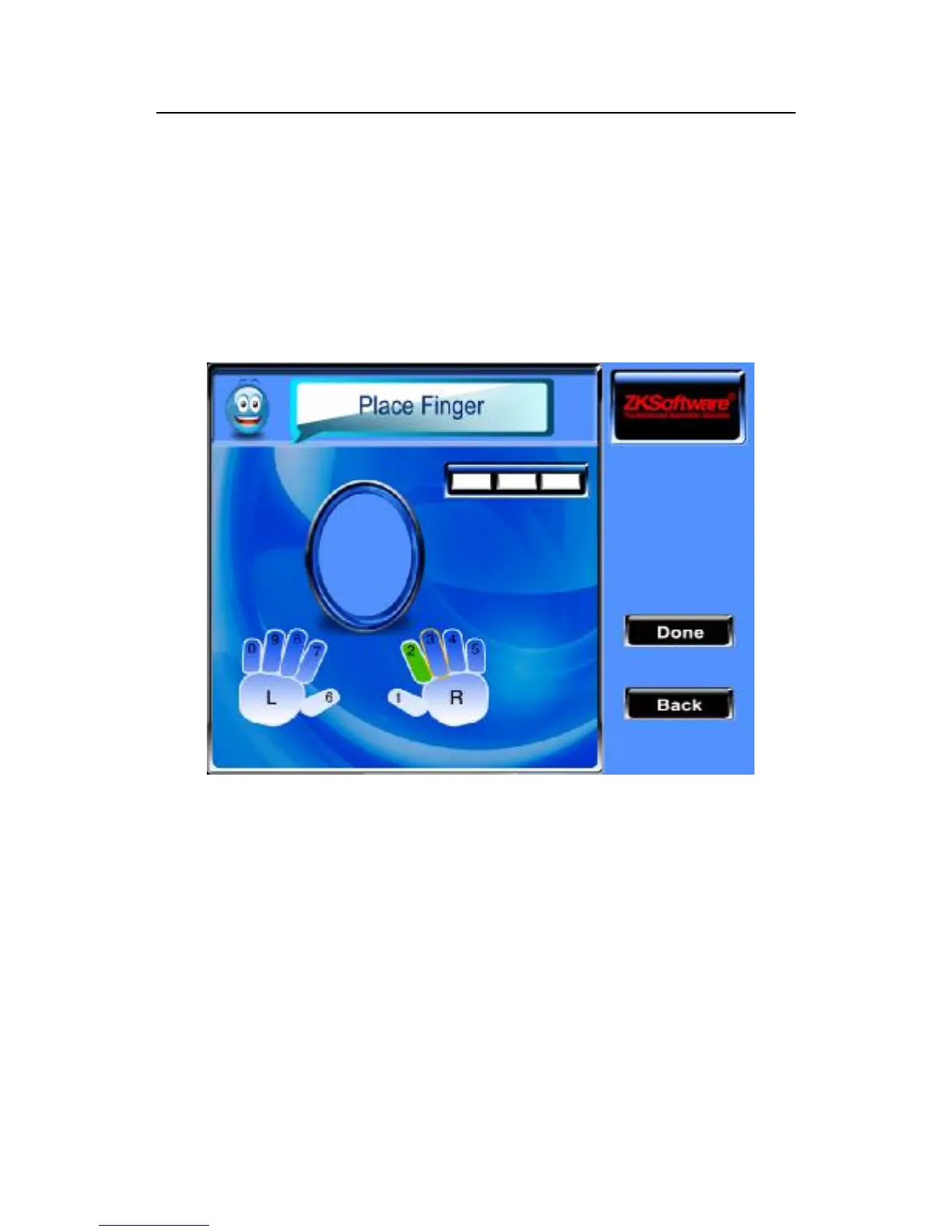
Enroll fingerprint
Note: 1) the fingers is shown as yellow frame that present the
current selected finger.
2) The finger is shown as green that the finger has been registered,
if the finger has been registered, the fingerprints will be
re-registered and covered with the previous fingerprints.
3) Select the registered fingers, press keys to delete the fingerprint
that is available.
4) Figure fingerprints registered in the default order of
2,3,4,5,0,9,8,7,6,1.



 To Next Page