Pannoramic DESK 1.18.1 User’s Guide 4 Software Description
4.2.2 Image Compensation
You can use a saved compensation image whenever compensation-related issues occur (deriving
from the slide, illumination, staining or embedding medium irregularities). To set compensation
parameters properly, follow the instructions below.
By moving the mouse over the buttons, the software displays information about the setting you
are interested in.
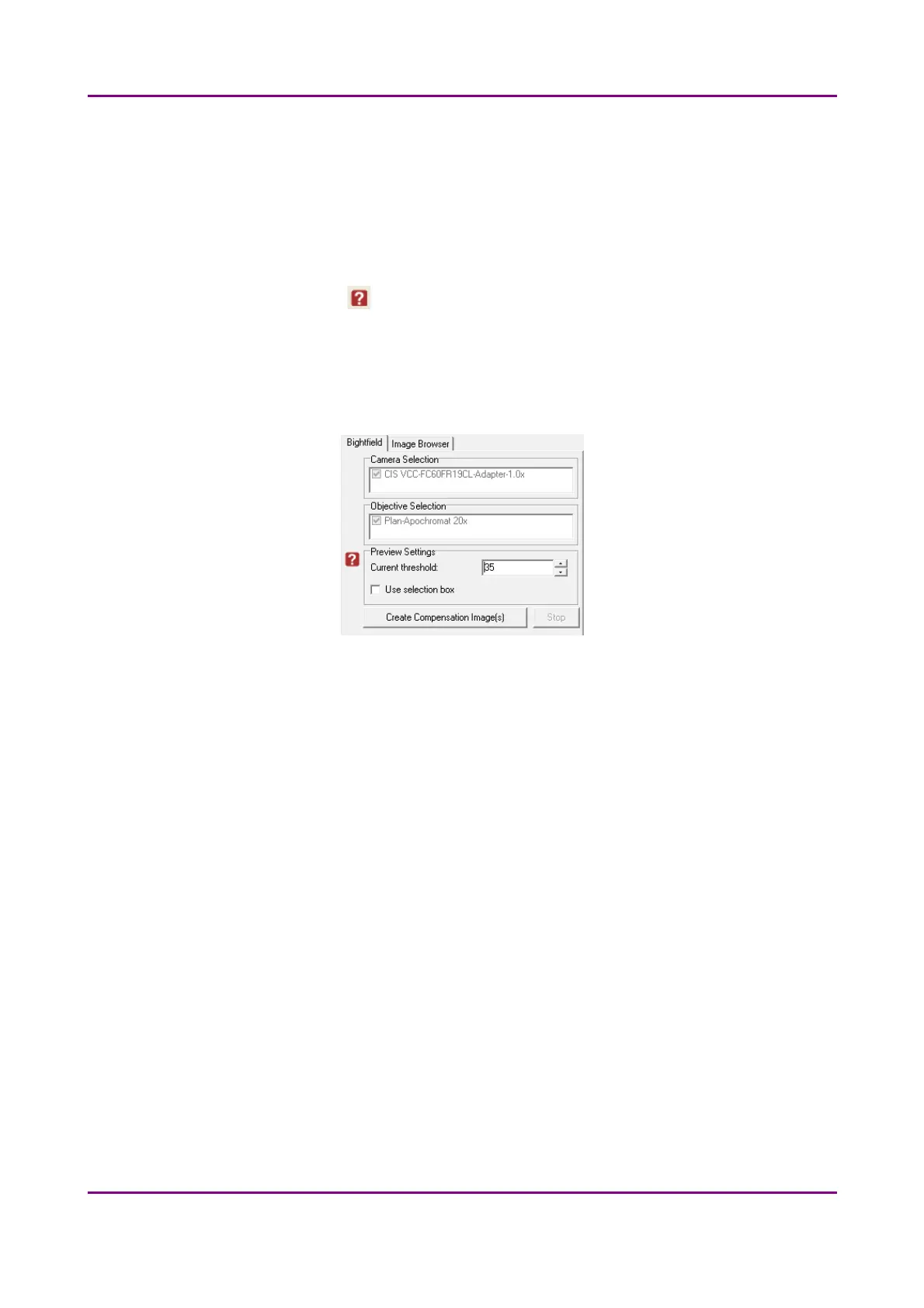
Brightfield Compensation
Figure 10 – Brightfield Compensation
Camera Selection
This field displays the active camera. Currently, there is only one active camera for
Brightfield mode.
Objective Selection
The installed objective is selected for creating a new compensation image.
Preview Settings
There might be specks or minor etches on the surface of the compensation slide that
require modifying the threshold settings. Therefore, the scanner will not use those areas for
the creation of the compensation images.
• Current threshold
To modify the threshold settings, set the desired threshold level in the box.
May 29, 2014 - Rev. 1 3DHISTECH Ltd.
30(77)



 To Next Page