EasyManua.ls Logo

3M SCP725 - User Manual

3M SCP725
44 pages
Print Icon
To Next Page IconTo Next Page
Loading...
January 2011 • 78-6971-1572-9 • Copyright © 2011, 3M Company. All Rights Reserved.
Operators Guide
3
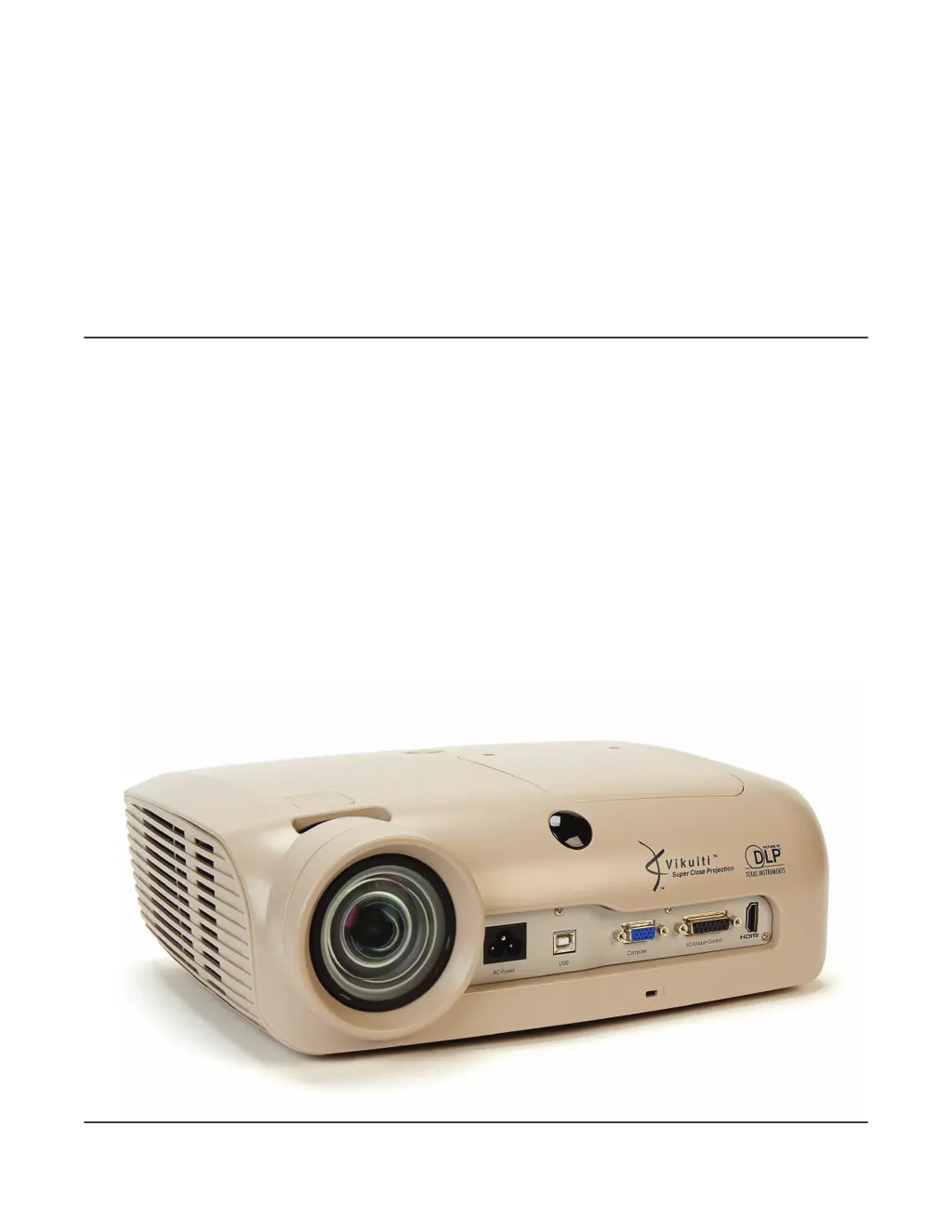
Super Close Projection System
SCP725

Questions and Answers

  • D
    david15Aug 15, 2025
    Why is there no audio from my 3M Projector speakers?
    • M
      Malik PattonAug 16, 2025
      If there's no audio coming from the speakers of your 3M Projector, first ensure that the audio cable is connected to the correct input source, or adjust the audio/video input assignment settings in the projector’s Audio menu. If you are using the 3M Folding Wall Mount, ensure the audio amplifier is connected to a power supply, as the I/O Module does not supply power for audio. Also, check that the audio source or the speakers are not muted.
  • M
    Michelle SpencerAug 19, 2025
    What to do if my 3M Projector will not turn on?
    • C
      Christina KiddAug 19, 2025
      If your 3M Projector won't turn on, make sure the power cord is properly connected to both the projector and a working electrical outlet. Check that the lamp door is correctly installed and fastened. If the projector has overheated, allow it to cool down and clean the air vents. If the outlet has no power, test it with another appliance. If none of these steps work, the projector’s power unit may have stopped working, and you should contact 3M for service.
  • T
    Todd ToddAug 21, 2025
    How to fix a 3M Projector lamp that will not ignite?
    • M
      michael25Aug 21, 2025
      If the 3M Projector lamp won't ignite, first wait for the projector to complete its cooling cycle until the Standby button turns amber, then try pressing the Standby button again. If the lamp has expired, replace it and press the Standby button. For other potential issues such as a malfunctioning lamp ballast, cooling fan problems, overheating due to ambient conditions or blocked air vents, follow the maintenance procedure. Also, ensure the cable connecting the Control Port on the projector to the I/O module does not cross power cables or other communication cables. If issues persist, contact 3M for service.
  • K
    Katherine DanielsAug 25, 2025
    What to do if my 3M Projector shows no image?
    • R
      Rachel JoyceAug 26, 2025
      If there is no image on your 3M Projector, first, make sure the correct input source is selected by pressing the Input button on the remote control. Next, check that all cables from the input source are properly connected. Finally, ensure that the input source is turned on and displaying an image, for example, if using a notebook computer, make sure the external monitor port is enabled.
  • J
    Jeffrey ParksAug 28, 2025
    Why is my 3M Projector not detecting the input source?
    • A
      Alan GrantAug 28, 2025
      If the desired input source is not being detected by your 3M Projector, ensure that the input source is active and sending a signal. Also, verify that the input device, such as a computer or DVD player, is turned on.
  • K
    Kevin FriedmanAug 30, 2025
    How to brighten a dark or dim image on my 3M Projector?
    • D
      Douglas GrahamAug 30, 2025
      If the image from your 3M Projector appears dark or dim, try adjusting the brightness setting. If adjusting the brightness does not resolve the issue, the lamp may need to be replaced.
  • C
    cnunezSep 2, 2025
    Why is my 3M Projector remote control not working?
    • B
      Bryan WaltersSep 3, 2025
      If your 3M Projector remote control isn't working, ensure it's pointed towards the remote control sensor and is within 5 meters. Remove any obstructions between the remote and the sensor. Also, check that the batteries are correctly inserted and not exhausted.
  • A
    asmallSep 5, 2025
    How to resolve noise in the computer image on my 3M Projector?
    • A
      anthony16Sep 6, 2025
      To resolve noise in the computer image of your 3M Projector, adjust the Frequency and Phase settings in the Advanced Picture Menu until the noise is reduced or eliminated.
  • A
    alexandria34Sep 9, 2025
    How to fix noise in the image on my 3M Projector?
    • J
      Joshua GuzmanSep 9, 2025
      To address noise in the image from your 3M Projector, shorten the cable between the video source and the system, or add a video amplifier between the video source and the long cable. This is because the video cable might be adding noise to the signal due to improper termination, excessive length, or inadequate electromagnetic shielding.
  • K
    Kelly PerezSep 12, 2025
    Why isn't the Standby button on my 3M Projector's I/O module lighting up?
    • N
      Natalie Hess MDSep 12, 2025
      If the Standby button on the I/O module of your 3M Projector doesn't light up while the projector is powered on, ensure that the communication cable is correctly connected (15 pin to 15 pin) from the projector to the I/O module. Also, check if the projector itself has power by referring to the projector troubleshooting steps.

Summary

Introduction and Important Notices

Important Product Notices

Key information and recommendations regarding product use, accuracy, and liability.

Warranty Terms and Conditions

Details on warranty coverage, limited remedy, and liability for the projector and accessories.

Regulatory and Compliance Information

Product Patents and Regulatory Notices

Lists product patents and regulatory compliance statements, including FCC and Canadian regulations.

CE Statement and European Directives

Information regarding CE statements, EMC, Low Voltage, WEEE, and RoHS directives for EU compliance.

Safety Information and Guidance

Intended Use and Operating Environment

Specifies the intended use and recommended operating environment for safe projector operation.

Understanding Safety Signal Words and Symbols

Explains signal words (WARNING, CAUTION) and common safety symbols used in the manual.

Safety Warnings and Precautions

Electrical, Fire, and Choking Hazard Precautions

Precautions to reduce risks associated with hazardous voltage, fire, choking, impact, and vision impairment.

Lamp Handling, Battery, and Environmental Safety

Safety measures for lamp handling, battery use, and environmental concerns, including mercury disposal.

Safety Labels and Identification

General Warning and Caution Labels

Highlights critical safety labels, including manual reading, screw removal, and ventilation warnings.

Lamp Replacement and Mercury Warnings

Specific warnings related to lamp replacement procedures and mercury content in the lamp.

Unpacking and Initial Setup Procedures

Contents of Shipping Box and Verification

Lists all items included in the projector's shipping package for verification.

Retaining Shipping and Packing Materials

Advice on saving shipping materials for future repair or transport needs.

Product Description and Key Features

Machine Characteristics and Technical Overview

Details the key features and technical capabilities of the 3M SCP725 projector.

Projector Dimensions and Physical Layout

Provides the physical dimensions and layout of the projector unit.

Projection Distance and Image Adjustment

Projector Distance to Screen and Image Size Chart

Guides on projector-to-screen distance for various image sizes.

Vertical Lens Shift Functionality Explained

Explains the vertical lens shift feature for adjusting image position.

Component Identification and Connections

Projector Parts Identification

Identifies the various external parts and connectors of the projector.

Projector Terminal Connections Guide

Details the function of each terminal port on the projector for connectivity.

I;O Module Operation and Panels

I;O Module Control Panel Functions

Describes the controls and functions of the optional I/O Module's control panel.

I;O Module Top Terminal Panel Connections

Details the connections on the top terminal panel of the I/O Module.

I;O Module Bottom Terminal Panel Details

Connections and Functions of Bottom Terminal Panel

Details the connections and functions of the bottom terminal panel on the I/O Module.

Remote Control Functions

Remote Control Button Functions Explained

Explains the operation of each button on the remote control for projector management.

System Setup and Remote Control Installation

Installing Batteries in the Remote Control

Instructions for inserting batteries into the remote control.

System Configuration and Setup Guide

Guides on connecting and configuring the projector system for initial use.

Projector Operating Instructions

Projector Start Up Procedure

Step-by-step guide for powering on and starting the projector.

Using Stand By Mode

How to place the projector into and out of standby mode.

Projector Menu Navigation and Settings

Main Menu Overview

Overview of the main menu and how to access submenus.

Input and Picture Menu Settings

Adjusting input sources and picture parameters like brightness, contrast, and sharpness.

Advanced Picture and Audio Settings

Configuring advanced picture adjustments and audio input/volume settings.

Setup, Advanced Setup, and Information Menus

Accessing system setup options, advanced configurations, and system information.

Machine Specifications Overview

Technical Specifications Summary

Comprehensive list of technical specifications including noise, dimensions, and compatibility.

Maintenance Procedures

Procedure for Lamp Replacement

Detailed steps for safely replacing the projector lamp module.

Cleaning Air Vents and Lamp Compartment

Instructions for cleaning air vents and internal lamp compartments for optimal performance.

Troubleshooting Common Issues

Identifying Expired Lamp Module Symptoms

Visual indicators and symptoms of an expired or failing projector lamp.

Troubleshooting I;O Module and Projector Power Issues

Solutions for common issues like projector not turning on or I/O module not lighting up.

Interpreting Indicator Lights for Errors

Interpreting projector and I/O module indicator lights for diagnosing operational status or errors.

Replacement Parts and Accessories

Available Replacement Parts List

List of part numbers for replacement components like cables and remote controls.

Optional Accessories for Enhanced Functionality

Information on optional accessories such as wall mounts and I/O modules.

3M SCP725 Specifications

General IconGeneral
Resolution1024 x 768 (XGA)
Contrast Ratio2000:1
Output PortsVGA
Input PortsVGA, S-Video, Composite
Noise Level35 dB

Related product manuals