ABEM Terrameter LS Toolbox
8
4 Instrument Communication and Management
Initiating Communication
Transfer of measured data, spreads and protocols can conveniently be done between
the Terrameter LS and a PC with LS Toolbox using a network connection. Instrument
software upgrading is also carried out this way. First the instrument must be
connected to the same network as the PC. Alternatively the built-in DHCP server can
be activated in the Terrameter LS and the PC connected directly to it. Please read
section “The Network” in the instruction manual for Terrameter LS for details on how
to do that.
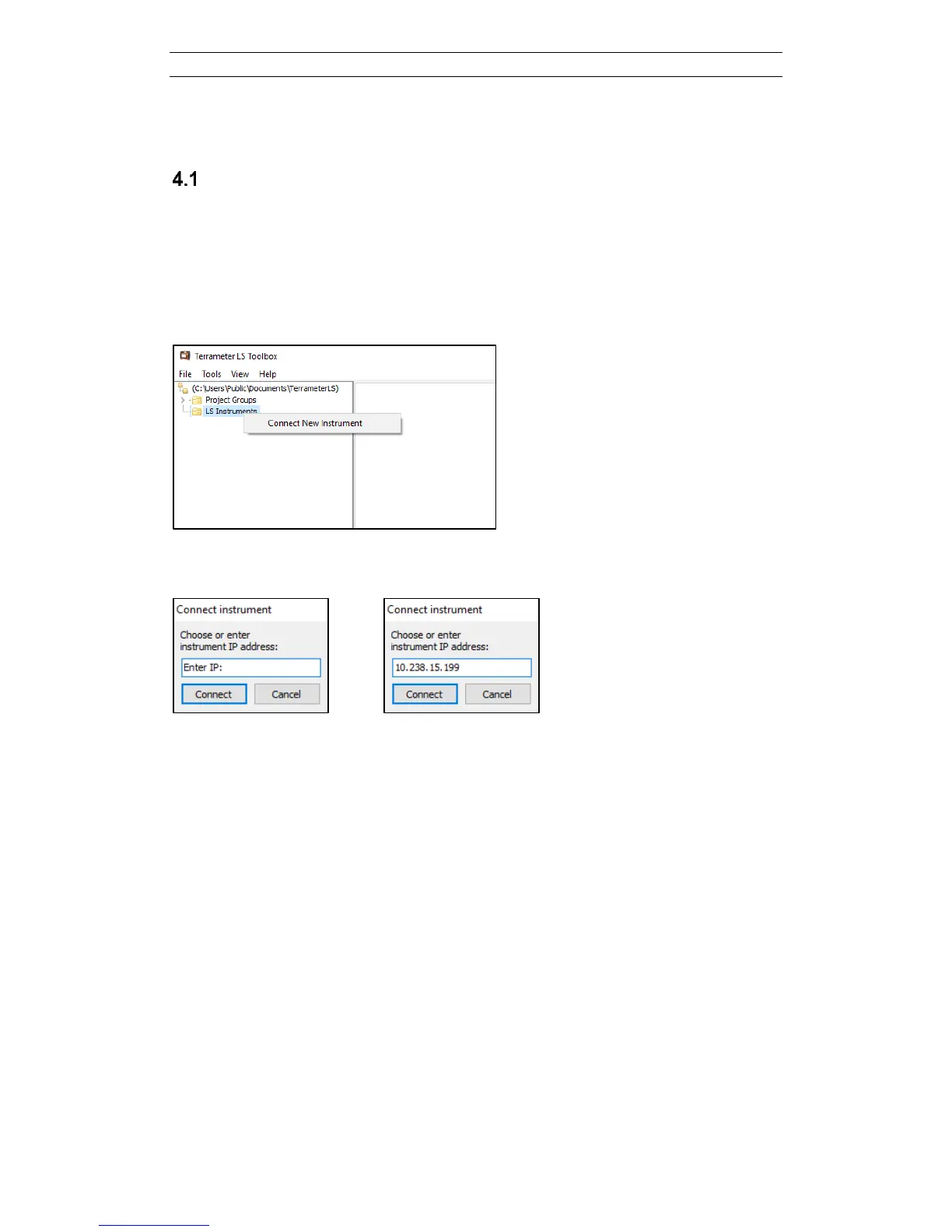
Figure 3. LS Instruments context menu
Figure 4. Dialog for choosing an IP number and activating the connection
Right-click on the “LS Instruments” tree node (Figure 3) and select Connect New
Instrument to add an instrument. Enter the IP address of the instrument in the opened
dialog (Figure 4) and press Connect. Connection to a previously used instrument is
done by right clicking on its tree node and selecting Connect from the context menu
(Figure 5). Either enter a new IP address or select between previously used IP
addresses and then press Connect (Figure 4).
When the instrument has been connected all context menu items except Connect
becomes enabled (Figure 6).
The Properties section shows locally stored information about the instrument
(Figure 7).


 To Next Page