ABEM Terrameter LS Toolbox
10
Importing Data
To import data from a Terrameter LS, right click on the instrument tree node and
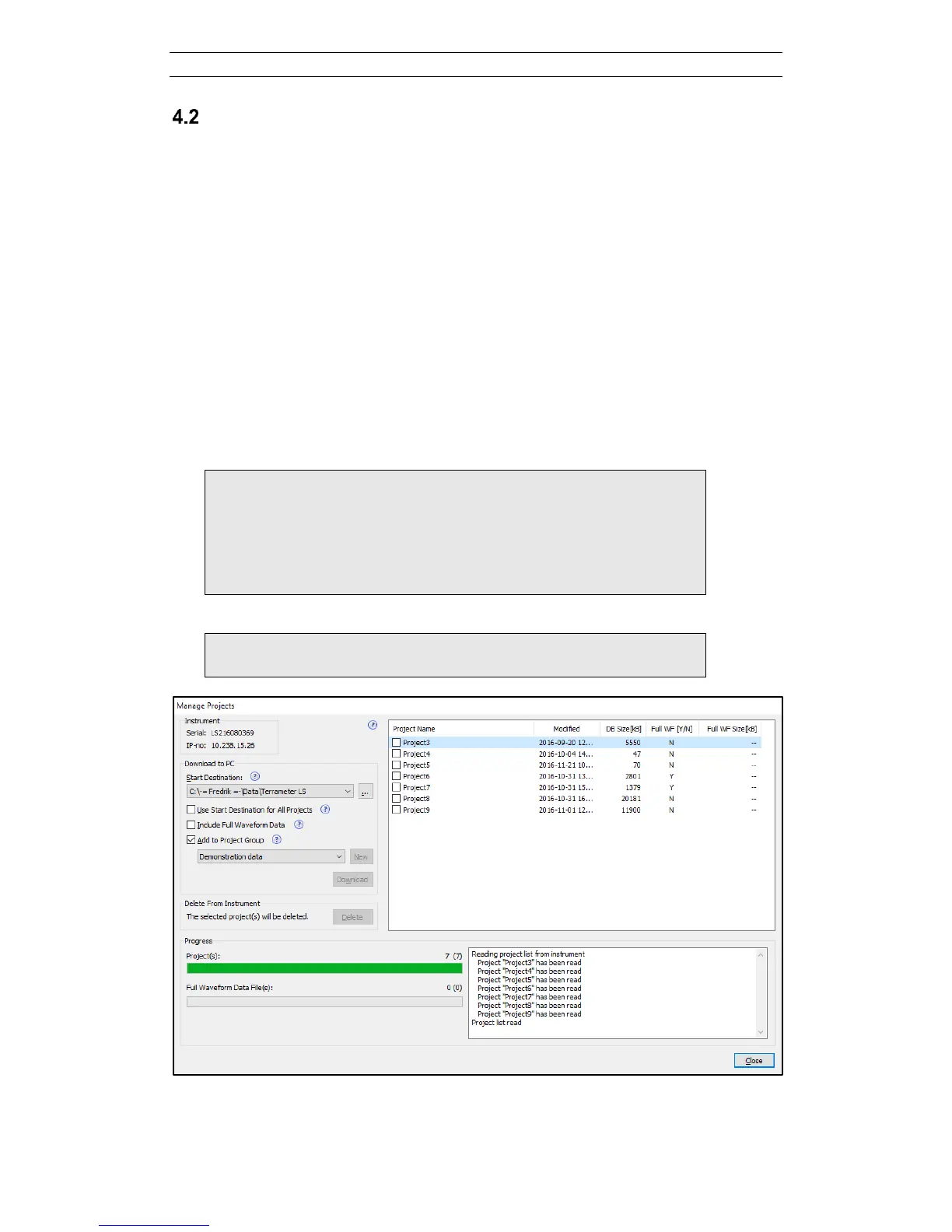
choose Manage Projects (Figure 6). The Manage Projects dialog (Figure 8) is shown
with a list of the projects on the instrument. Use the checkboxes on the left side
(Figure 9) to select the project(s) to import to the PC. Before the data transfer is
started, a start destination folder must be specified.
If the checkbox “Use Start Destination for All Projects” is checked, all projects will
be stored in the Start Destination folder. If left unchecked a dialog will ask where the
selected project(s) is to be stored. The checkbox “Include full waveform data” must
be checked to transfer such data. This is of course only relevant if full waveform data
were recorded. By checking the checkbox “Add to Project Group” a project can
directly be added to a Project Group. If left unchecked the project(s) must be
manually added.
Press “Download” to start the data transfer. Before data is saved the destination must
be confirmed, and there is an opportunity to modify the destination and/or the name of
the three structure file, if so desired.
Note! Please observe that it can take considerable time to
transfer full waveform data, even over a direct cable
link. Hence it may be convenient to transfer only the
project database in the first step, for example for on-site
data quality checks in the field, and transfer the full
waveform data at the end of the day.
Note! If hovering the mouse over the question mark bubbles,
help and tips are displayed.
Figure 8. Data transfer dialog


 To Next Page