Playback
23
Playback
General information
Playback can be made in three different ways:
Through the video search in the main menu
From the live view
Through the log file in the maintenance menu
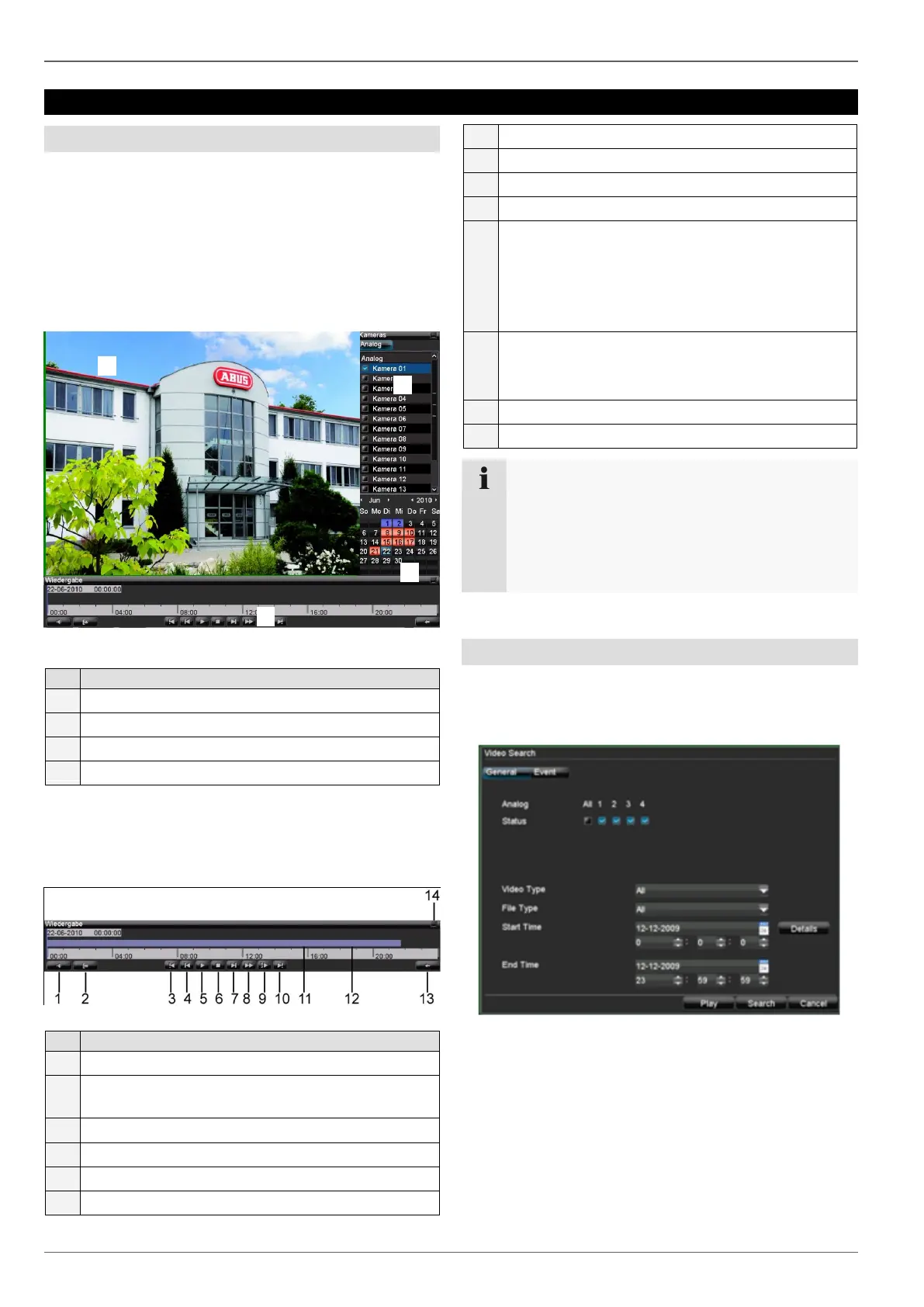
Playback screen
Playback is controlled on the control panel:
Running playback with date and time
Used to select the camera for feedback
Calendar with recording type (see right)
Control panel with time bar
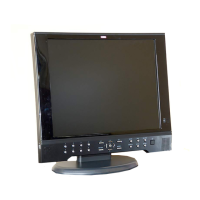
Using the control panel
The control panel is used for controlling the running play-
back. The symbols have the following meaning:
Switches audio playback on/off
Defines the start and end point of a video for data
backup
Time bar:
Click on the time bar with the mouse to con-
tinue playback from another point
To start playback from a specific time, click on
the slider and drag it to the required time
Recording type
Blue = Continuous recording
Red = Event recording
Note
You can zoom in on the screen image.
Right-click in the running playback.
Select “Zoom”.
Zoom mode is now active (see page 19).
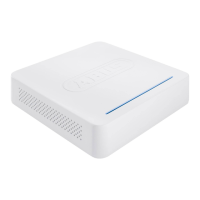
Playback through video search
In order to play recorded events, they must first be found.
Open the main menu and then click on “Video Search” in
the “General” tab:


 To Next Page