18
OSD
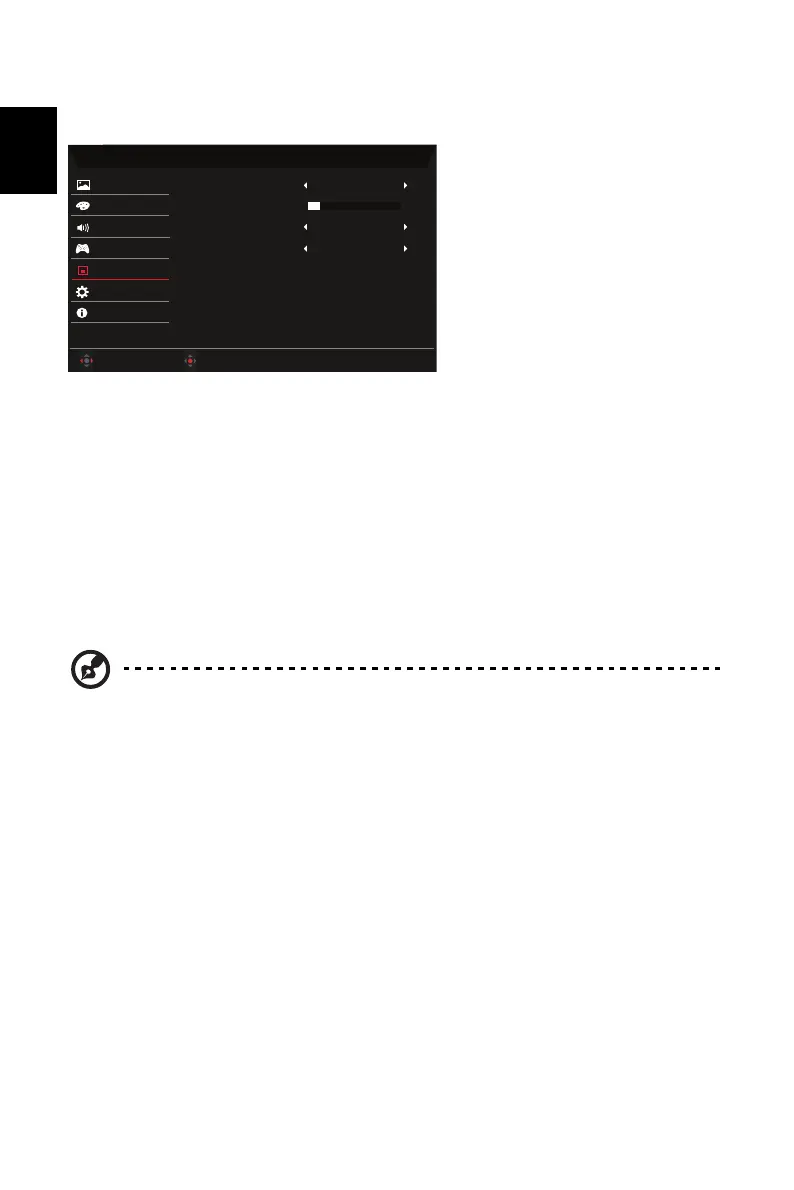
1. Press the MENU key to open the OSD.
2. Using the button, select System from the OSD. Then navigate to the setting you
wish to adjust.
3. Use the button to select the setting.
4. Language: Set the OSD menu language.
5. OSD Timeout: Adjust the delay before turning the off the OSD menu.
6. Transparency: Select the transparency when using gaming mode. The transparency can
be 20%, 40%, 60%, 80%, or Off.
7. OSD Lock: OSD Lock function is used to prevent OSD button from being pressed
accidentally.
Note: 1. OSD Locked:
Set the OSD Lock to "On" from the OSD and press "Enter".
The "OSD Locked" message will appear in the middle of the screen, and
LED lights will indicate as blinking blue.
When pressing any key, "OSD Locked" message will be prompted.
2. OSD Unlocked:
Press the second OSD key continuously for 3 seconds to unlock OSD. The
"OSD Unlocked" message will appear in the middle of the screen, and LED
lights will turn into blue.
Mode - Standard
EnglishLanguage
OSD Timeout
Transparency
OSD
Lock
10
Color
Gaming
OSD
Picture
System
Information
Audio
Adjust
OK
Off
Off
Ř
Ř
/


 To Next Page