28
Transferring Records
The meter can transfer stored information to a Windows-based personal computer
(PC) using an optional data transfer cable and software package. To use this
feature, first install the software packaged with the data transfer cable. Then follow
these steps:
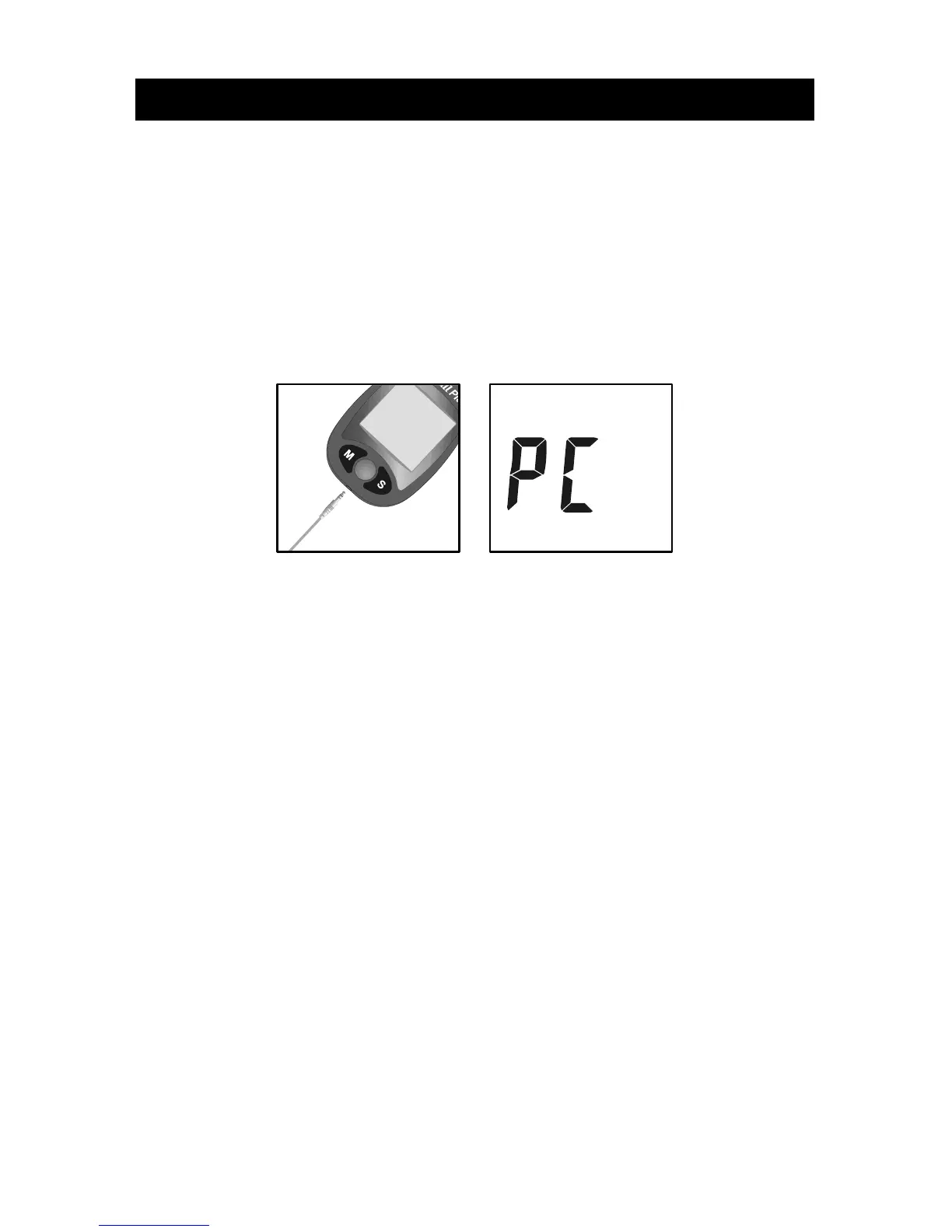
1. Turn on the PC and connect the data transfer cable to the serial port on the PC
and to the data port on the meter.
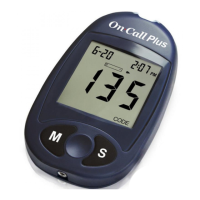
2. Press and hold the S button on the meter to enter the data transfer mode. "PC"
will appear on the display when the meter enters the data transfer mode.
3. Run the PC software, and enable the data transfer mode. Refer to the
instructions packaged with the data transfer cable for this operation.
4. During the data transfer, the meter will display "to" and "PC". This indicates the
data is being transferred from the meter to the PC.
5. Once the data transfer is complete, the meter will display "End" and "PC" and
after a moment the meter will turn itself off.
6. If you entered the data transfer mode but want to exit before performing the
data transfer procedure, press the S button. This will turn the meter off and exit
the PC mode.
See the package insert included with your Data Management Kit for detailed
instructions.


 To Next Page