©2018 ACP, Inc.
Cedar Rapids, IA 52404 Page 24 of 80
Part No. 16400033
Original Instructions
Manually Edit an Existing Recipe Folder:
Note: You may also edit folders using the ACP Programming Application.
1. Press the Blue Menu Icon at the bottom of the screen.
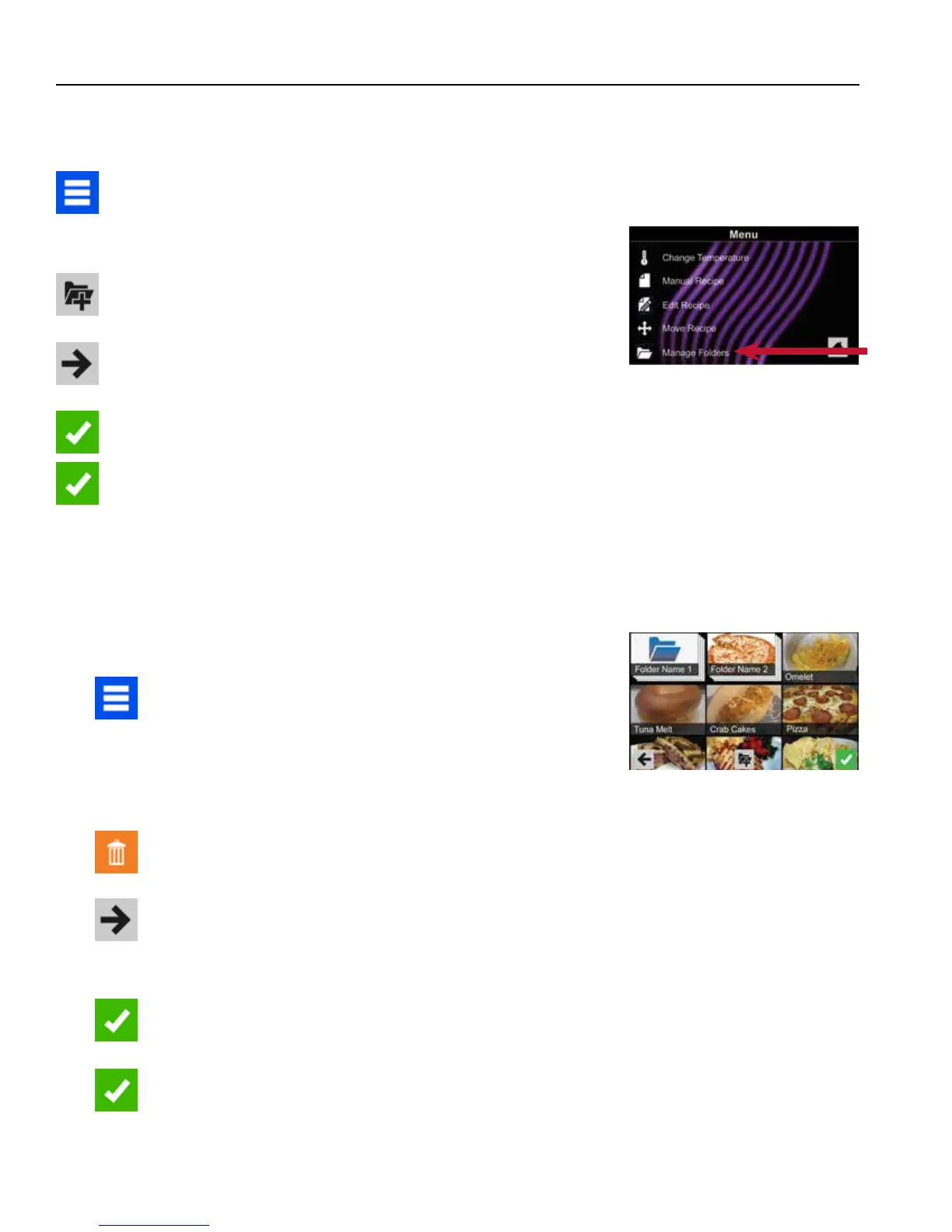
2. Press the “Manage Folders” option in the Menu Screen.
3. Press the desired folder to be edited.
4. To delete the Folder: Press the Orange Garbage Can Icon.
Press the Check Mark Icon to conrm deletion. Or, press the “X” to
dismiss.
5. If desired, select a dierent photo, icon, or color for the folder.
Press the Right Arrow Icon to move to the next screen.
6. If desired, change the name of the recipe.
7. Press the Green Check Mark Icon to Save changes.
8. Press the Green Check Mark Icon once more to Save the revised
folder.
Manual Organization: Folders
Manually Create a Recipe Folder:
Note: You may also create folders using the ACP Programming Application.
1. Press the Blue Menu Icon at the bottom of the screen.
2. Press the “Manage Folders” option in the Menu Screen.
3. To create a new folder, press the Grey Folder Icon at the bottom
of screen.
4. Choose a background color and icon, or an image, to customize
the folder. Conrm that your new folder appears on the Main
Screen. Press the Right Arrow Icon.
5. Name folder and press the Green Check Mark Icon to Save.
6. Conrm that your new folder appears on the Main Screen.
Press the Green Check Mark Icon again to Save the new folder.
2



 To Next Page