©2018 ACP, Inc.
Cedar Rapids, IA 52404 Page 27 of 80
Part No. 16400033
Original Instructions
Connect Oven to Network:
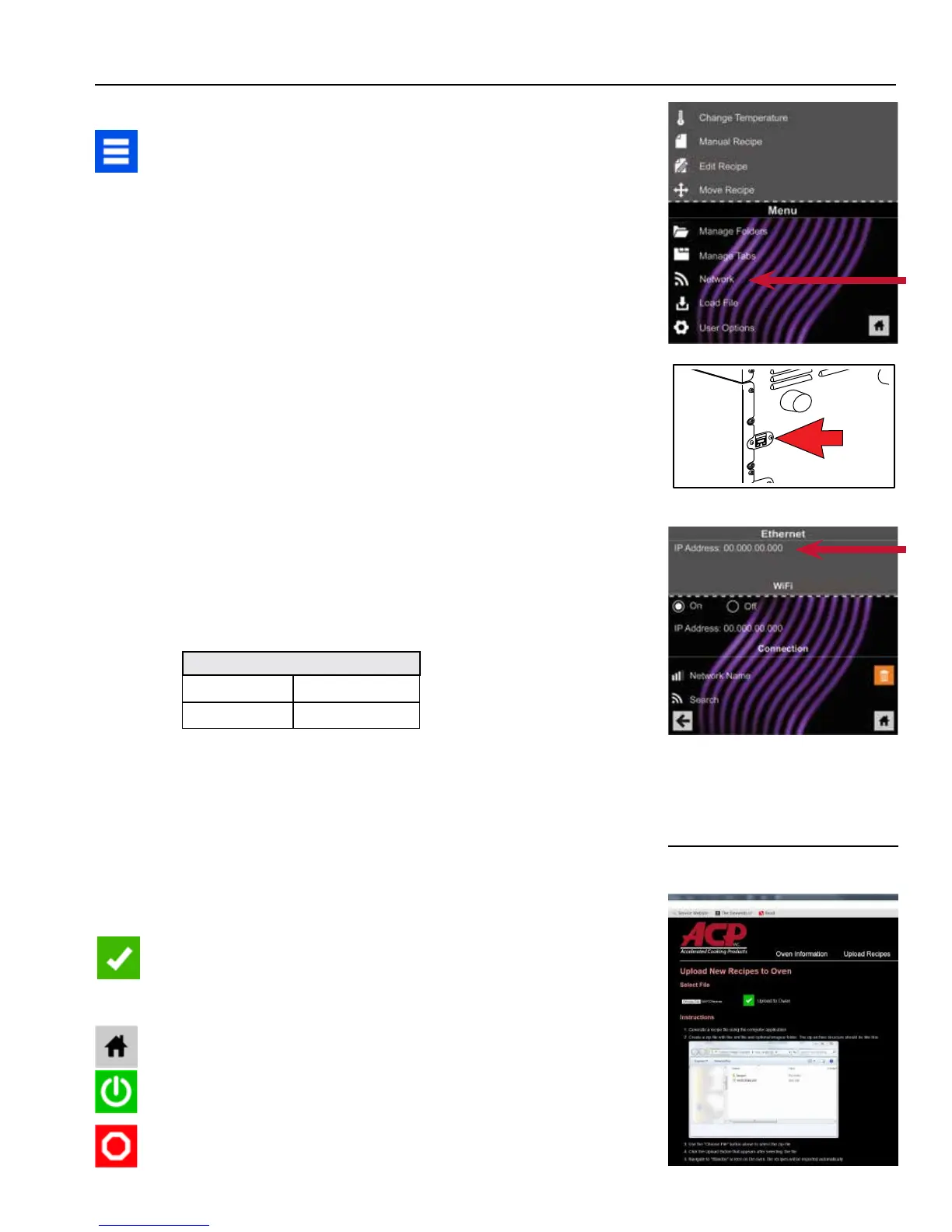
1. Press the Blue Menu Icon at the bottom of the screen.
2. Press the “Network” option.
3. Connect to network using your choice of Ethernet or Wi-Fi:
To connect via Wi-Fi
• Enable Wi-Fi capability by pressing the “ON” option.
• Select the desired Wi-Fi network. Enter the network’s
password. If the network does not immediately appear,
press “Search” to locate the Wi-Fi network.
To connect via Ethernet:
• Make sure the Ethernet cord is plugged into the back of
the oven and wall jack. If necessary, use pliers to gently
remove plastic plug from Ethernet port on right rear of
oven.
• Insert Ethernet cable.
Connect Computer to Oven via Wi-Fi/Ethernet:
1. Connect computer to same network and enter password.
2. An IP address will appear on oven control once it has connected to
the network.
3. Open an internet browser window on computer and type in the IP
address exactly as it appears on oven screen.
4. Enter your log-in information:
5. The oven and computer are now connected.
Transfer Recipe Information via Wi-Fi/Ethernet:
1. After connecting the computer to the oven and logging in, click on
the “Upload Recipes” tab in browser window.
Caution: Uploading a new le will overwrite existing items on oven.To ensure
items are not lost, rst backup les by exporting to USB drive.
2. Upload Menu le by following the instructions on web page.
3. Press the Green Check Mark Icon.
4. Once the le has been fully uploaded, a message will appear that
says “Upload Successful!” The recipes will be imported when the
oven enters Standby Mode.
5. To cycle the oven through Standby Mode, press the Home Icon
then the Green Power Icon. Oven will begin cooling down.
6. Press the Red Stop Icon to return to Home Screen. Menu items
and settings will be uploaded and ready to use.
Log-in Information
Username ACP_MXP
Password Express
Oven Programming: Wi-Fi and Ethernet
2
Need to update recipe information
for multiple locations?
Contact us at
commercialservice@acpsolutions.com
for more details about SFTP and
Enterprise Wi-Fi support.



 To Next Page