Copyright © 2016 Access Control Technology Ltd. Part No. 18-00099 Issue 1.0
19
ACTpro 1520e and ACTpro 1500e Operating & Installation Instructions
OP3
OP2
0V
AUX I
DC
PB
A
B
0V
A
B
0V
2-16 DOORS 17-32
SENSE
CLOCK
NC
C
NO
Fire Alarm Panel
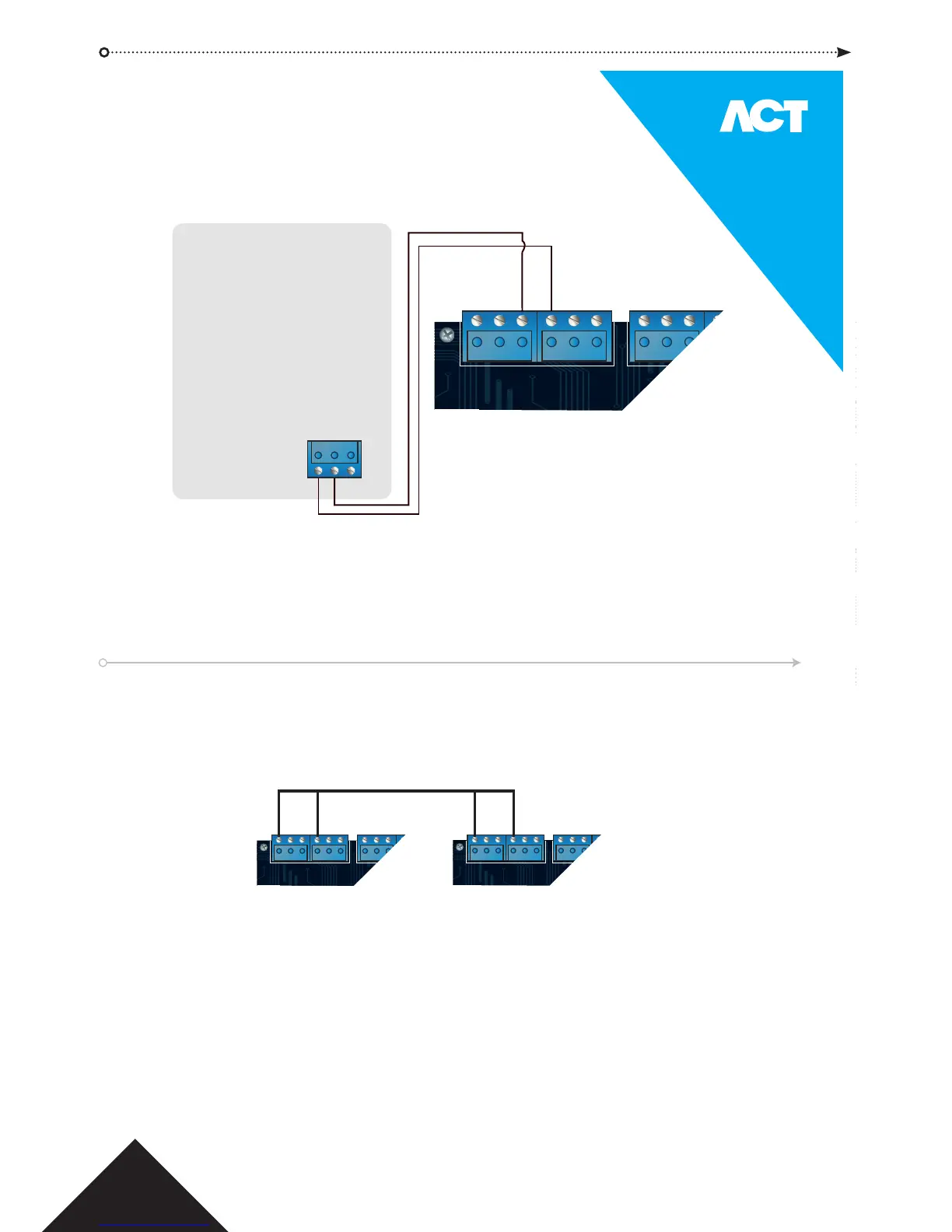
While the 0V signal is maintained at the AUX input on Door 1, the doors in the Fire Doors group maintain
normal operation. The “Fire Override Doors” is selected in “ACTmanage | Settings | Doors”
When the 0V signal is removed, the doors are unlocked, and remain unlocked until the 0V is restored.
To set the Fire Doors group, go to ACT Install.
A
B
OV
0V
+12V
MAINS
PRESENT
B/GL
TAMP
DEFAULT
1 2
DHCP
CTRL NW
1520e
ON
OFF
DATA
+12V
OV
OP3
OP2
0V
AUX I
DC
PB
A
B
0V
A
B
0V
2-16 DOORS 17-32
SENSE
CLOCK
Door 4
OP3
OP2
0V
AUX I
DC
PB
A
B
0V
A
B
0V
2-16 DOORS 17-32
SENSE
CLOCK
Door 3 Door 4
The diagram above shows how to interlock two doors. When Door 3 is open, Door 4 is locked and vice versa.
Enable Interlock on each door using ACT Install.
To Interlock additional doors, simply continue linking OP3 and AUX I for each new door, as per illustration.
When Interlock is enabled on a door, the door is locked when the AUX input is active.
When the door is open, OP3 is active.
To enable “Interlock” “ACT Install | Advanced Setup | Doors | <door#> | Operations”
To release doors on re alarm activation.
Allowing only one door to open at a time.
12.0 Fire Override Confi guration
13.0 Interlock/Airlock Confi guration


 To Next Page