One Push
With One Push function, white balance is adjusted and fixed according to the
scene the camera sees at the moment. This function is best for situations with
minimal scene changes and continuous lighting. The function is suitable for light
sources with any kind of color temperature. Follow the steps below to set the
white balance.
Point the camera to the monitoring area.
Select <One Push> in the White Balance setting menu
Click the button to adjust the color tone of the live images.
NOTE:
In this mode, the value of white balance will not change as the
scene or the light source varies. Therefore, users might have to re-adjust
the white balance by clicking the
button again when needed.
Smart Touch Mode
With Smart Touch function, users can select an area in the camera scene as the
reference point for white balance. Please ensure that the background color of
the selected area is white. Smart Touch function is suitable for environments
with unchanged brightness level.
Manual Mode
In this mode, users can manually adjust the White Balance value. Input a
number between 0 to 249 for “Rgain / Bgain” to adjust the red / blue illuminant
on the Live Video Pane. The following describes several situations that might
occur during the White Balance manual adjustment.
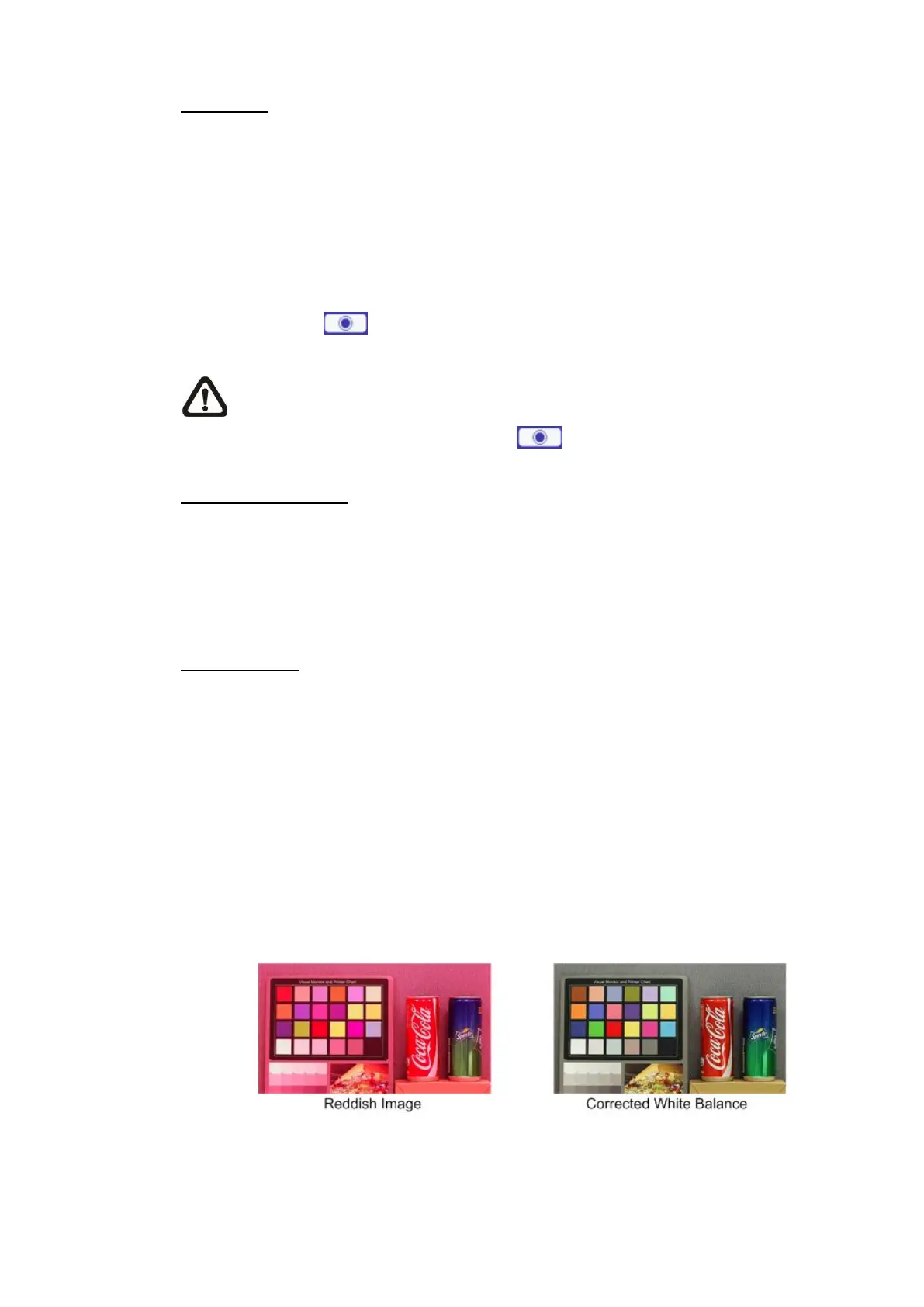
The video image turns reddish (as the left picture below).
The higher the Rgain value, the redder the image will be. To solve the
problem, reduce the Rgain value, and the video image will turn less
reddish.


 To Next Page