en
|
14
|
User guide
| CP9680
AutoScanner® Plus
573102 | REV. A | 07.2015
Bosch Automotive Service Solutions Inc.
Pre-Trigger Setup
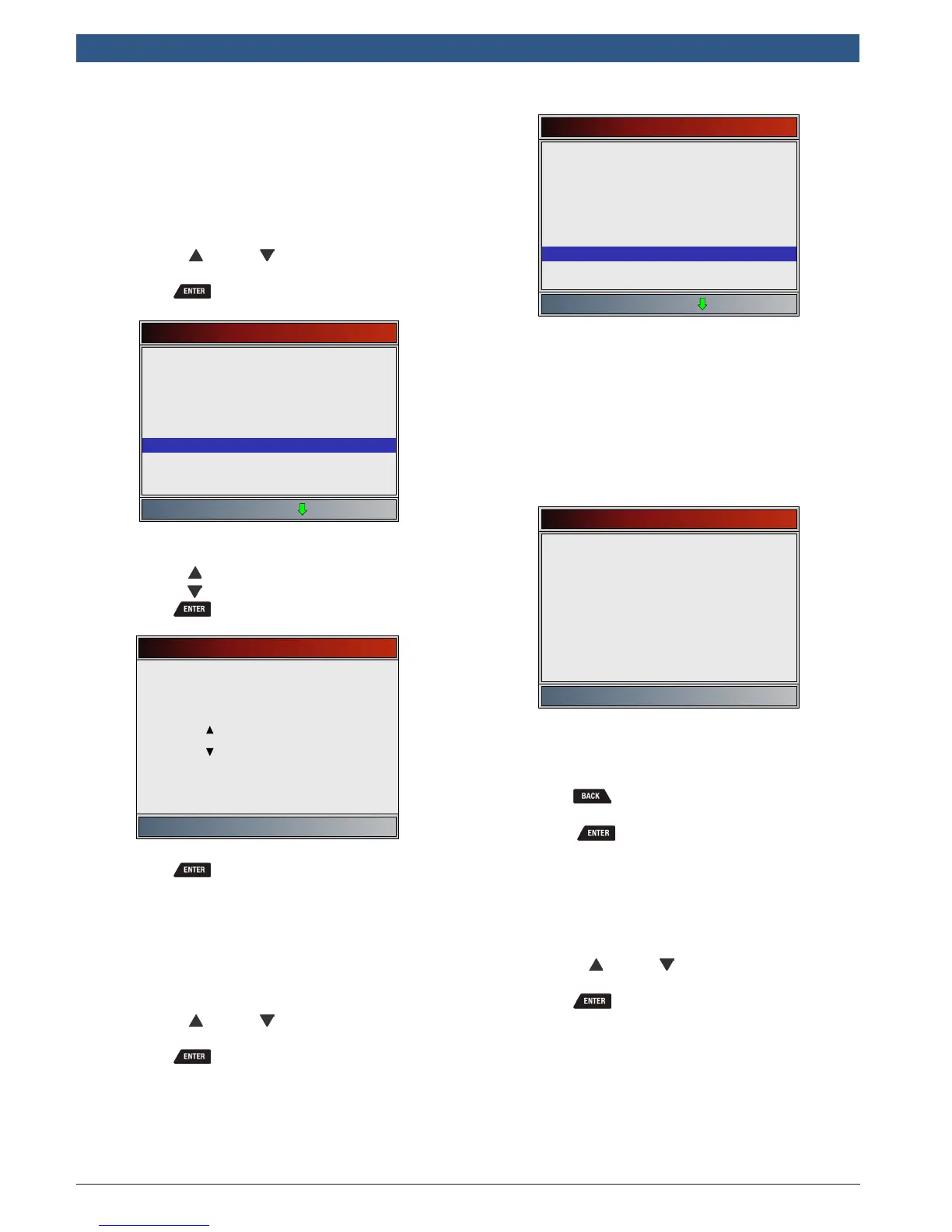
This function is used to configure how many Pre-Trigger
frames are stored prior to beginning a recording. Pre-Trig-
ger frames are the negative frames when you are playing
back a recording.
From System Setup screen:
1. Select Pre-Trigger Setup.
• Use the UP and DOWN keys until Pre-
Trigger Setup is highlighted.
• Press .
System Setup
English/Metric
Auto-Power Off
Quick Test
Print Header
Language Setup
Long PID Names
Pre-Trigger Setup
Tool Information
Display Test
2. Increase or Decrease Pre-Trigger Frames.
• Use the UP key to increase frames.
• Use the DOWN key to decrease frames.
• Press .
Pre-Trigger Frames
Press ENTER to continue
Increase time
5 frame(s)
Decrease time
3. Save Pre-Trigger frames setting.
• Press .
Tool Information
Tool Information allows the user to view specific tool infor-
mation that may be needed when contacting customer
service.
From System Setup screen:
1. Select Tool Information.
• Use the UP and DOWN keys until Tool
Information is highlighted.
• Press .
System Setup
English/Metric
Auto-Power Off
Quick Test
Print Header
Language Setup
Long PID Names
Pre-Trigger Setup
Tool Information
Display Test
2. View information.
• Serial Number (Serial No:)
• Software ID (SW ID:)
• Hardware Version (HW Ver:)
• Boot Version (Boot Ver:)
• Product ID (Prod ID:)
• Board ID (Board ID:)
• Burn Date (Burn Date:)
• Burn Location (Burn Loc:)
Tool Information
Serial No
SW ID
HW Ver
Boot Ver
1284168
5126
01
02
Prod ID
Board ID
Burn Date
21
33
12/04/14
Burn Loc 04
3. Record Tool Information.
• Space is provided inside the front cover of this
manual to write down the scan tool information.
4. Return to System Setup menu.
• Press
or
• press .
Display Test
The Display Test is used to check the display. The test fills
every pixel of the display with a solid color.
From System Setup screen:
1. Select Display Test.
• Use the UP and DOWN keys until Display
Test is highlighted.
• Press .




 To Next Page