21
ADOBE PHOTOSHOP CS2
User Guide
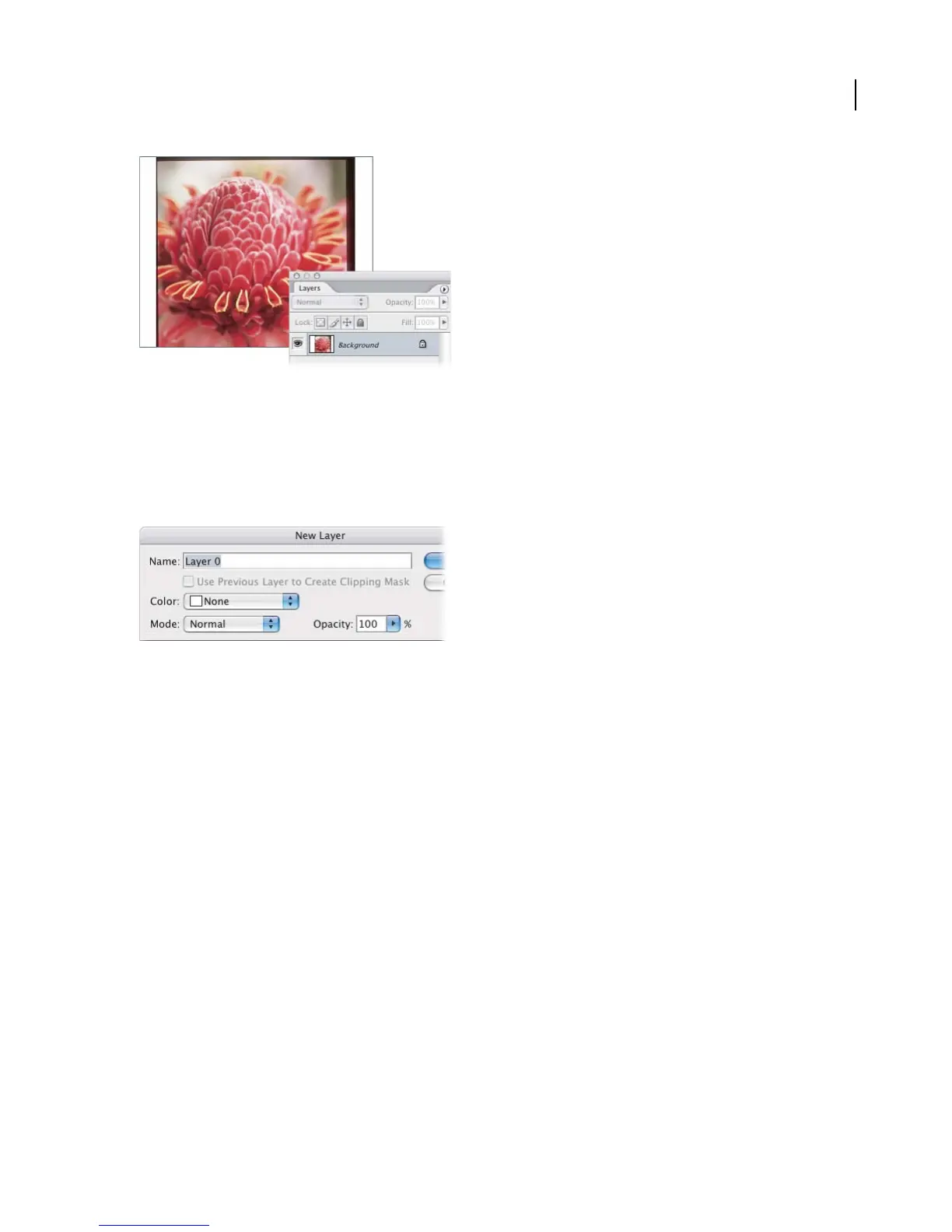
2. Convert the background layer.
You need to convert the background to a regular layer if you want to use transparency in the layer.
In the Layers palette, double-click the background layer. Click OK in the New Layer dialog box.
You can now show or hide the layer. Click the eye icon next to a layer. Notice that the icon disappears and the layer
is hidden. Click the empty icon box again. The eye icon and the layer contents reappear.
3. Apply a layer mask.
Youcan usealayermasktoselectand displayjustthe part of theimage youwanttouse,without altering theimage.
Here you’ll mask the entire image except for a circular area containing the flower.
Click and hold the Rectangular Marquee tool, and then select the Elliptical Marquee tool from the pop-up menu.
Hold down the Shift key to constrain the selection to a circle, and then drag an area of the image. In the Layers palette,
click Add Layer Mask.
Now only the area you selected is visible. You can change the visible area by moving the mask around the image. First
click the link icon to unlink the mask from the layer. Select the Move tool, click inside the mask, and drag to
reposition it. When the mask is correctly positioned, click the link icon to relink the mask and the layer. Where you
move the layer, the mask now moves with it.


 To Next Page
 Loading...