540
C
ADOBE PHOTOSHOP CS2
User Guide
To enter text using a specific language dictionary, choose it from the pop-up menu in the lower left corner of the
Character palette, select a type tool, and enter the text.
Association of Cacto-
A
philes
Association of Cac-
B
tophiles
Association des Cactophi-
les
Examples of hyphenation for different languages
A. “Cactophiles” in English USA B. “Cactophiles” in English UK C. “Cactophiles” in French
To assign a language to selected text
1 Select the text.
2 In theCharacter palette, choose theappropriatedictionaryfromthe pop-up menu in thebottomleftcornerofthe
palette.
Note: If you select text with multiple languages or if the type layer has multiple languages, the pop-up menu in the
Character palette is dimmed and displays the word “Multiple.”
Warping type
Warping type
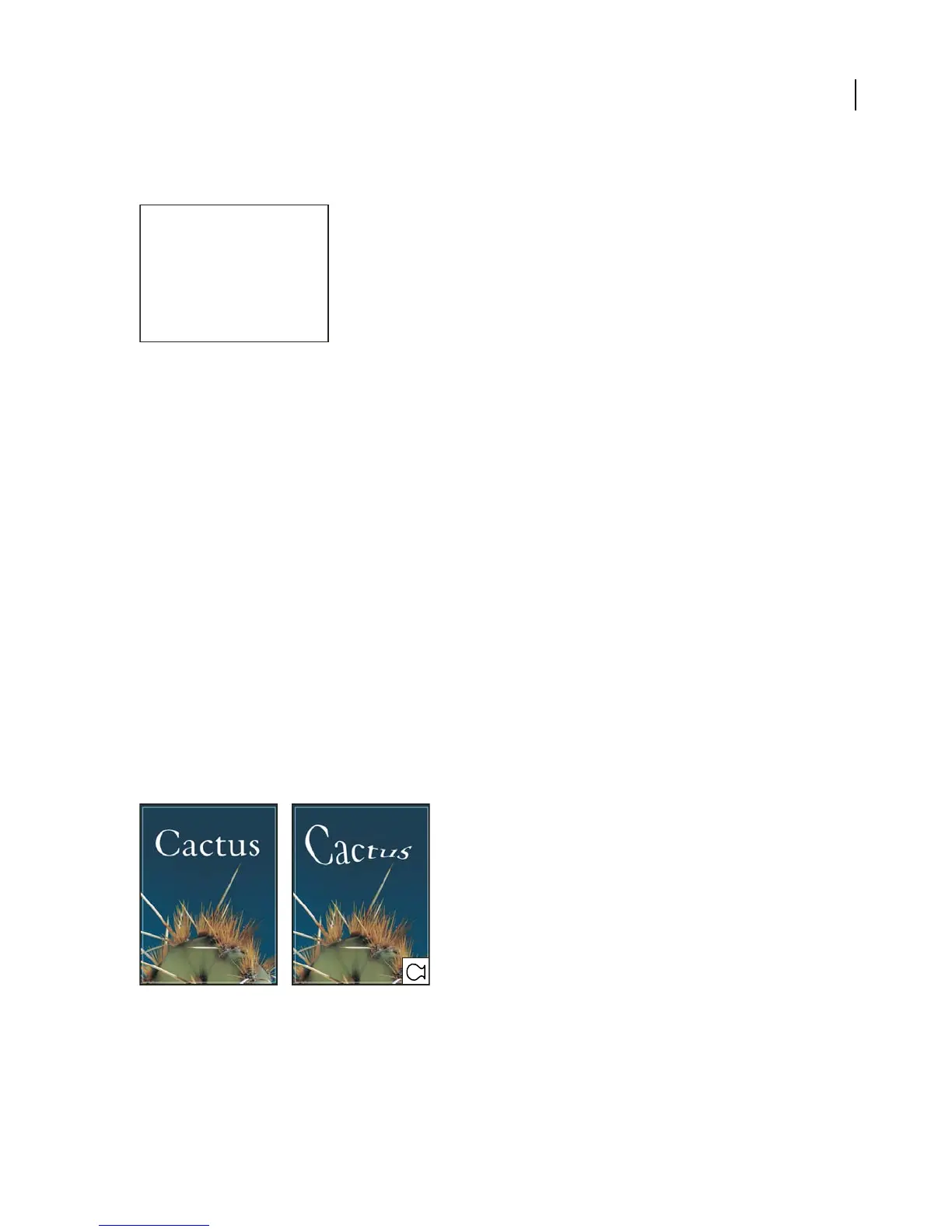
Warping lets you distort type to conform to a variety of shapes; for example, you can warp type in the shape of an arc
or awave. Thewarpstyle youselectisanattribute of thetypelayer—you canchange alayer’s warp styleatany time
to change the overall shape of the warp. Warping options give you precise control over the orientation and
perspective of the warp effect.
Note: You cannot warp type layers that include Faux Bold formatting or that use fonts without outline data (such as
bitmap fonts).
Example of type warped with Fish style



 To Next Page