66
ADOBE PHOTOSHOP CS2
User Guide
6 When you finish changing the menus, do one of the following:
• To save allchangestothe currentset of menus, clickthe Save Setbutton . Changestoacustom setare saved. If
you’re saving changes to the Photoshop Defaults set, the Save dialog box opens. Enter a name for the new set and
click Save.
• To create a new set based on the current set of menus, click the Save Set As button .
Note: If you haven’t saved the current set of changes, you can click Cancel to discard all changes and close the dialog box.
7 In the Save dialog box, enter a name for the set and click Save.
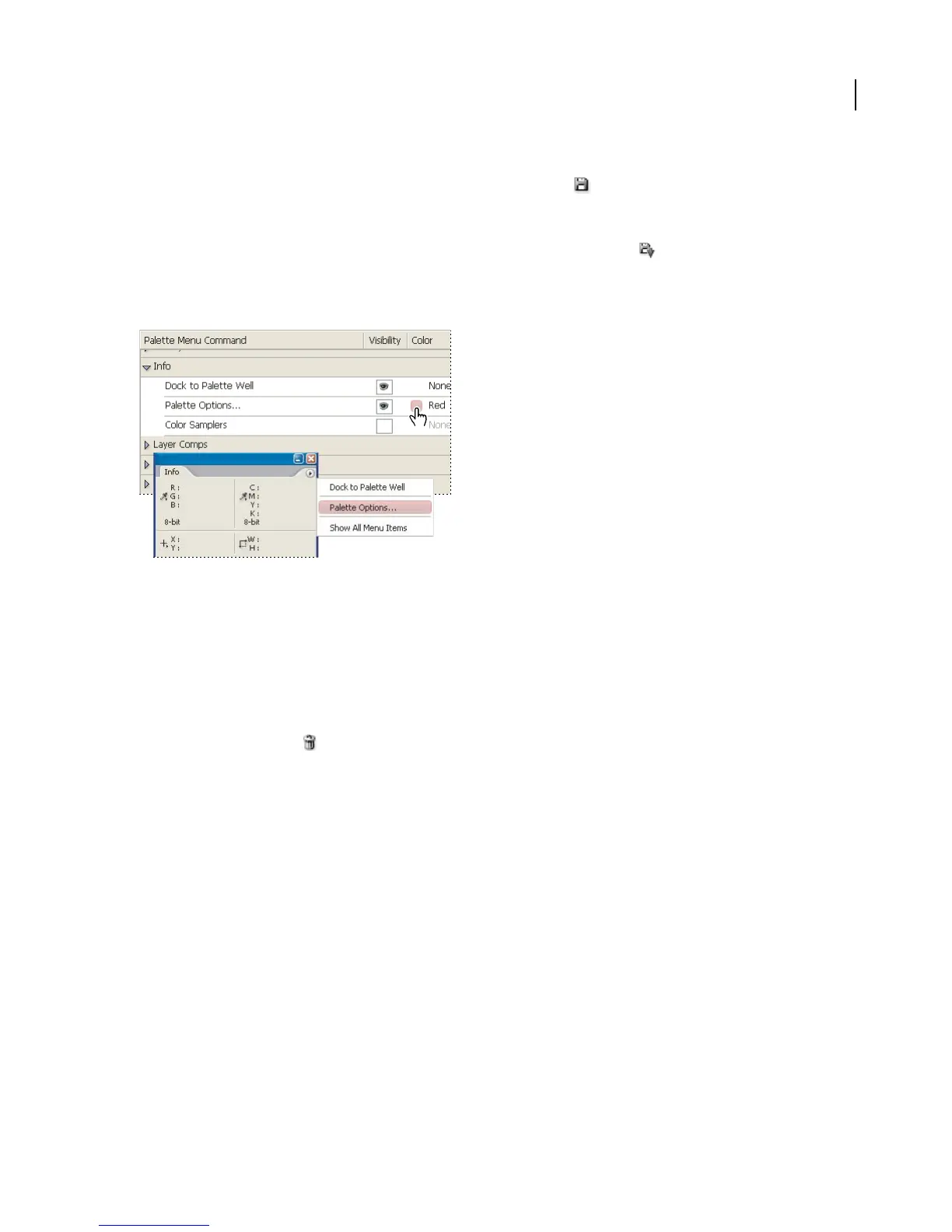
Choosing a color for a menu item using the Keyboard Shortcuts & Menus dialog box
To delete a set of menus
1 Do one of the following:
• Choose Edit > Menus.
• Choose Window > Workspace > Keyboard Shortcuts & Menus and click the Menu tab.
2 In the Keyboard Shortcuts & Menus dialog box, choose a set of menus from the Set menu.
3 Click the Delete Set icon .
To temporarily show hidden menu items
It’s possible to temporarily show items that you’ve hidden in a menu. After the menu closes, the items return to their
hidden state.
❖ Do one of the following:
• From a menu with hidden items, choose Show All Menu Items.
• Shift-click a menu with hidden items.
To turn menu colors on or off
1 Choose Edit > Preferences > General (Windows) or Photoshop > Preferences > General (Mac OS).
2 Select or deselect Show Menu Colors.



 To Next Page