31
Chapter 3: Work area
Work area basics
About the Welcome window
When you launch Photoshop or ImageReady, the Welcome window automatically appears. Select the options in this
window to learn about Photoshop or ImageReady by reading tutorials or by viewing a movie about new features. In
Photoshop, you can also learn how to set up a color management system.
Choose Help > Welcome Screen to display the window if it’s not already open.
About the work area
The Photoshop and ImageReady work area is arranged to help you focus on creating and editing images.
A
B
F
E
D
C
G H
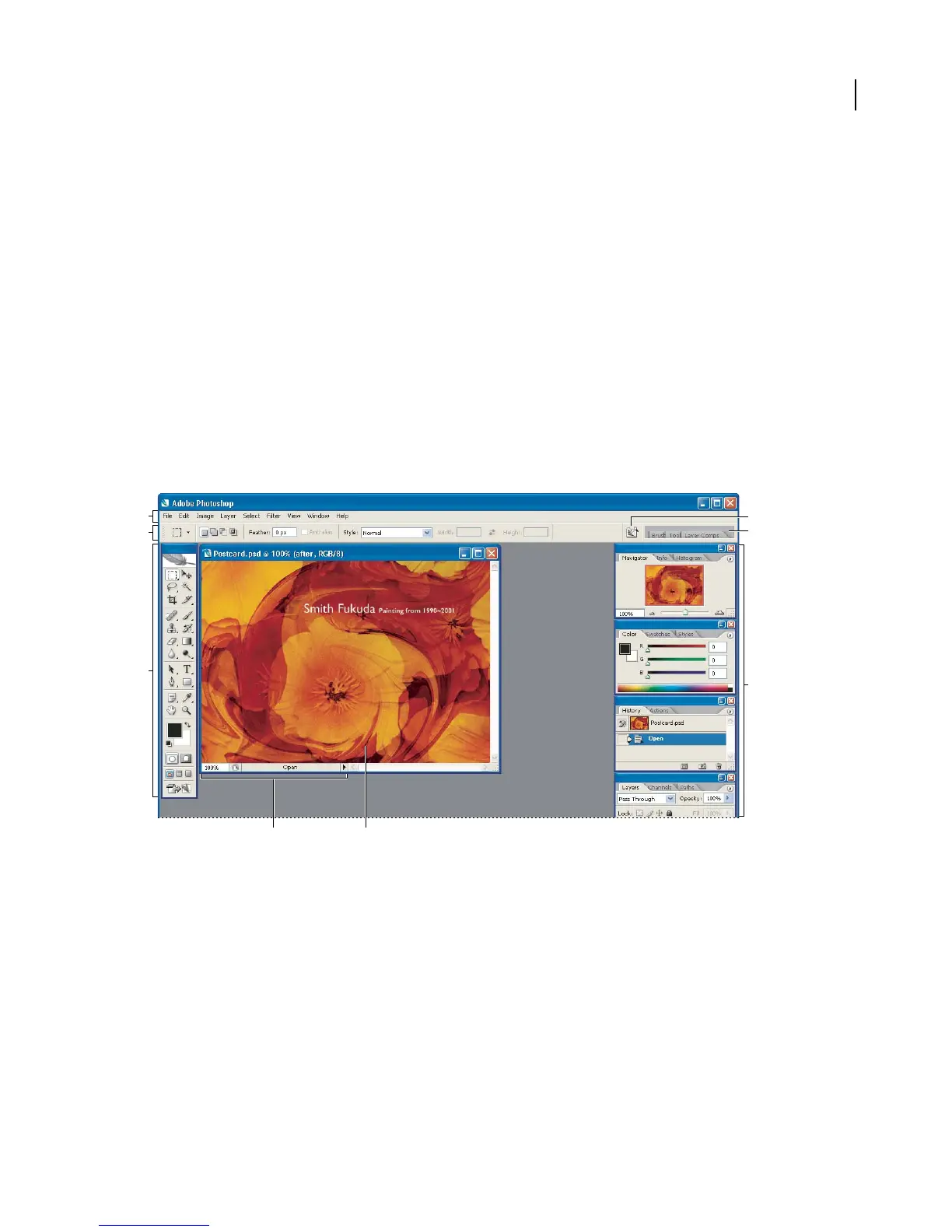
Photoshop work area
A. Menu bar B. Options bar C. To ol bo x D. Go to Bridge E. Palette well F. Palettes G. Status bar H. Active image area
The work area has these components:
Menu bar Contains menus organized by tasks. For example, the Layers menu contains commands for working with
layers. In Photoshop, you can customize the menu bar by showing, hiding, or adding color to menu items.
Options bar Provides options for using a tool.
Toolbox Contains tools for creating and editing images.
Active image area Displays the active open file. The window containing an open file is also called the document
window.



 To Next Page