364
ADOBE PHOTOSHOP CS2
User Guide
To undo the last handle adjustment, choose Edit > Undo.
4 Do one of the following:
• Press Enter (Windows) or Return (Mac OS), click the Commit button in the options bar, or double-click inside
the transformation marquee.
• To cancel the transformation, press Esc or click the Cancel button in the options bar.
Important: When you transform a bitmap image (versus a shape or path), the image becomes slightly less sharp each
time you commit a transformation; therefore, performing multiple commands before applying the cumulative transfor-
mation is preferable to applying each transformation separately.
The Warp command
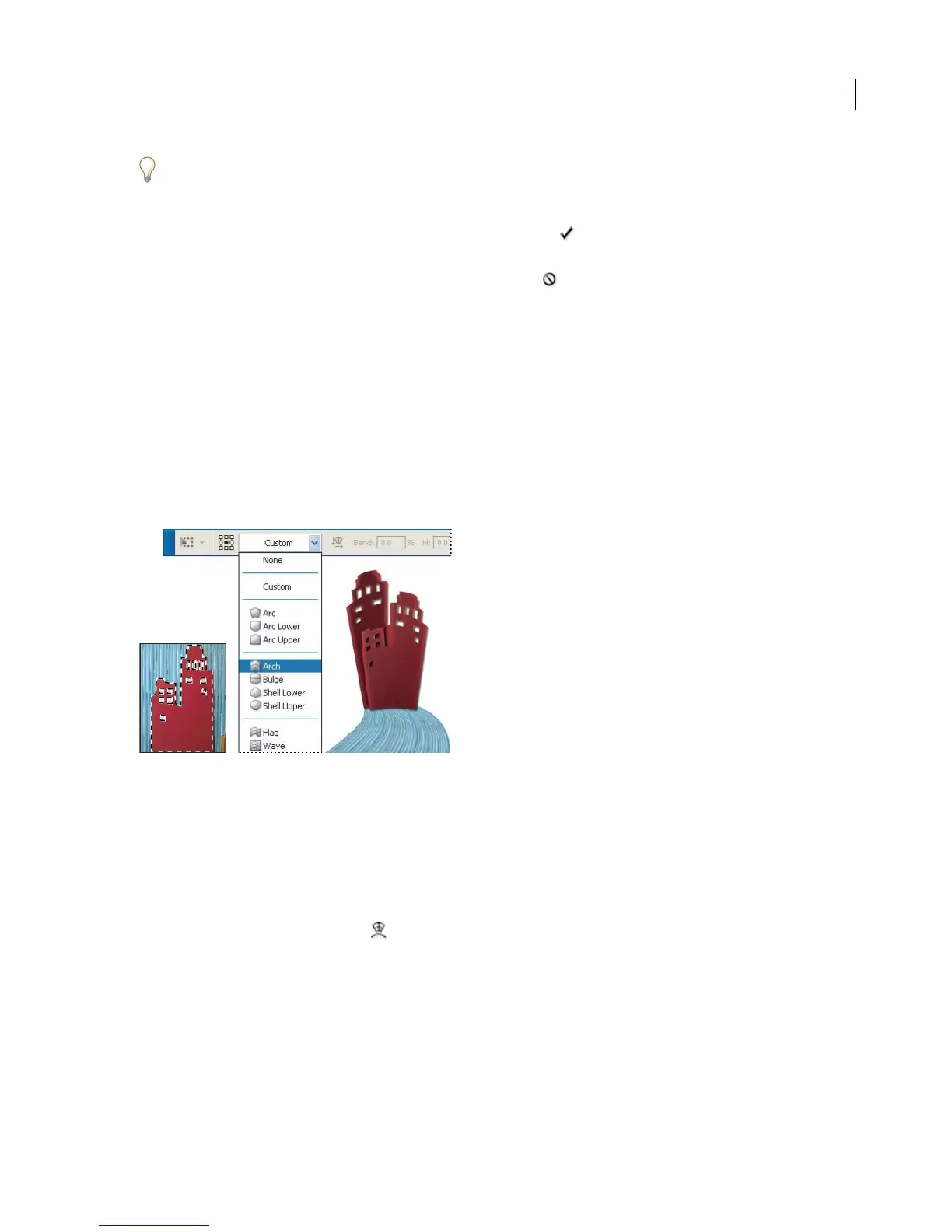
The Warp command lets you drag control points to manipulate the shape of images, shapes, or paths, and so on. You
can also warp using a shape in the Warp Style pop-up menu in the options bar. Shapes in the Warp Style pop-up
menu are also malleable; drag their control points.
When using the control points to distort an item, choosing View > Extras shows or hides the warp mesh and control
points.
Choosing a warp from the Warp Style pop-up menu in the options bar
To warp an item
1 Select what you want to warp.
2 Do one of the following:
• Choose Edit > Transform > Warp.
• If you chose a different transform command or the Free Transform command, click the Switch Between Free
Transform And Warp Modes button
in the options bar.



 To Next Page