ADOBE PHOTOSHOP CS2
User Guide
51
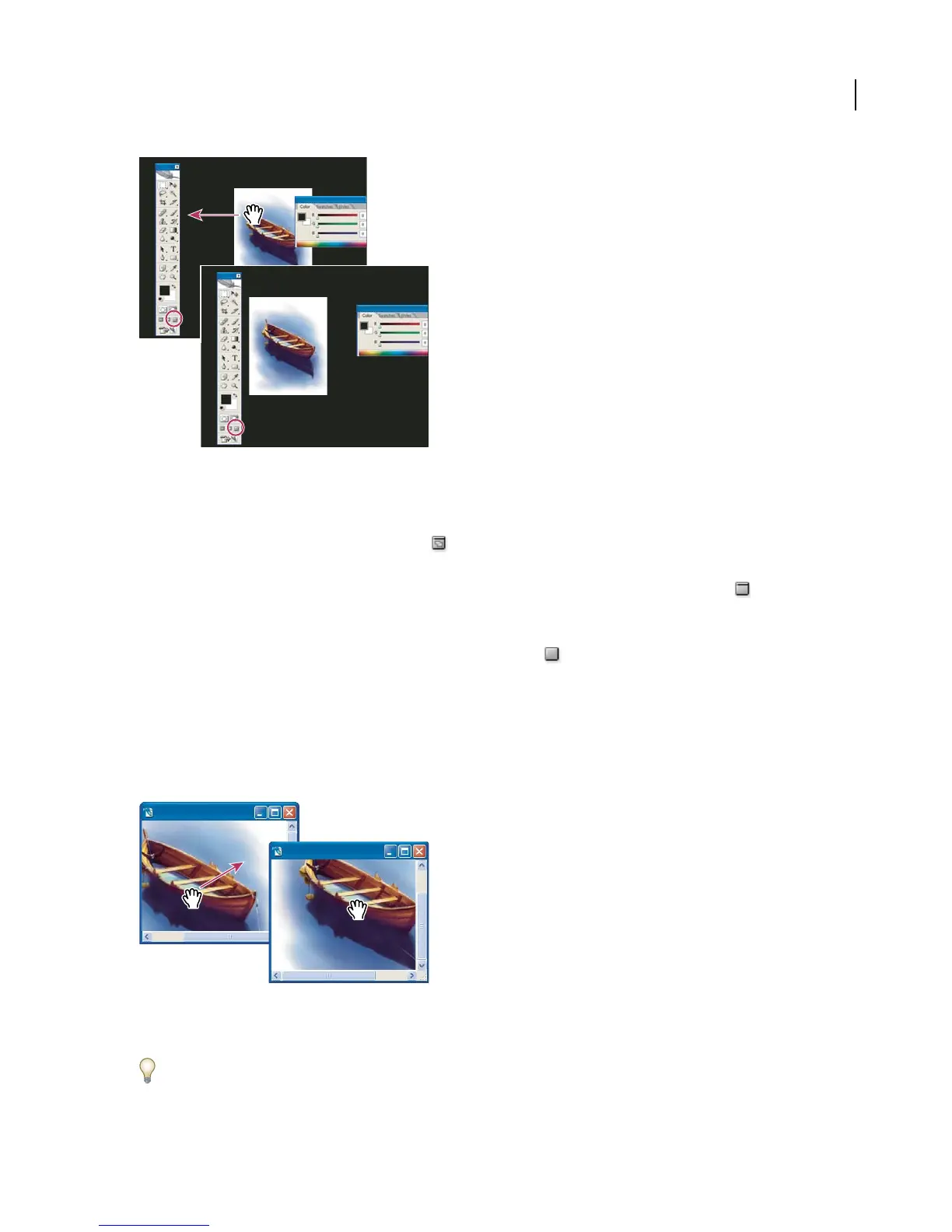
(Photoshop) Dragging an image in Full Screen mode
❖ Do one of the following:
• To display the default window, with the menu bar at the top and scroll bars on the side, choose View > Screen
Mode > Standard, or click the Standard button in the toolbox.
• To display a full-screen window with a menu bar and a 50% gray background, but no title bar or scroll bars, choose
View > Screen Mode > Full Screen With Menu Bar, or click the Full Screen With Menu Bar button in the
toolbox.
• To display a full-screen window with only a black background (no title bar, menu bar, or scroll bars), choose
View > Screen Mode > Full Screen, or click the Full Screen button in the toolbox.
To view another area of an image
❖ Do one of the following:
• Use the window scroll bars.
• Select the Hand tool and drag to pan over the image.
Dragging the Hand tool to view another area of an image
• Drag the colored box (proxy view area) in the Navigator palette.
To use the Hand tool while another tool is selected, hold down the spacebar as you drag in the image.



 To Next Page