464
ADOBE PHOTOSHOP CS2
User Guide
To delete a segment
1 Select the Direct Selection tool , and select the segment you want to delete.
2 Press Backspace (Windows) or Delete (Mac OS) to delete the selected segment. Pressing Backspace or Delete
again erases the rest of the path component.
Adjusting path components
You can reposition a path component (including a shape in a shape layer) anywhere within an image. You can copy
components within an image or between two Photoshop images. Using the Path Selection tool, you can merge
overlapping components into a single component. All vector objects, whether they are described by a saved path, a
work path, or a vector mask, can be moved, reshaped, copied, or deleted.
You can also use the Copy and Paste commands to duplicate vector objects between a Photoshop image and an image
in another application, such as Adobe Illustrator.
See also
“Path segments, components, and points” on page 460
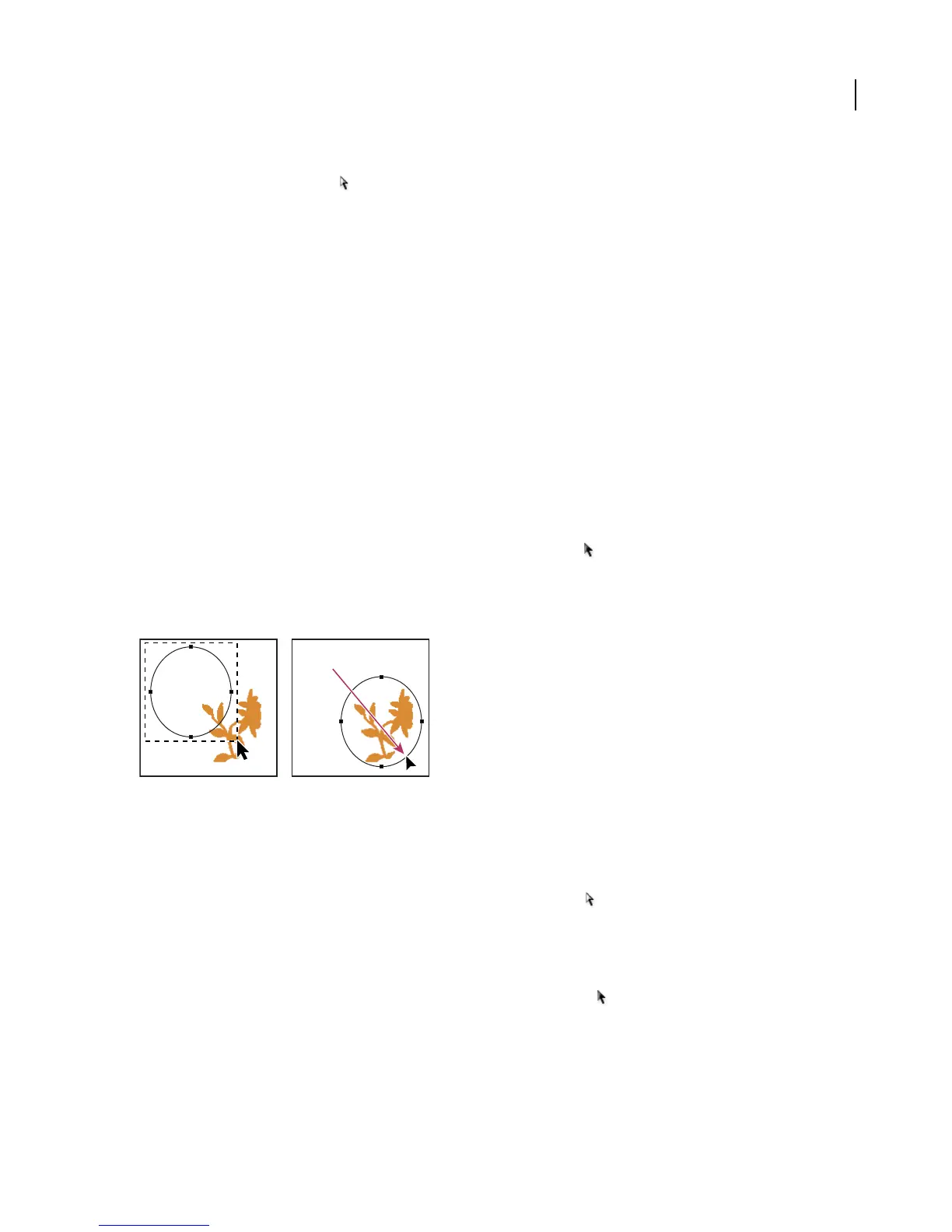
To move a path or path component
1 Select the path name in the Paths palette, and use the Path Selection tool to select the path in the image. To
select multiple path components, Shift-click each additional path component to add it to the selection.
2 Drag the path to its new location. If you move any part of a path beyond the canvas boundaries, the hidden part
of the path is still available.
Dragging a path to a new location
Note: If you drag a path so that the move pointer is over another open image, the path is copied to that image.
To reshape a path component
1 Select thepathnameinthe Pathspalette,and usethe Direct Selectiontool toselectananchorpoint in thepath.
2 Drag the point or its handles to a new location.
To merge overlapping path components
1 Select the path name in the Paths palette, and select the Path Selection tool .
2 Click Combine in the options bar to create a single component from all overlapping components.



 To Next Page