437
ADOBE PHOTOSHOP CS2
User Guide
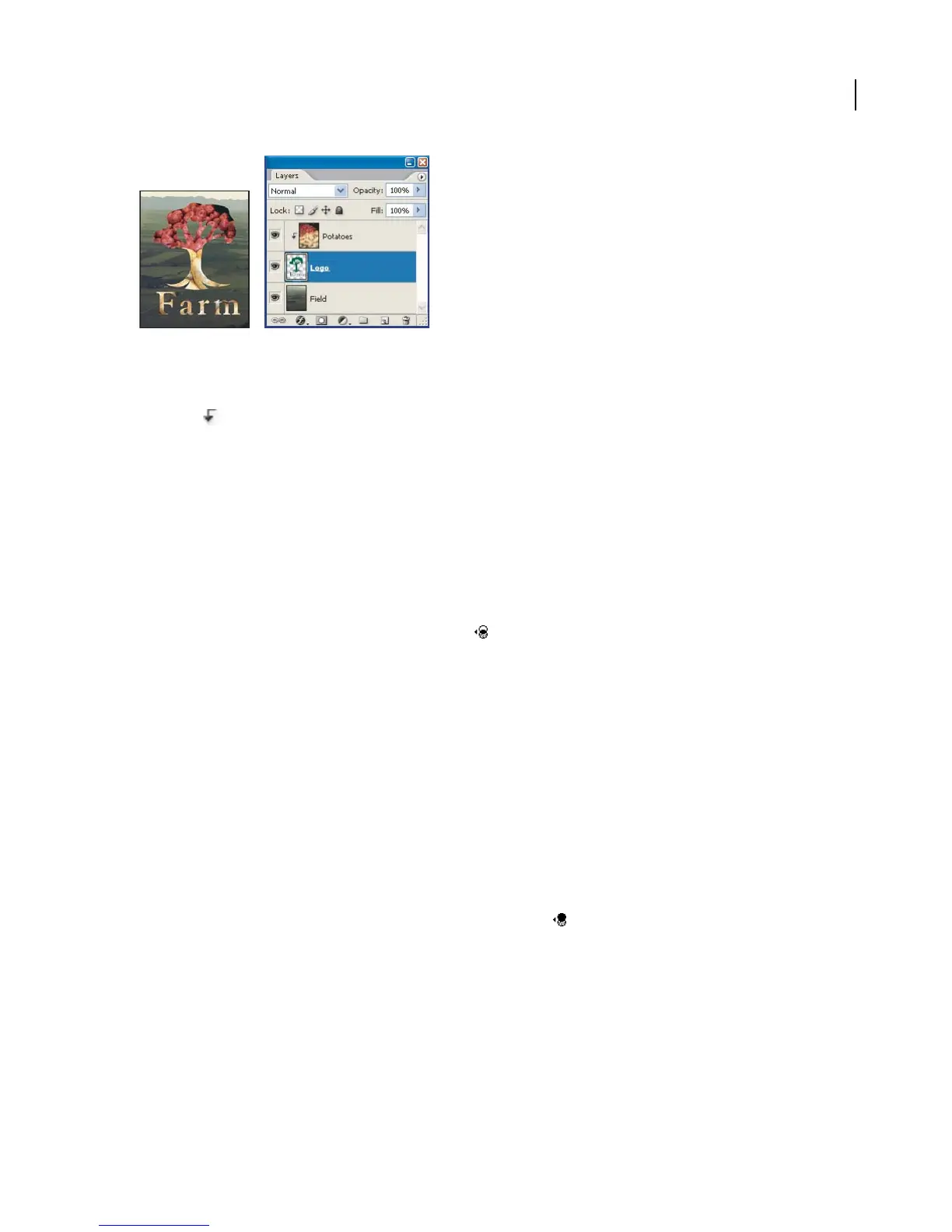
Clipping mask with Potatoes and Logo layers
Youcan usemultiplelayersinaclipping mask, buttheymustbesuccessivelayers. Thenameofthe base layerinthe
mask is underlined, and the thumbnails for the overlying layers are indented. The overlying layers display a clipping
mask icon
.
The Blend Clipped Layers As Group option in the Layer Style dialog box determines whether the blending mode of
the base affects the whole group or j
ust the base. (See “Grouping blend effects” on page 412.)
To create a clipping mask
1 Arrange the layers in the Layers palette so that the base layer with the mask is below the layers that you want to
mask.
2 Do one of the following:
• Hold down Alt (Windows) or Option (Mac OS), position the pointer over the line dividing two layers in the Layers
palette (the pointer changes to two overlapping circles
), and click.
• Select a layer in the Layers palette, and choose Layer > Create Clipping Mask.
The clipping mask is assigned the opacity and mode attributes of the bottommost layer in the group.
To duplicate a clipping mask to another layer
1 Select the clipping mask.
2 Alt-click (Windows) or Option-click (Mac OS) the mask and drag it to the destination layer. Make sure the desti-
nation layer is highlighted before you release the mouse button; otherwise, the layer won’t receive the mask properly.
To remove a layer from a clipping mask
❖ Do one of the following:
• Hold down Alt (Windows) or Option (Mac OS), position the pointer over the line separating two grouped layers
in the Layers palette (the pointer changes to two overlapping circles
), and click.
• In the Layers palette, select a layer in the clipping mask, and choose Layer > Release Clipping Mask. This
command removes the selected layer and any layers above it from the clipping mask.
To release all layers in a clipping mask
1 In the Layers palette, select the base layer in the clipping mask.
2 Choose Layer > Release Clipping Mask.



 To Next Page