697
ADOBE PHOTOSHOP CS2
User Guide
To customize a picture package layout
You can modify existing layouts or create new layouts using the Picture Package Edit Layout feature. Your custom
layoutsare savedastextfiles andstoredinthe Layoutsfolderinside thePresets folder.You canthenreuse your saved
layouts. The Picture Package Edit Layout feature uses a graphic interface that eliminates the need to write text files
to create or modify layouts.
1 Do one of the following:
• (Photoshop) Choose File > Automate > Picture Package.
• (Bridge) Choose Tools > Photoshop > Picture Package.
2 In the Picture Package dialog box, choose a layout from the Layout menu if you’re creating a layout or customizing
an existing one.
3 Click the Edit Layout button.
4 In the Picture Package Edit Layout dialog box, enter a name for the custom layout in the Name text box.
5 (Optional) In the Layout area of the Picture Package Edit Layout dialog box, choose a size from the Page Size menu
or enter values in the Width and Height text boxes. You can use the Units menu to specify inches, centimeters, pixels,
or millimeters.
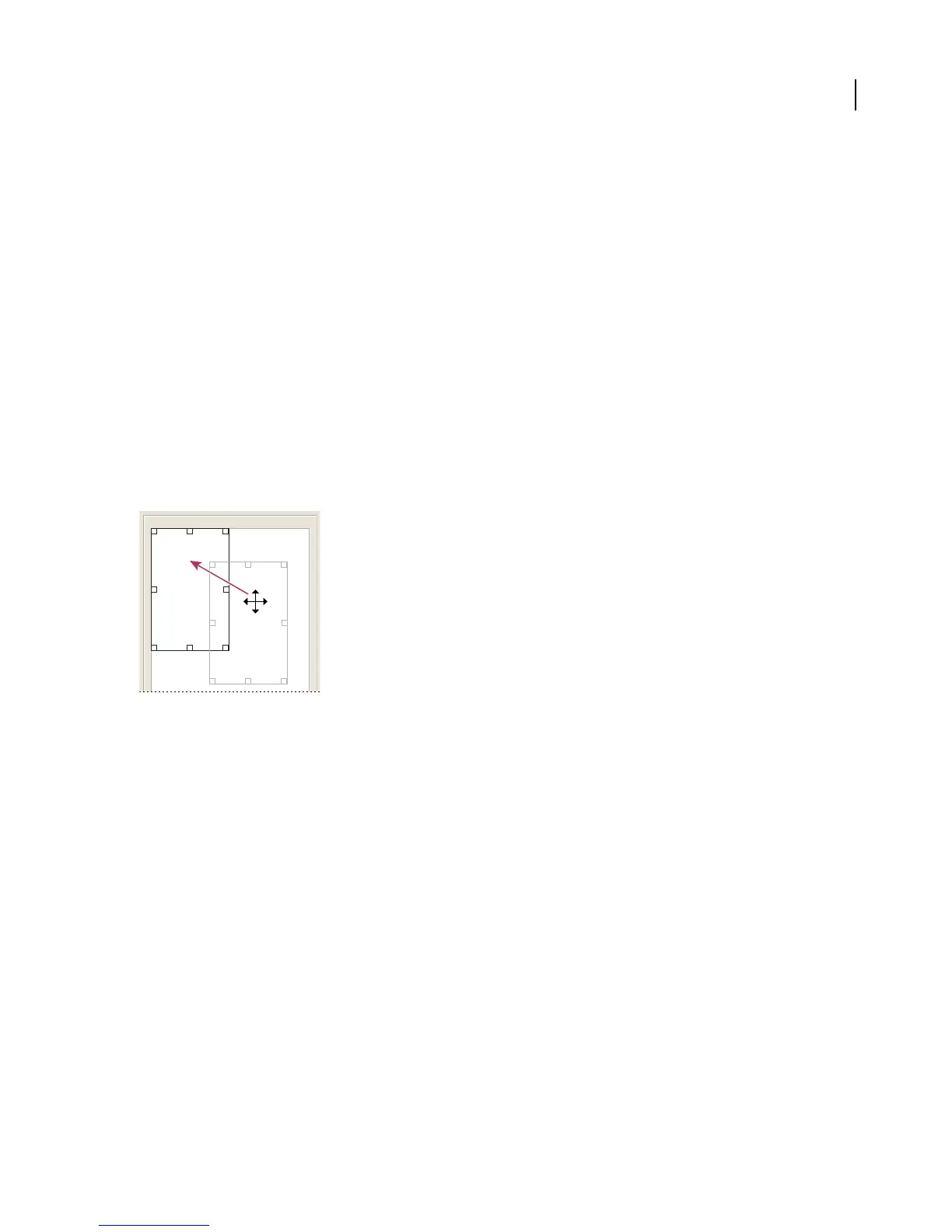
Dragging a placeholder to a new location in the Picture Package layout
6 In theGridareaofthe PicturePackage Edit Layout dialog box, select theSnapTooptiontodisplayagridtohelp
you position the elements in the custom layout. Enter a value in the Size text box to change the appearance of the grid.
7 To add or delete a placeholder, do one of the following:
• Click Add Zone to add a placeholder to the layout.
• Select a placeholder and click Delete Zone to delete it from the layout.
8 To modify a placeholder, select a placeholder and do one of the following:
• Enter values in the Width and Height text boxes to resize a placeholder.
• Click and drag a handle to resize a placeholder. If you resize a rectangle placeholder with an image in it, Picture
Package will snap the image within the vertical or horizontal placeholder, depending on the way the zone is being
resized.
• Enter values in the X and Y text boxes to move a placeholder.
• Enter values in the Position and Size text boxes to position and size a placeholder.
• Click and drag a placeholder to the location you want in the layout.
9 Click Save.



 To Next Page