46
ADOBE PHOTOSHOP CS2
User Guide
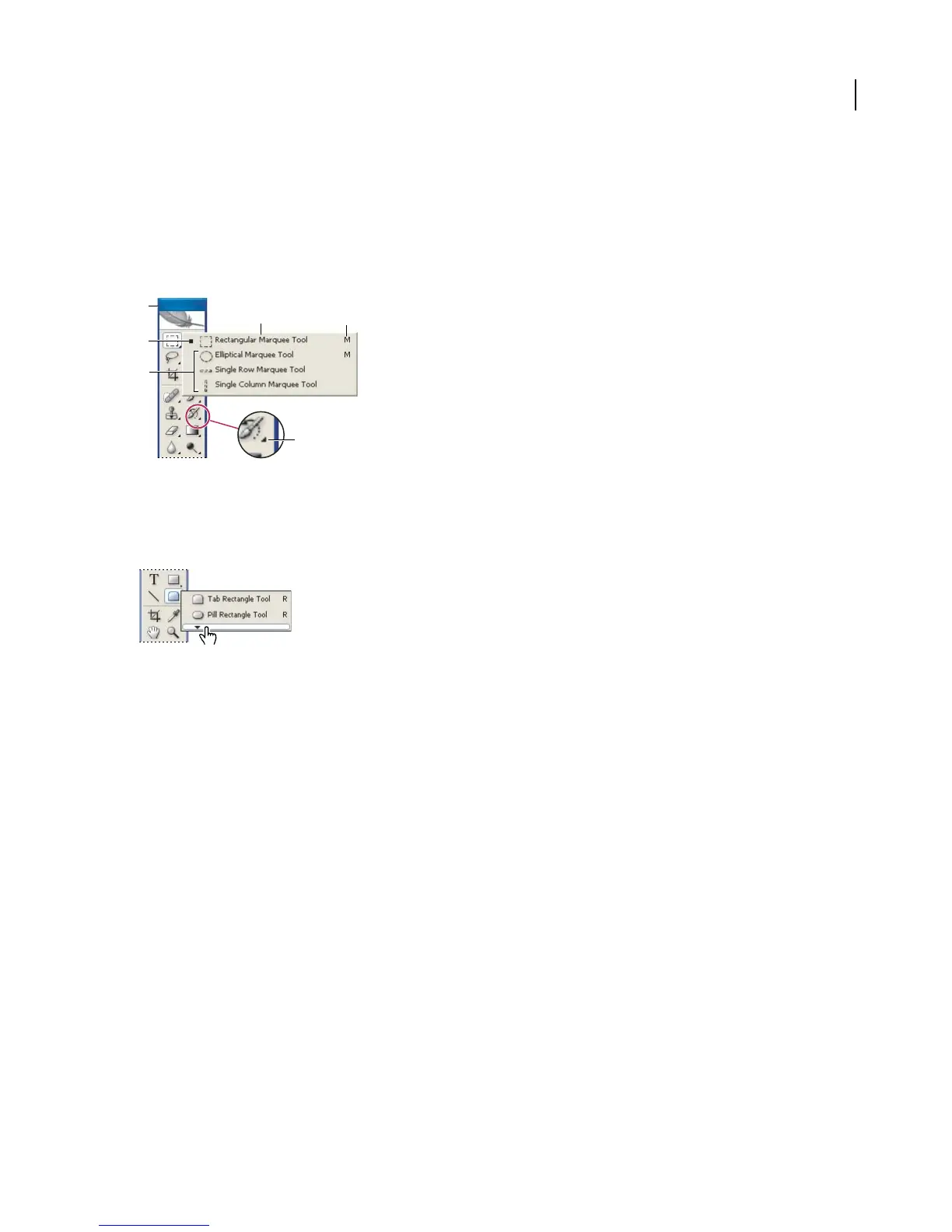
To use a tool
❖ Do one of the following:
• Clickatool in thetoolbox.Ifthere is asmall triangle at atool’slower rightcorner, hold down themouse button to
view the hidden tools. Then click the tool you want to select.
• Press the tool’s keyboard shortcut. The keyboard shortcut is displayed in its tool tip. For example, you can select
the Move tool by pressing the V key.
A
B
D
E
C
F
Using the selecting tools
A. Toolb ox B. Active tool C. Hidden tools D. Tool name E. Tool shor tcut F. Hidden tool triangle
Note: In ImageReady, click the downward-pointing triangle at the bottom of the hidden tools list to tear off a floating
tool palette. Click the button at the top right (Windows) or top left (Mac OS) of the floating tool palette to close it.
Clicking the triangle to “tear off ” a floating tool palette
To cycle through hidden tools
Youcan select apreferencethatallowsyou to cyclethrough aset of hidden toolsbyholdingdownthe Shiftkey.When
this preference is not selected, you can cycle through a set of hidden tools by pressing the shortcut key (without
holding down Shift).
1 Choose Edit > Preferences > General (Windows) or Photoshop > Preferences > General (Mac OS).
2 Select Use Shift Key For Tool Switch.
To display or hide tool tips
1 Do one of the following:
• (Windows) Choose Edit > Preferences > General.
• (Mac OS) Choose Photoshop > Preferences > General or choose ImageReady > Preferences > General.
2 Select or deselect Show Tool Tips.
Note: Tool tips may not be available in some dialog boxes.



 To Next Page