287
ADOBE PHOTOSHOP CS2
User Guide
A
B
C
D E F G H
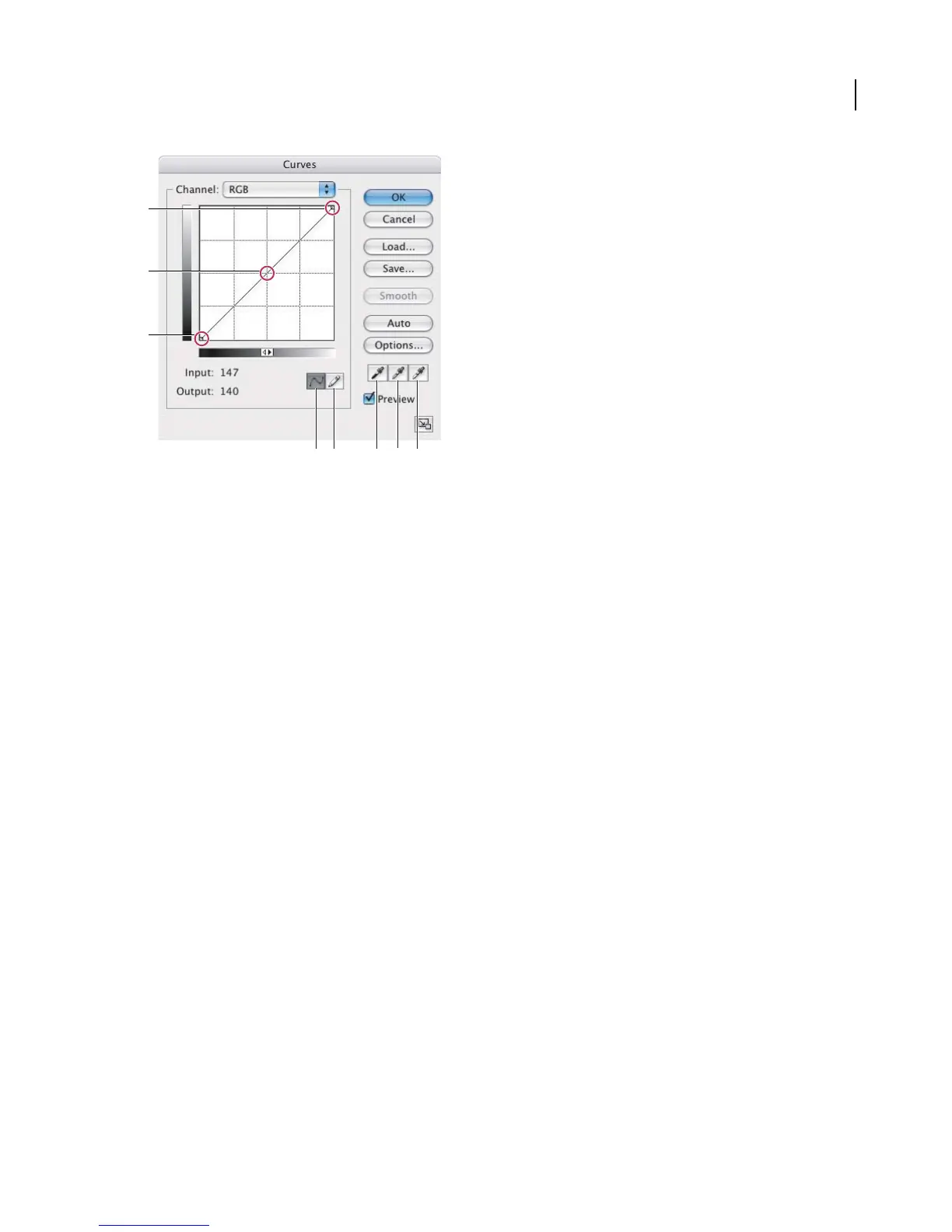
Curves dialog box
A. Highlights B. Midtones C. Shadows D. Adjust curve by adding points E. Draw acurve with thepencil F. Set black point G. Set
gray point H. Set white point
When the Curves dialog box opens, the tonal range is represented as a straight diagonal line. The horizontal axis of
the graph represents the original intensity values of the pixels (Input levels); the vertical axis represents the new color
values (Output levels).
By default, Curves displays the intensity values for RGB images in a range from 0 to 255, with black (0) at the bottom
left corner. By default, Curves displays percentages for CMYK images in a range from 0 to 100, with highlights (0%)
at thebottomleftcorner. To reversethe displayofintensity values andpercentages,click thedoublearrow belowthe
curve. After the reversal, 0 is at the bottom right corner for RGB images; 0% is at the bottom right corner for CMYK
images.



 To Next Page