29
ADOBE PHOTOSHOP CS2
User Guide
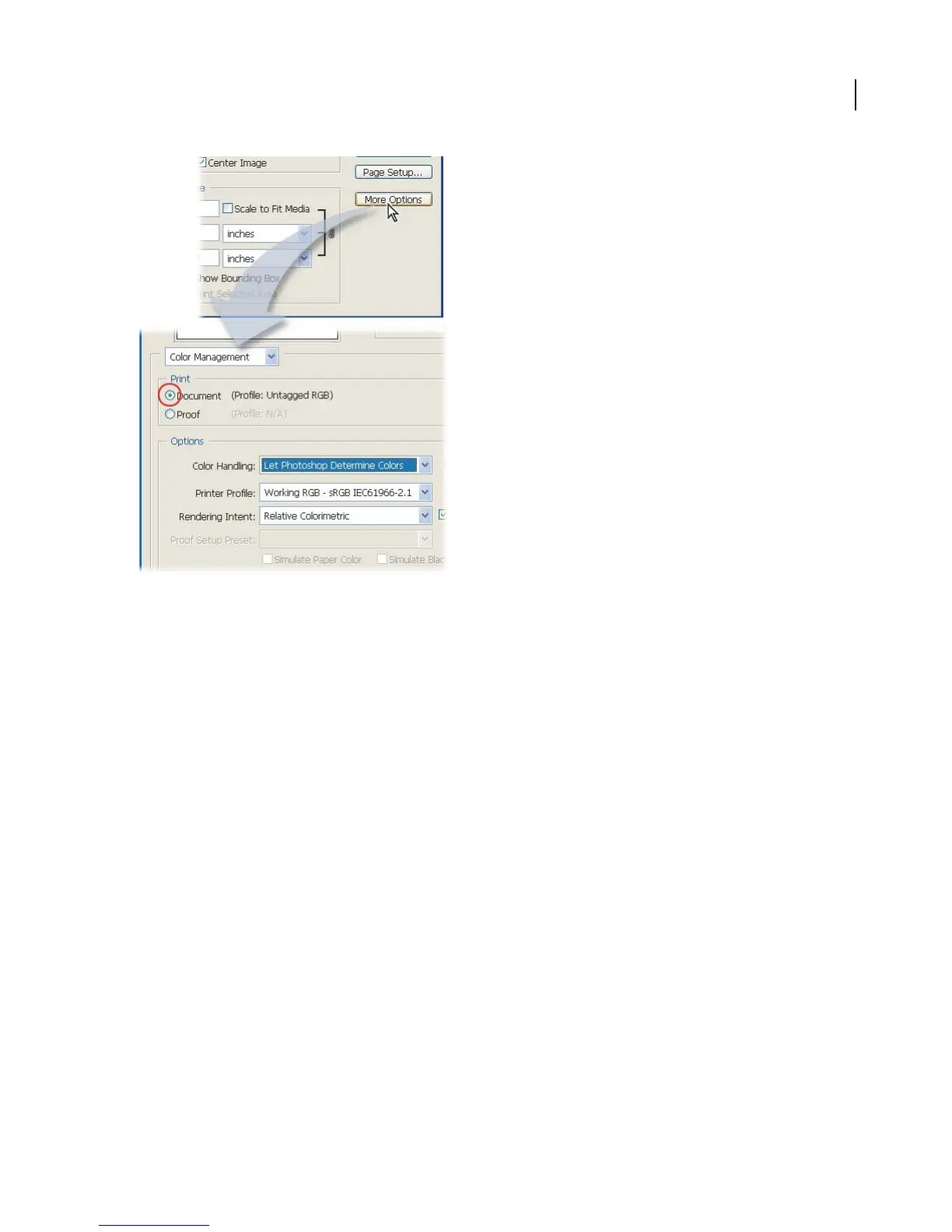
2. Set color management options.
Choose Color Management from the pop-up menu below the preview thumbnail.
Under Print, select the Document option. The image’s current profile is listed here.
YouwantPhotoshop to handle thecolor conversion to theprinter’s colorspace,sochooseLet PhotoshopDetermine
Colors from the Color Handling pop-up menu under Options.
Note: Later, when theprinter driver dialog boxappears,makesuretoturnoff theprinter’s colormanagementsothatthe
printer driver settings don’t conflict with the Photoshop color management settings.
3. Select the printer profile.
Choose theprofile foryouroutputdevicefromthe PrinterProfile pop-up menu.The profilemustbeinstalled in the
correct location to show up. See “To install a color profile” on page 266.
4. Choose a rendering intent from the menu.
The rendering intent specifies how Photoshop converts colors to the printers color space. Perceptual or Relative
Colormetric are good choices for most photographs.
5. Specify the printer driver settings and print the image.
Click Print. The Print dialog box for your printer driver appears. The options you see depend on the printer driver.
Make sure to turn offthe printerdriver’scolor management becauseyou chosetohavePhotoshop convertthe colors
to the printer profile. In some printer drivers, you need to select the No Color Management option. If you don’t turn
off color management in the printer driver, you’ll get unpredictable results.



 To Next Page