22
Figure 4.3
There are 9 icons
at the bottom of the user interface which show the status of each channel of the camera.
Gray color: means there is no device connected to the main device from this channel.
Green color: means the device is connected for this channel, and it works OK.
Red color: means the device for this channel is recording.
Yellow color: means this channel is set in multi-device already, but it fails to connect to the main device.
3.2.1.4 Left Side Menu for Safari, Chrome, Firefox:
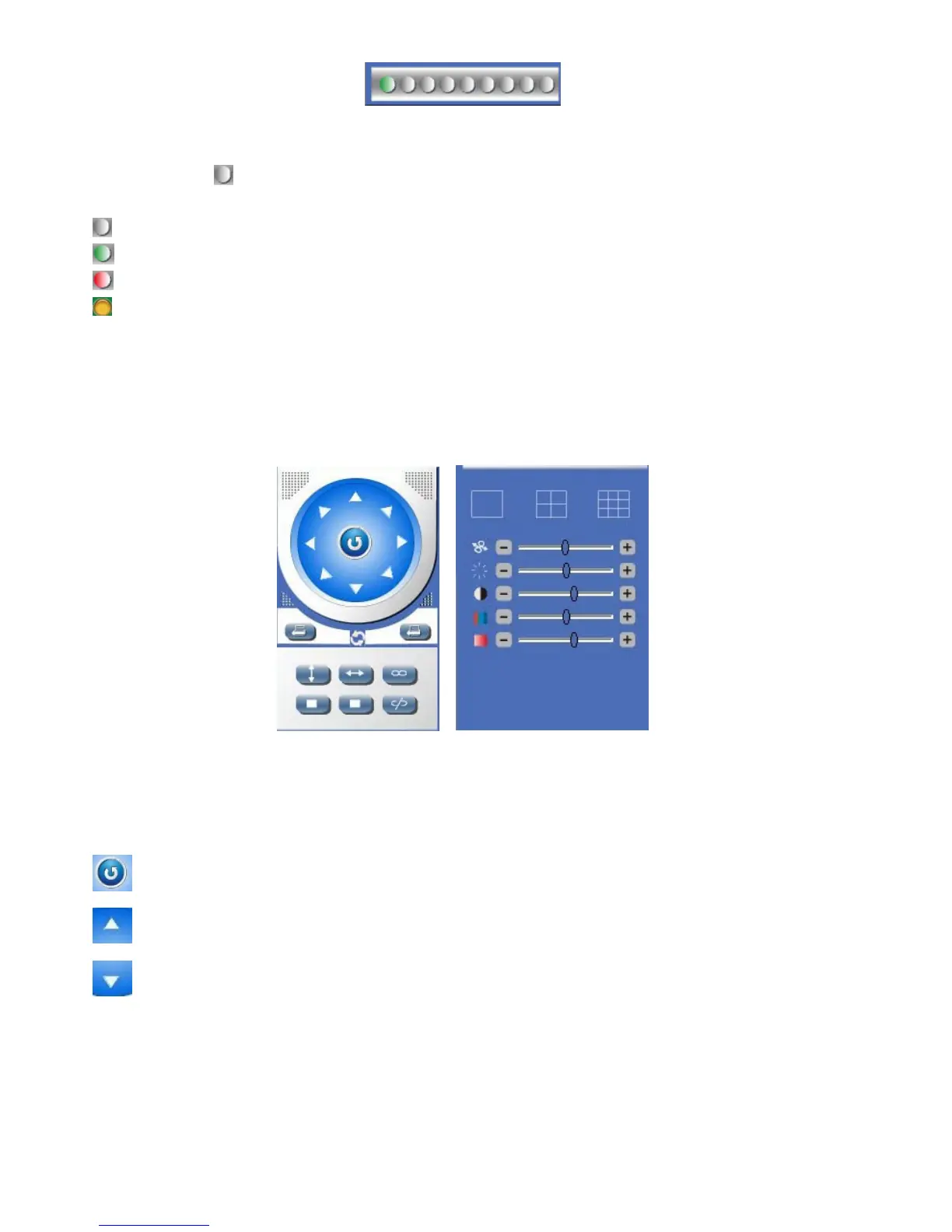
There are some basic operation icons listed on the left side menu as below:
Figure 4.4
PT Control: Set Pan/Tilt as upward, downward, leftward, rightward, up-left, down-left, up-right, down-right, etc.
Center: Click this icon, the camera will pan/tilt, then stop at the center. Normally it will rotate 1 rotation.
Up: Click this icon, camera will move up, you can click step by step or hold it to control the movement.
Down: Click this icon, camera will move down, click it step by step or hold on to control the movement.
NOTE: It is the same operation as left, right, up-left, up-right, down-left, down-right etc.


 To Next Page