19
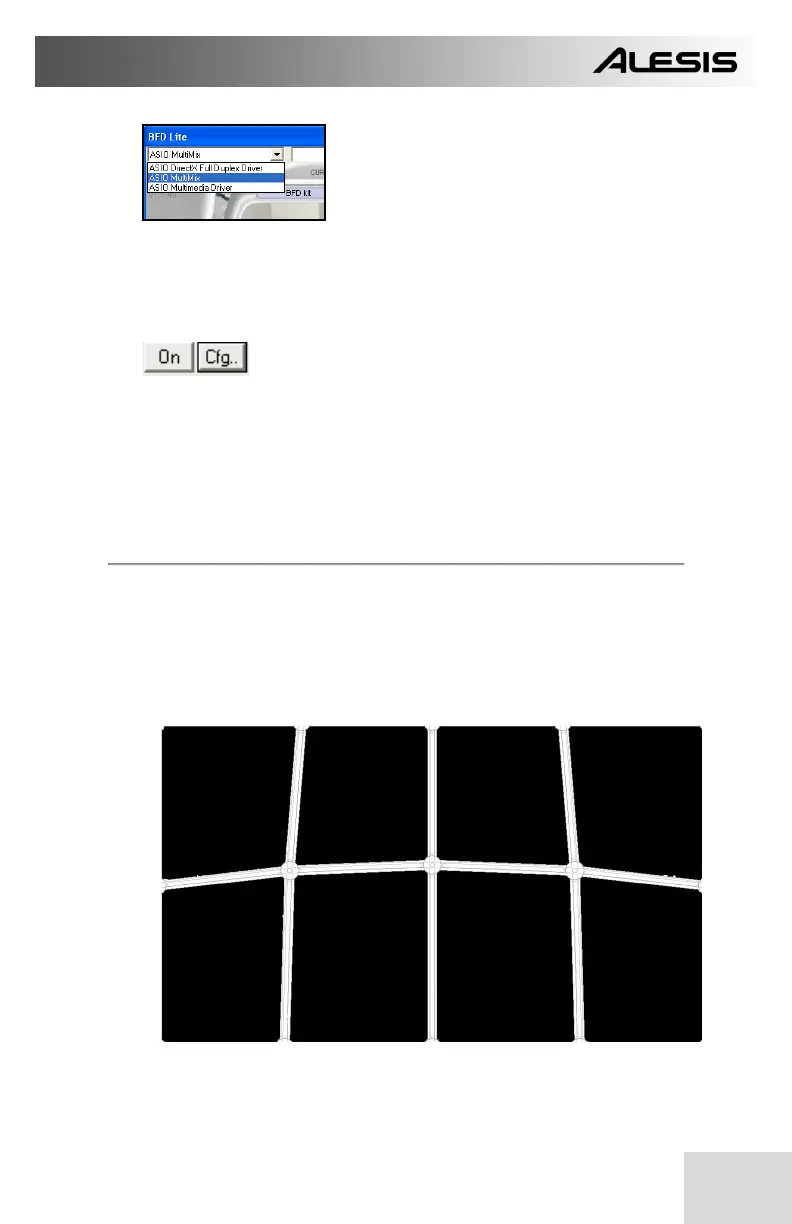
In Windows, you can select the device by
clicking on the pull-down menu in the top
left corner of the screen.
Please note: Depending on the soundcard you are using, you may
experience different amounts of audio latency, or delay between
when you hit the pads and when the sound comes out of your
speakers. In BFD Lite Standalone, you can adjust the latency by
clicking on the Cfg… (Configuration) button and
adjusting your soundcard’s buffer settings.
For more information, please refer to A Note About Audio Latency discussion in the
Computer Installation chapter of this manual.
5. When you have successfully selected your audio device, you should
hear sounds when you strike the pads. You are now ready to jam.
DEFAULT SETTINGS FOR THE CONTROLPAD
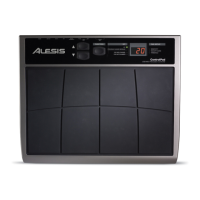
The ControlPad has been initialized with a preset which
automatically maps all 8 pads to drum sounds in the BFD Lite
software. You can access this configuration by selecting preset 0
on the ControlPad while in Kit mode.
The configuration of the kit is as described in the graphic below:
TOM 2
MIDI NOTE
#45
TOM 3
MIDI NOTE #43
CLOSED
HI-HAT
MIDI NOTE
#44
RIDE
CYMBAL
MIDI NOTE
#49
CRASH
CYMBAL
MIDI NOTE
#51
SNARE
MIDI NOTE #38
RIMSHOT
MIDI NOTE
#40
KICK
DRUM
MIDI NOTE
#36


 To Next Page