65ALI-DVR3000H Series 960H DVR User Manual
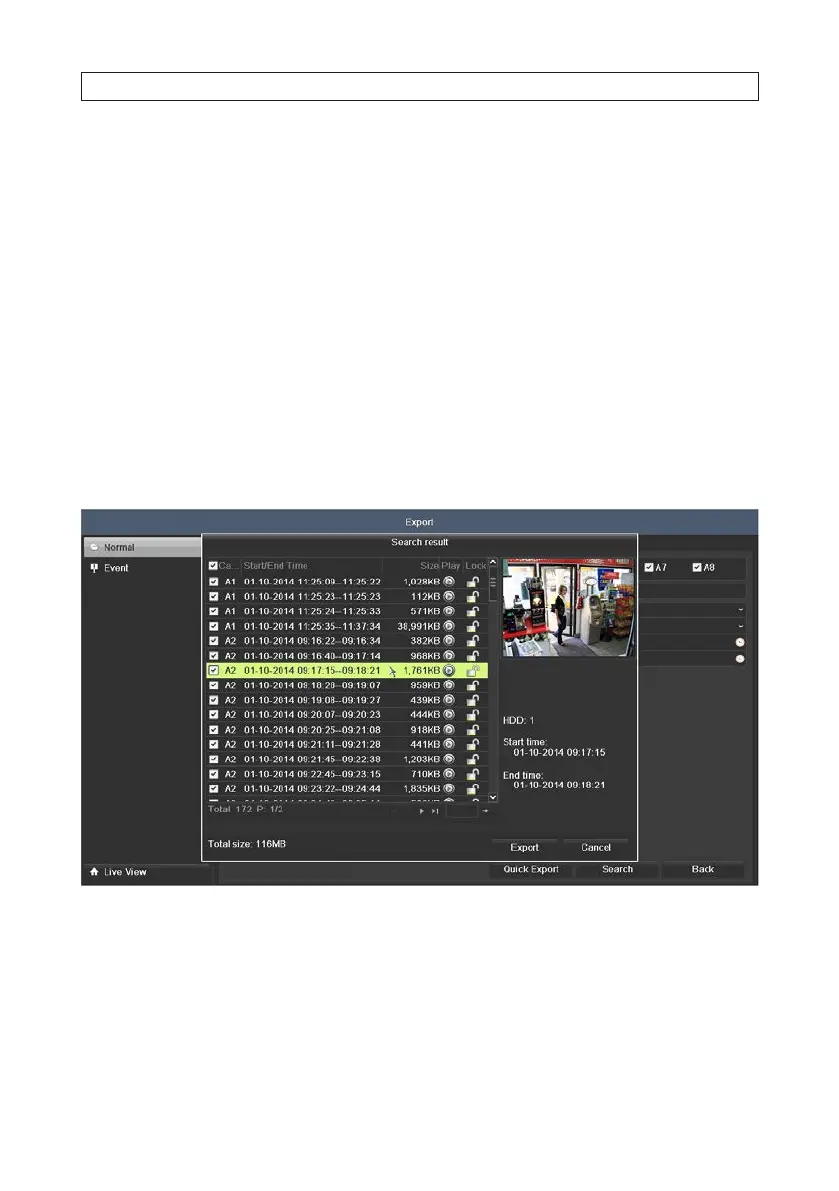
2. Open the Export menu. Go to: Menu | Export | Normal
3. Check the boxes for the camera channels you want to back up.
4. Select the Start Time and End Time of the period when the video clips of interest were recorded. To change the time, click
on the eld, then select the target date or time from the pop-up menu.
5. Click Search to list the video clips recorded during the selected time span. In the Search Result list, you can play the video
clip by clicking the icon in the Play column associated with the le.
6. Select the video clips you want to export by clicking the checkbox associated with the le. By default, all les are selected. You
can deselect all les by clicking the checkbox in the table header, then click the checkboxes for only those les you want to
export.
7. To play a le in the Search result list:
a. Select and highlight the le.
b. Click the Play icon. A pop up window will appear.
SECTION 5: RECORD, PLAYBACK AND VIDEO BACKUP




 To Next Page