C ONTROL PANEL
Change Default SmartApplet Font
4-6
. . . . .
Change Default SmartApplet Font
About Font Sizes
You can change the onscreen font size in AlphaWord Plus on your Neo.
Changing the font size changes how text appears onscreen, letting you work at
a screen size that suits your needs. It doesn’t change font attributes associated
with the text, so when you send text to your computer or printer, the text itself
is plain text.
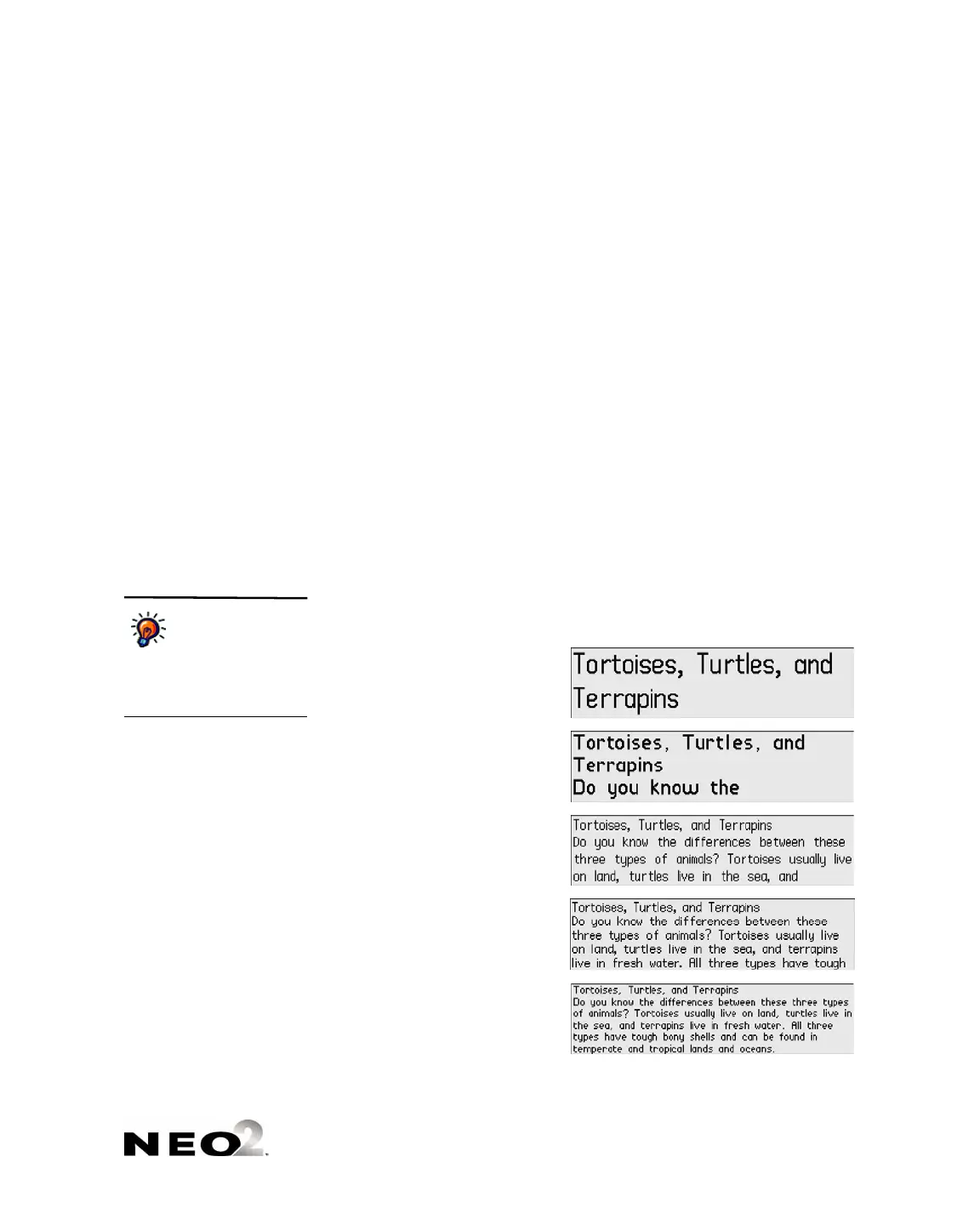
There are six font settings from which to choose:
• System (four lines per screen using a fixed width font)
• Small (six lines per screen)
• Medium (five lines per screen)
• Large (four lines per screen)
• Very large (three lines per screen)
• Extra large (two lines per screen)
When you change the font size, that change applies to all files and workspaces
in AlphaWord Plus. Here are examples of the font sizes.
If some font sizes
are removed from
your NEO using
AlphaSmart Manager, the
NEO defaults to the four-line
system font.
Extra large (two lines)
Very large (three lines)
Large (four lines)
Medium (five lines)
Small (six lines)


 To Next Page