SAT
Radio
Receiver
(Optional)
4 Press
~
or
~
to select the desired channel.
Holding down
~
or
~
will change channels
continuously.
• When using the optional remote control (RUE-4190, etc.),
{til
SAT
Radio Channel con be directly called up with the numeric keypad
of
the remote
COlltro!.
....
1
....
~
VIEW F/SETUP Preset buttons
(1
through 6)
To
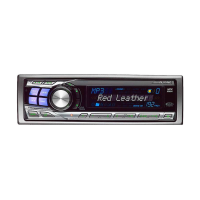
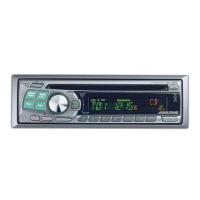
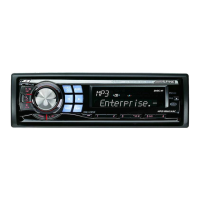
receive SAT Radio, the separately sold XM
Direct™
or
SIRIUS
Satellite Radio Tuner and
an
appropriate Ai-NET Interface Adapter will
be required. For details, consult you nearest Alpine dealer.
Checking
the
SAT
Radio
10
Number
While in
XM
or SIRIUS Radio mode, enter the Channel
number you want to call up with the numeric keypad on
the remote control.
2 Press
Enter
on the remote control within 5 seconds to
receive the Channel.
If the channel
number
is
3 digits, the Channel is
automatically received after the channel
number
has
been input.
XM:
1 While receiving a SAT Radio band, press
~
or
~
to select channel "0" for XM.
The unit displays "CH
0"
for 5 seconds, then alternately
displays "RADIO
10"
for 2
seconds
and
10
number
for 10
seconds.
While displaying "RADIO
10"
as shown above,
Demonstration (page 17)
become
nonfunctional.
2
To
cancel the
10
number display, select the channel
other than "0".
SIRIUS:
1 While receiving a SAT Radio band, press
~
or
~
to select channel "255" or "0" for SIRIUS.
2 Press
VIEW
until the
10
No. appears in the display.
CHANNEL
NO.
--t
CATEGORY
NAME
--t
CHANNEL
NAME
-7
ID
NO.
-7
ID
NO.
-7
COMPOSER
NAME
-7
CLOCK
--t
CHANNEL
NO.
3
To
cancel the
10
number display, set the channel to
other than "255" and "0".
•
You
cannot lise
"0",
"S",
"/",
or
"F"for
the
JD
Number (XM radio
Receiver only).
•
You
can check the
JD
IIl1mber
printed on a label on your third party.
SAT
Radio Receiver package.
A unique Radio ID number is required
to
subscribe
to
SAT
Radio
programming. Each third party
XM
or SIRIUS radio comes with this number.
This number is an 8 character (for XM Radio) or
12
character (for
SIRIUS Radio) alphanumeric number.
It
is printed on a label found on
the SAT Receiver.
It
can also be displayed
on
the screen of this unit
in
the following
way.
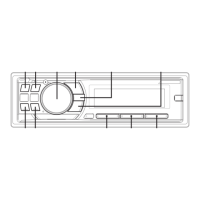
~/ENT
~/ESC
~
BAND
~/II
Receiving
Channels
with
the
SAT
Radio
Receiver
(Optional)
About SAT Radio
Satellite Radio* is the next generation
of
audio entertainment, with over
100 digital audio channels. For a small monthly fee, subscribers can
hear crystal-clear music, sports, news and talk, coast-to-coast via
satellite. For more information, visit
XM's
website at
www.xmradio.com, or SIRIUS' website at www.sirius.com.
* XM and its corresponding logos are trademarks
of
XM Satellite
Radio Inc.
* SIRIUS and its corresponding logos are trademarks
of
SIRIUS
Satellite Radio Inc.
SAT
Receiver:
XM
or
SIRIUS
Receiver
When
an
optional
XM
or
SIRIUS
Receiver
Box
is
connected via the Ai-NET bus, the following
operations may be performed. However, the
XM
Receiver and
SIRIUS
Receiver cannot be
connected
at
the same time.
SIRIUS
Receiver:
Verify
the features of the connected
SIRIUS
Receiver
Box.
Not all
SIRIUS
Receivers have
identical functions and some may not be
performed
on
this unit.
For
details about functions,
refer to the
SIRIUS
Receiver's Owner's Manual.
SOURCEI<!)
Rotary
encoder
• The SAT Receiver colltrols on this unitare operative ollly whell a SAT
Receiver is connected.
1 Press SOURCEJ<!) to activate the SAT Radio mode.
2 Press
BAND
to select one of the three SAT Radio
Preset Bands.
Storing
Channel
Presets
1 Press
BAND
to select the desired band you want to
store.
Each press changes
the
band:
XM
mode:
X1
--t
X2
--t
X3
--t
X1
SIRIUS
mode:
S1
--t
S2
--t
S3
--t
S1
3 Press
....
or
~
to select desired category.
2 After tuning in the desired channel, press and hold,
for at least 2 seconds,
anyone
of the
preset
buttons
(1
through
6)
into which you wish to store
the channel.
The selected station is stored.
19-EN



 To Next Page