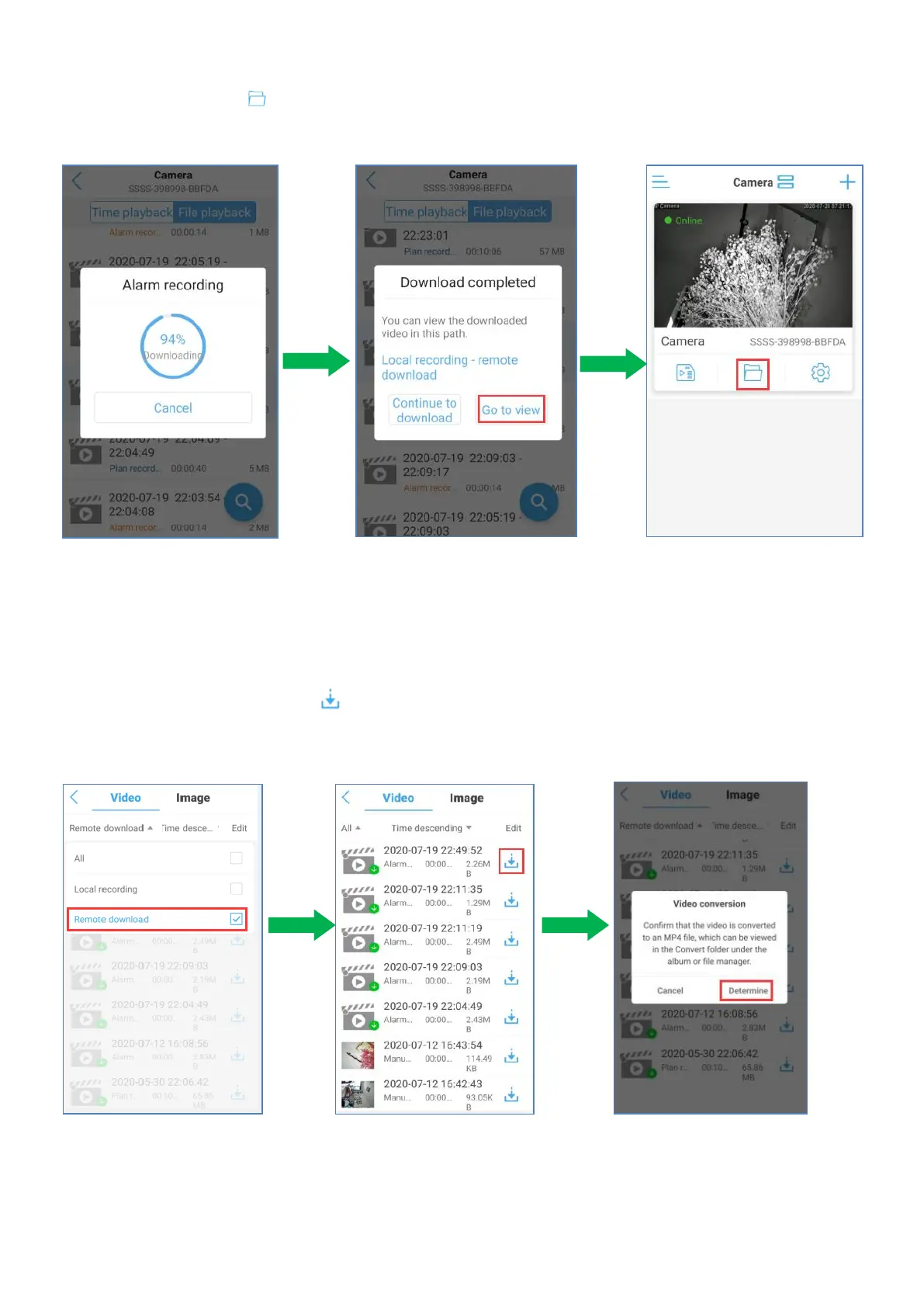
e.After downloading a recording file, you can tap ‘Go to view’ to view the recording.
You can also tap to view the recording after downloading a recording file.
f. Go to the recording file folder to check the downloaded recordings. Choose ‘Video’ on
the top. The remote recording and local manual recording will be saved here.
Please choose “remote download” and you will find downloaded Alarm recordings.
g. If you want to convert the video format to MP4 format, please kindly follow the
image instruction.Click “ ”icon and choose “determine”.Then the recording
shall be viewed in the album or file manager.
5.4.5.2 Schedule Recording to SD Setup
a. Click setting icon and gon into SD card plan recording page
b. Enable ‘record’. And you can set ‘Recording Length’ to 15~900 seconds.
c. Set the date and time you want the camera starts and stops to record in advanced settings.
Instructions for advanced settings are as below.


 To Next Page