5. Accessing via Camhipro APP
There are 2 methods to configure WiFi connection with the CamHipro APP.
A.LAN Mode Configuration:The camera needs to be connected to the router with a network cable.
The network cable can be pulled off after the WiFi connection is completed.
B.AP Mode Configuration :The camera does not need to be connected to the router with a network cable.
Please choose either of the two methods to configure your camera. Never use the two methods at the
same time.
5.1 LAN Mode Configuration
1) Use the attached power adapter to plug the camera in power.
2) Connect the camera with the router via an ethernet cable.
3) Please connect your phone to the 2.4Ghz wifi firstly before you pair the camera, make sure your
router password in mind before you start the pairing process. Please avoid using special characters
such as #, *, &, = in your router password. ( Only AT-200DW has this limitation,other models do not
have this limitation.)
4) Open CamHipro APP.
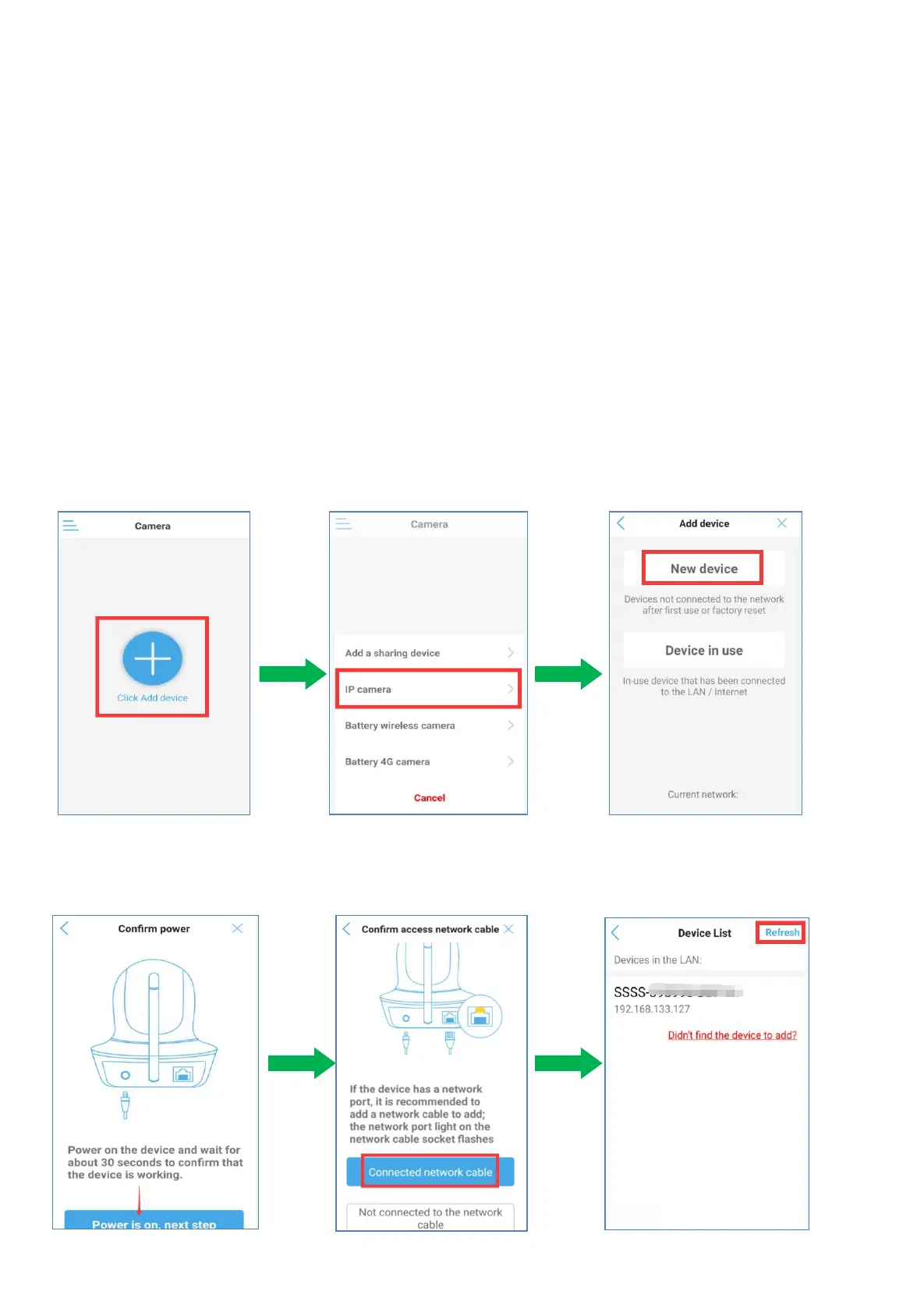
5) Tap”Click Add device” Tap “IP camera” Tap “New device”
6) Tap “power is on,next step” Tap "Connected network cable” Tap "Refresh” to search the UID
of the camera and tap it.


 To Next Page