9
3.4 Setting the Clock
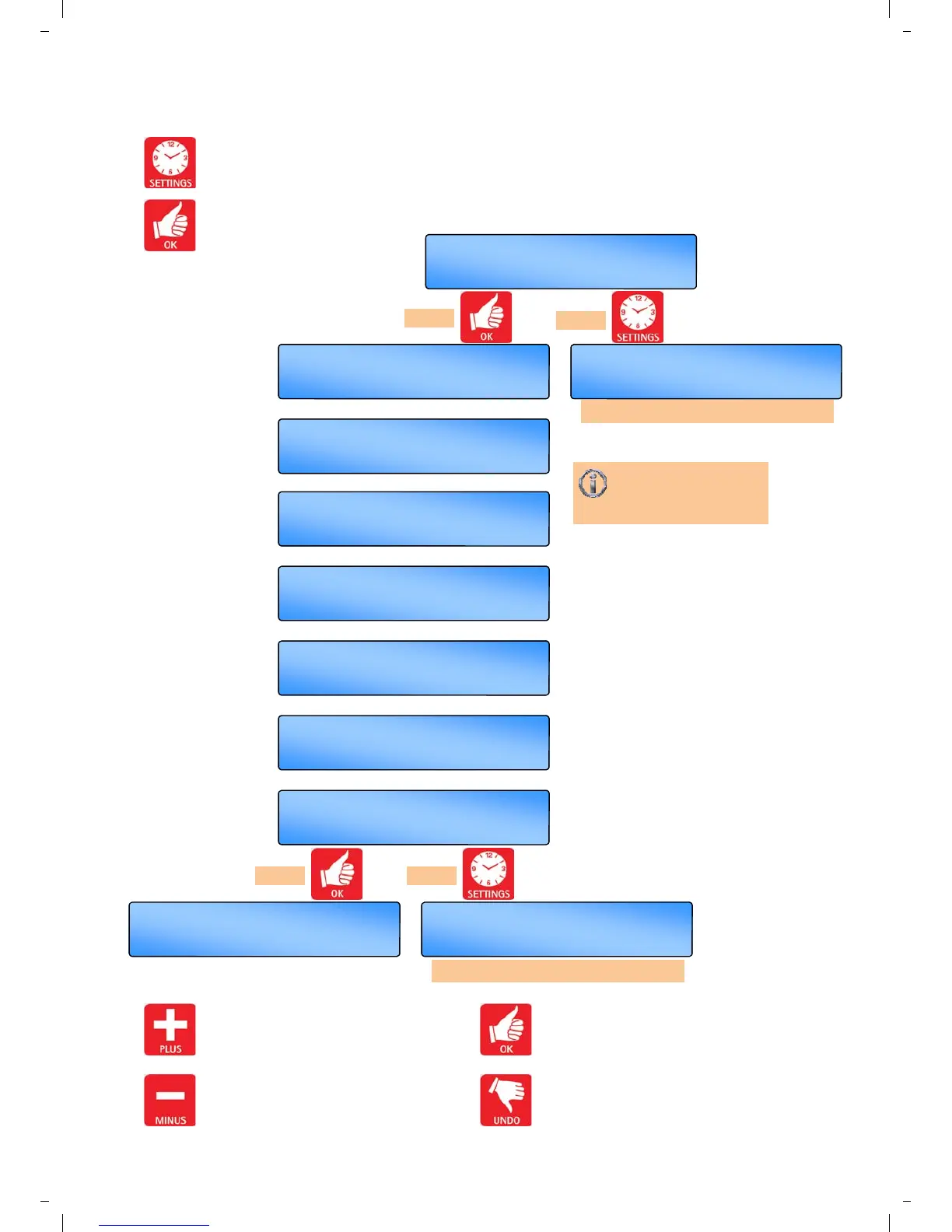
Press the SETTING button till
SET CLOCK? appears in the display.
Press the OK button to change this user
mode.
Value to alter/confirm will start flashing.
OK =yes SET =next
SET PROGRAM?
follow ‘Setting the PROGRAM’ menu
Th 09 : 29
AUTO ON
+ or - then OK
SET Day Mo 09 : 29
+ or - then OK
SET Day Mo 09 : 29
+ or - then OK
SET Hrs Mo 09 : 29
+ or - then OK
SET Mns Mo 09 : 29
OK =yes SET =redo
Menu End
OK =yes SET =next
SET CLOCK?
repeat above procedure
Use the + button to increase the value.
Use the - button to decrease the value.
Press the OK button to accept the value
and advance to the next display.
Press the UNDO button to cancel setting
but save any previous changes.
Clock will automatically
compensate for US
daylight saving dates.
press
or
press or
SET Mon 06 09 18 - -
+ or - then OK
SET Dat 06 09 18 - -
+ or - then OK
SET Yr 06 09 18 - -
+ or - then OK


 To Next Page