- 33 -
C141501700.fm
User's manual
GB
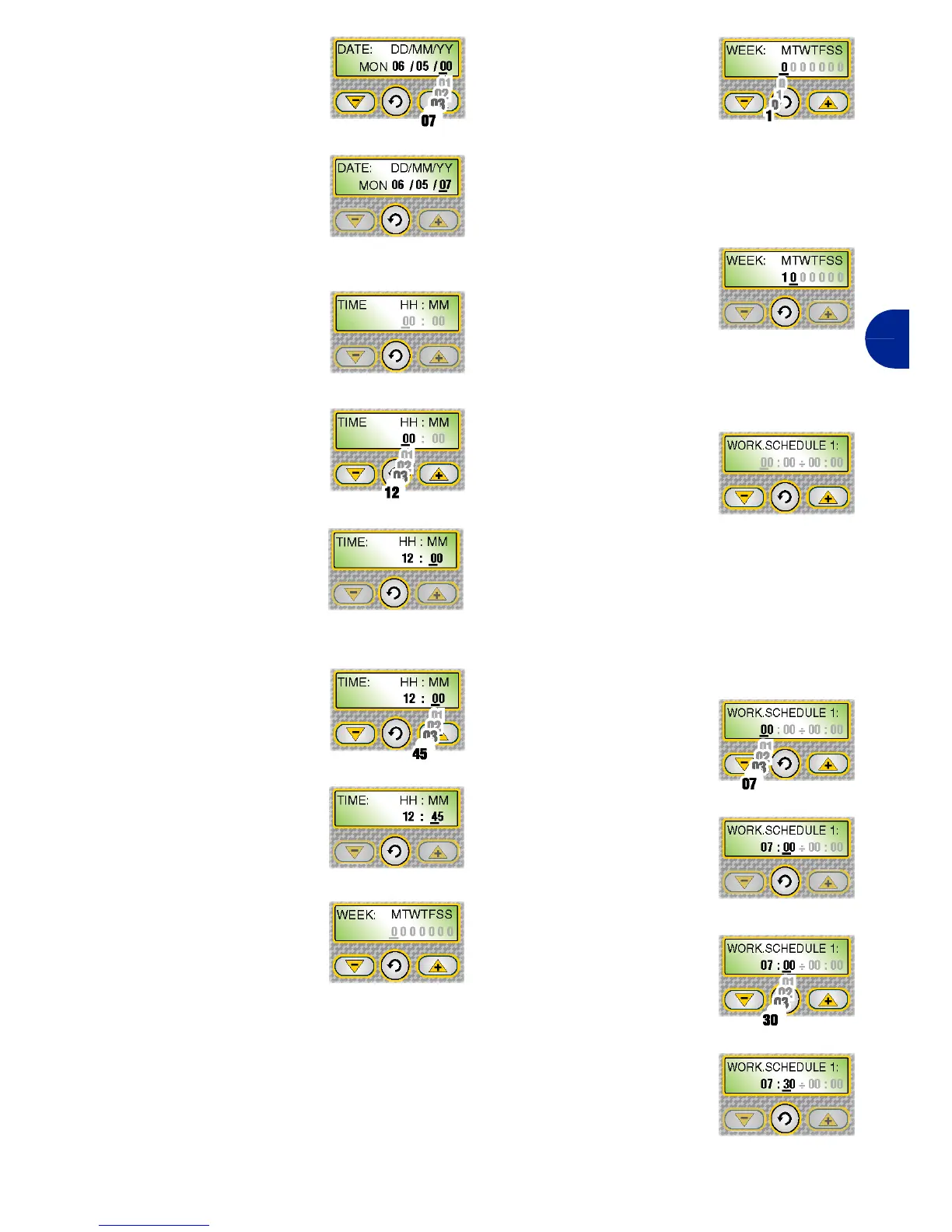
5-Press one of the
keys "+", "-" to set
the year.
6-Press the key "En-
ter" to confirm.
The cursor
moves on to the
next position.
On the display the
function "TIME" ap-
pears.
7-Press one of the
keys "+", "-" to set
the time.
8-Press the key "En-
ter" to confirm.
The cursor
moves on to the
next position.
9-Press one of the
keys "+", "-" to set
the minutes.
10-Press the key
"Enter" to con-
firm.
On the display the
"SETTIM." function
appears.
SETTIM: function for programming the
days of robot activity during the week.
The cursor positions itself automatically
in the area under the letter "L" (Monday).
1-Press one of the
keys "+", "-" to
programme the
weekdays when
the robot is oper-
ational.
Value 0: day of rest for the robot.
Value 1: day of rest for the robot.
2-Press the key "En-
ter" to confirm.
The cursor
moves on to the
next position.
3-Repeat the procedure to set all the
weekdays.
When the procedure
has been completed
(letter "S" for Sunday),
on the display the
"WORK TIMETABLE 1" function appears.
WORK TIMETABLE 1: function for set-
ting the first robot operational time
slot during the day.
The cursor positions itself automatically
in the area under the first time slot (ex-
ample from 7:30 to 9:30).
1-Press one of the
keys "+", "-" to set
the mowing start
time.
2-Press the key "En-
ter" to confirm.
The cursor
moves on to the
next position.
3-Press one of the
keys "+", "-" to set
the mowing start
minutes.
4-Press the key "En-
ter" to confirm.
The cursor
moves on to the
next position.


 To Next Page