M O D E L 2 1 7 W D R
O P E R A T O R ’ S M A N U A L
33
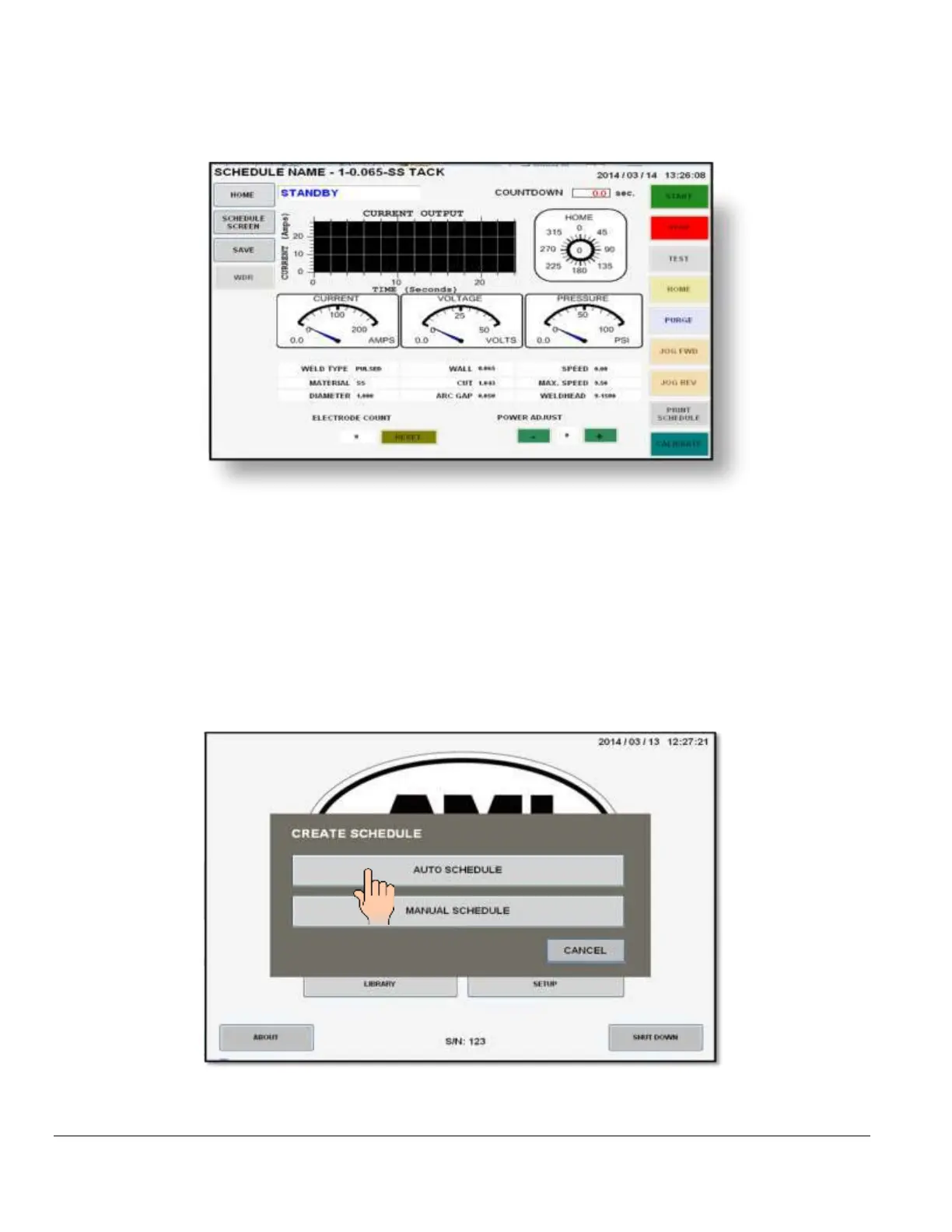
6. Pressing SAVE will store all data in the library under the SCHEDULE NAME you
selected and the WELD SCREEN will be displayed with the schedule name on top.
6. The Model 217 WDR is now loaded with the weld schedule and is in
STANDBY mode,
ready to tack.
5.5 CREATING AN AUTO S^3 (S cubed) WELD SCHEDULE
1. From the MAIN SCREEN touch the CREATE SCHEDULE pad and the create schedule
menu will be displayed. Select AUTO SCHEDULE.
2. The AUTO SCHEDULE screen will be displayed. Select and enter all required O.D., WALL,
MATERIAL and WELD HEAD parameters using the numerical key pad.


 To Next Page