1 - 9
USER’S GUIDE Triton Wireless Hand-held Terminal
Using the 35-key Keypad - cont’d.
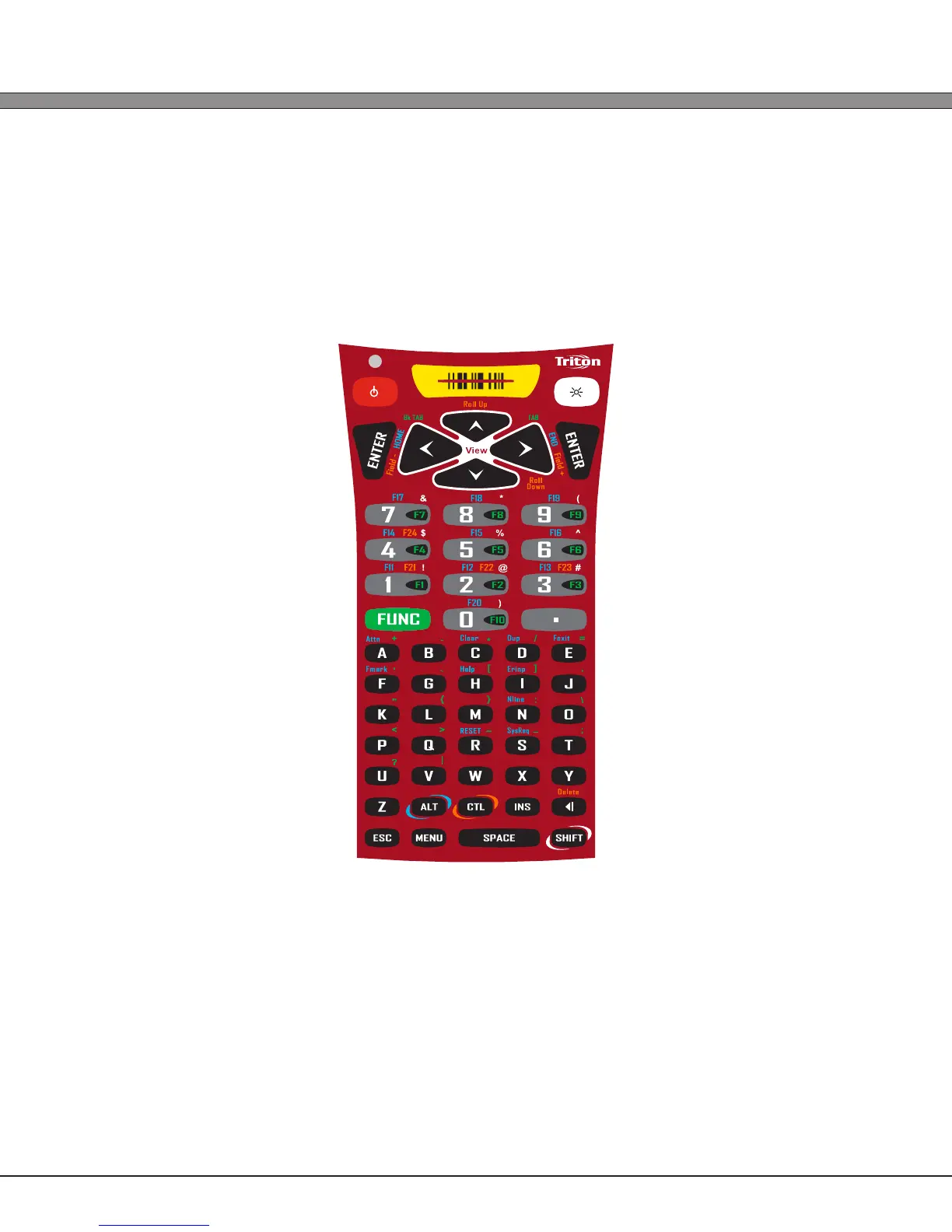
Using Lock and Unlock on the 35-key Keypad
If the user needs to input a large amount of alphabetic data, they can temporarily enable
the Alpha-Lock feature by pressing the Lock/Blue Modier followed by the [Alpha] key. To
disable Alpha-Lock, the user can press the Unlock/Yellow Modier followed by the [Alpha]
key.
The [Shift] key can be locked and unlocked in the same manner to create a CAPS lock.
Locking the Keypad
The Triton 35-key numeric keypad can also be completely disabled to prevent unwanted key
presses. This is useful if the user is transporting the Triton hand-held computer in a holster but
does not wish to power off the device.
To lock the Triton 35-key Keypad, press the Lock/Blue Modier followed by the [Esc] key. The
unit will disregard any further key presses and display a warning to the user. To re-enable the
keypad, press the Unlock/Yellow Modier followed by the [Esc] key.


 To Next Page