2 - 14
USER’S GUIDE Triton Wireless Hand-held Terminal
The Triton comes standard with VT100/VT220 interpreters, TN5250/3270 emulators, a standards
compliant web browser, and supported SSH client. Any of these applications/emulators can
be used to connect to remote network servers through the Connect / Reconnect menu.
From here in the Terminal Options menu, this connection menu can be set up.
Each different application has its own set of options and parameters that are accessible
through options four through eight. Their parameters are dened below in the Host / Terminal
Setup table.
*NOTE: For information on using the SSH client, see the SSH Client Setup section of this
manual.
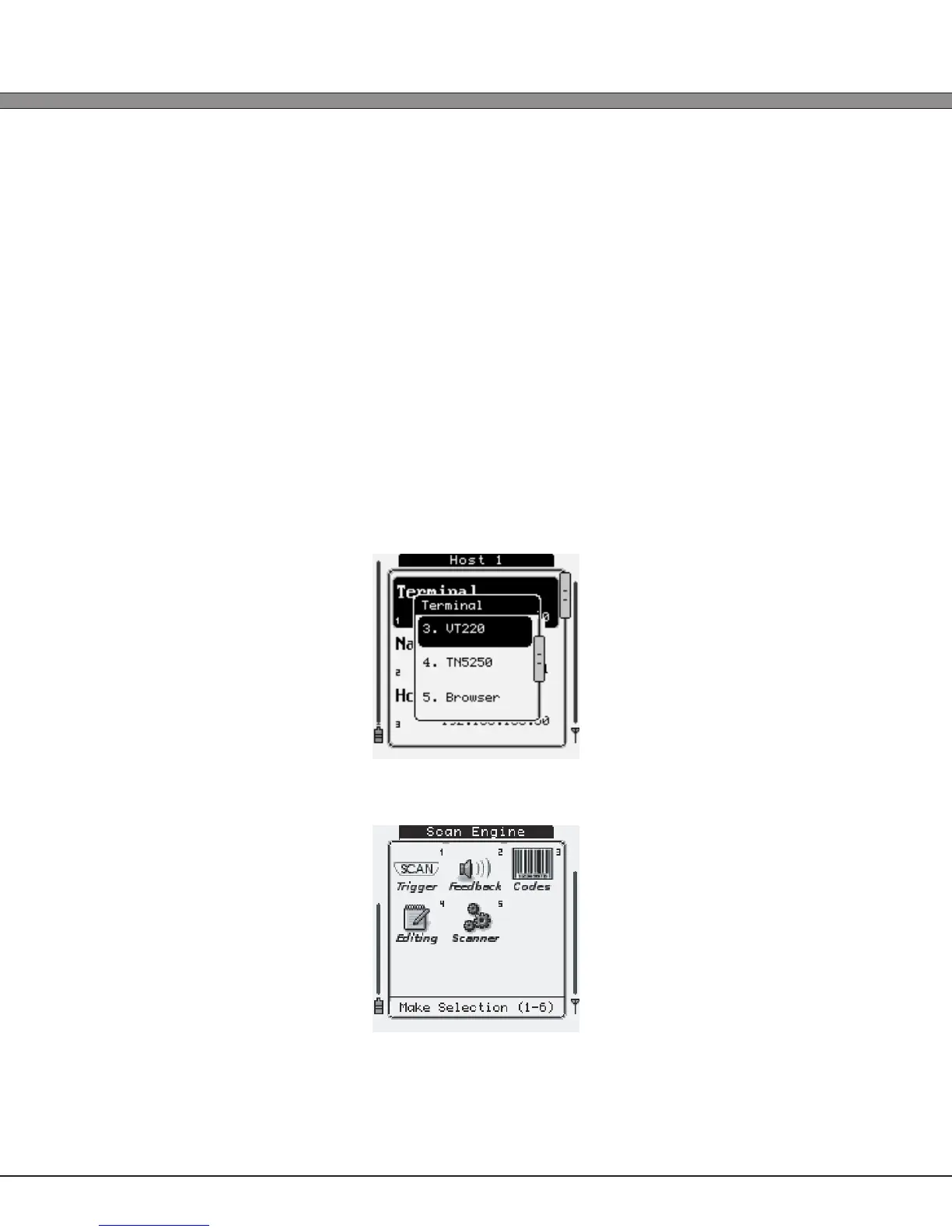
Setting up a new connection is done through the Hosts sub-menu. It will present a list of
connections (up to eight connections can be dened) to suit the installation’s needs.
Selecting one of the eight host connections will display the host options including IP address,
port, terminal (emulation), and any other connection specic parameters applicable to
each host server(s). If the Terminal is set to any option other than Disabled, it will be visible on
the Connect menu.
3) Scanner Options
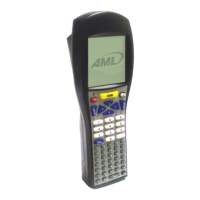
The Scanner Options group contains all aspects of the bar code decoder and data capture
device. Within this menu are ve sub groups: Trigger, Feedback, Codes (Symbologies),
Editing, and General Setup.


 To Next Page