2 - 50
USER’S GUIDE Triton Wireless Hand-held Terminal
SSH Client Setup
The Triton software contains the OpenSSH suite of SSH networking tools.
The currently installed version is: OpenSSH_3.9p1, OpenSSL 0.9.7e.
Setting up a Connection with the SSH Client
To set up a new connection using the SSH client:
1.) From the Administration menu, select the Terminal icon (option 7).
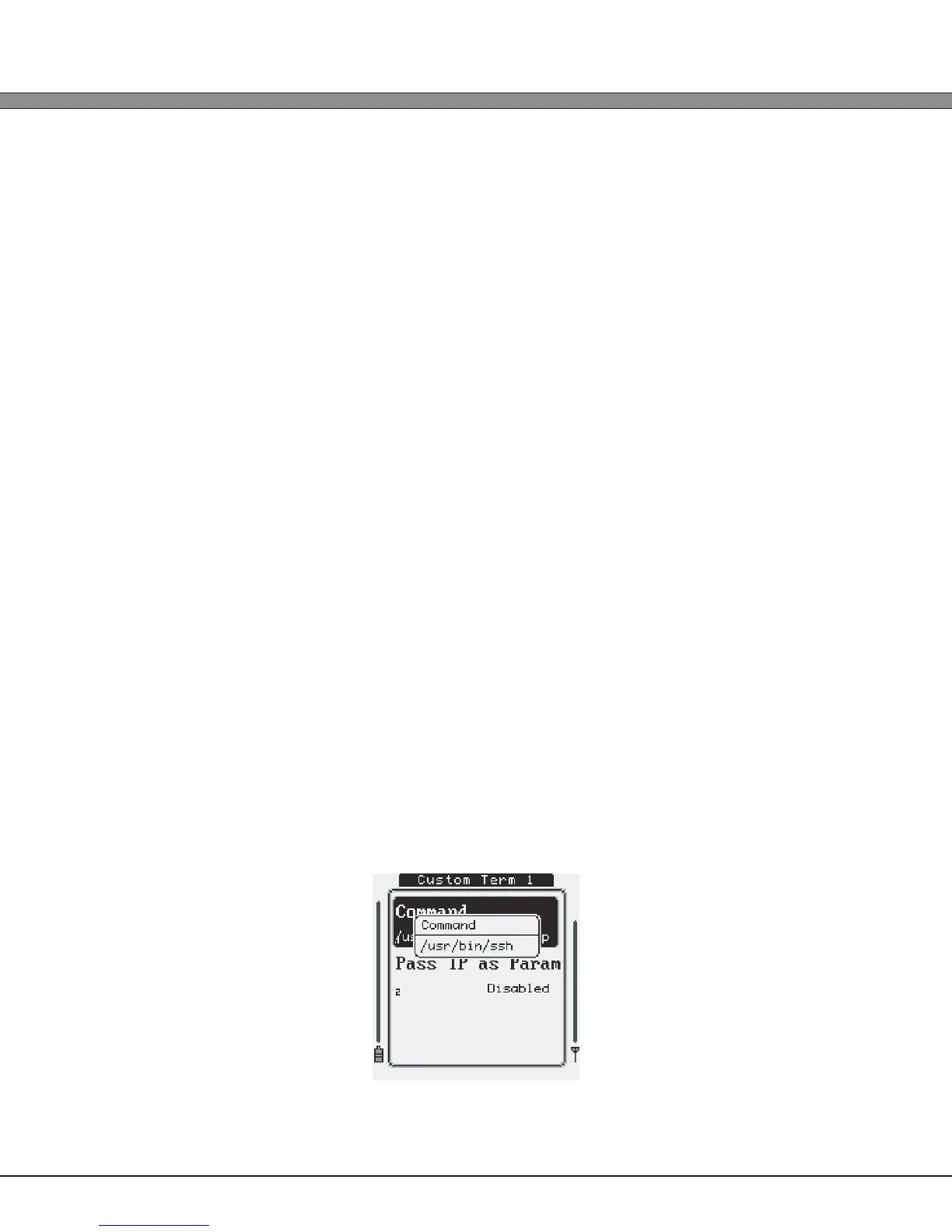
2.) Select one of the Custom icons (options 8 or 9)
3.) Enter the following into the Command text option without the quotes:
‘/usr/bin/ssh <hostaddress>’
where <hostaddress> is the IP address of the server to connect to.
If using a standard login with the SSH shell, use the following for the Command:
‘/usr/bin/ssh -l<myusername> <hostaddress>’
where <myusername> is the username to use when authenticating and <hostaddress> is
the IP address of the server to connect to. The user will be prompted to enter the password
during login.
If the server is using a non-standard TCP port to listen for SSH connections (i.e. not TCP port
22), add the following to the command strings:
‘-p <port>’
where <port> is the port number to use.


 To Next Page