2 - 41
USER’S GUIDE Triton Wireless Hand-held Terminal
Host/Terminal Setup - cont’d
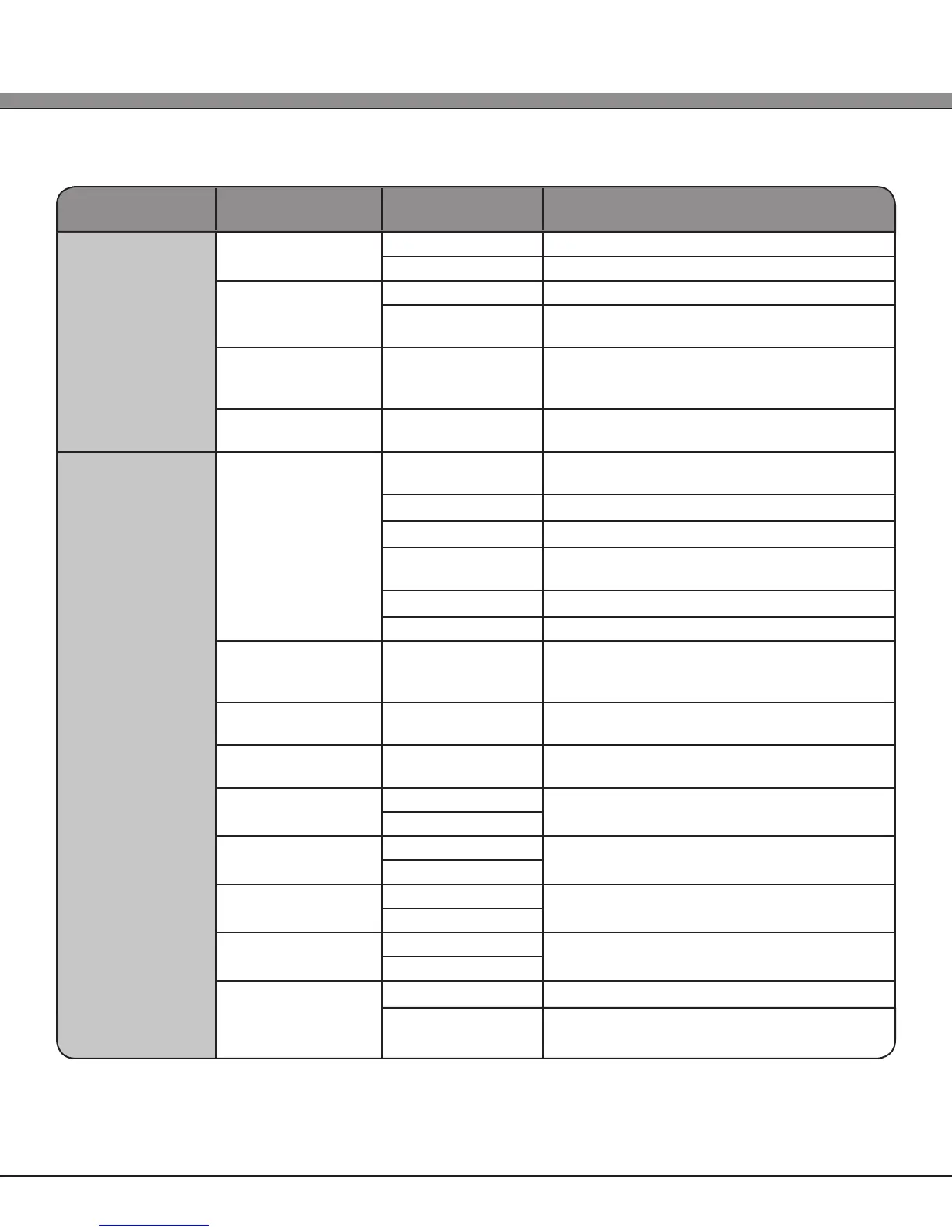
Section Setting Paremeter Available Options Option Description
VTxxx
(VT100/VT220)
Escape Parsing 1.) Normal Normal Escape
2.) As `` Parse `` as an Escape
Bksp & Del 1.) Normal Normal use of Backspace and Delete
2.) Swap Swap functionality (Backspace key emits a
Delete)
Null Padding Enabled/Disabled Enable/Disable normal NULL padding in VTxxx
emulation (some Microsoft Windows based
servers do not handle padding correctly)
Auto-Reconnect Enabled/Disabled Automatically reconnect to the host server
upon closure of the VT Session
TN5250 Settings
Screen Size 1.) 26x40 Use smallest font possible for largest screen
area (26 rows x 40 columns)
2.) 16x26 Use small font (16 rows x 26 columns)
3.) 16x21 Use “Legacy” font (16 rows x 26 columns)
4.) 20x20 Use standard medium font (20 rows x 20
columns)
5.) 10x20 Use large font (10 rows x 20 columns
6.) 7x13 Use huge font (7 rows x 13 columns)
View Scrolling Enabled/Disabled Enable/Disable scrolling (panning the
screen’s view) ; if disabled, the screen will be
locked in the Start Row and Start Column
Fieldlock Cursor Enabled/Disabled Enable/Disable forcing the cursor to always
be located in a eld
Follow Cursor Enabled/Disabled Enable/Disable automatically panning/
scrolling the screen to keep cursor in view
Column Shift Min: 0 columns Number of columns to pan left and right
when manually scrolling the view
Max: 20 columns
Row Shift Min: 0 rows Number of rows to pan up and down when
manually scrolling the view
Max: 20 rows
Start Column Min: 1 Column location to put the upper left corner
of the initially viewed portion of the screen
Max: 24
Start Row Min: 1 Row location to put the upper left corner of
the initially viewed portion of the screen
Max: 80
Bksp & Del 1.) Normal Normal use of Backspace and Delete
2.) Swap Swap functionality (Backspace key emits a
Delete)


 To Next Page