21
5.4.12Execution menu
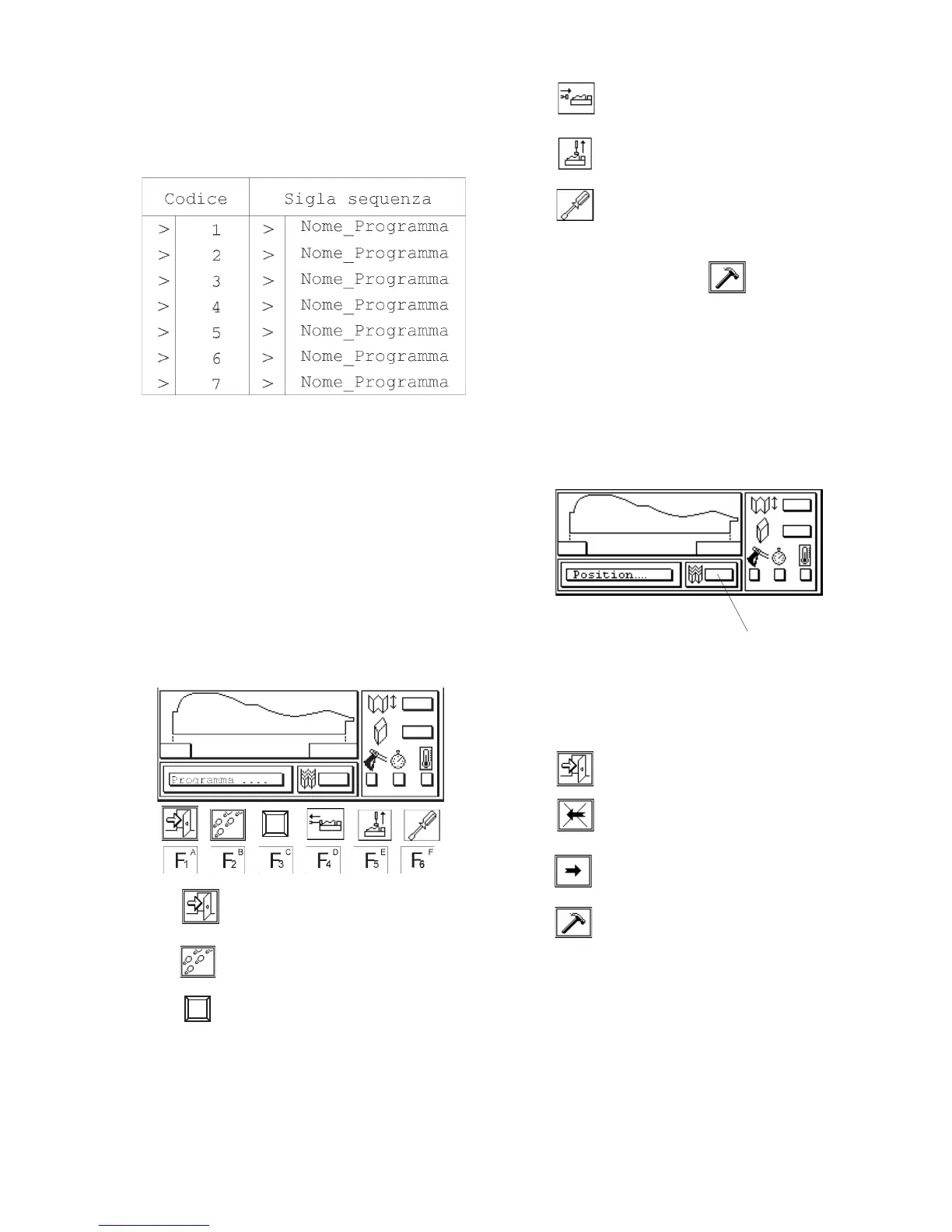
Pressing the F2 key you enter into the program execution
mode.
A list of the previously stored programs is
displayed on the screen:
Pressing the F2 key displays the editing window of the
selected program to allow its consultation or modification.
Pressing the F3 key gives you access to search for a program
name or code just like it describes in chapter 5.4.10.
By pressing F4 you enter into the editing mode.
Typing in a new code name on a free code line, you enter
into the program creation mode.
Press the Menu button to go back to the execution menu.
Use the yellow arrows to position the cursor on the program
to be executed, then press ENTER or F1 to select it.
Press F1 again to obtain the machines zero
point.
At this point the following screen appears:
The field “A” indicates the amount of V-nails
still available in the magazine.
(see chapter 4)
A
Pressing the F2 key makes it possible to execute
a step by step test cycle of the selected
program.
F4 Activates the horizontal clamp
F5 Activates the vertical clamp
F6 Ativates the driver head to move
to the maintenance position.
Pressing the F6 button allows
you to activate the drive blade.
Press the F5 key (icon) to activate the
driver blade, while holding down
the foot pedal.
Pressing the F6 button will allow the v-nail
head to re-position itself to it’s start
position.The program goes back to the previous
execution menu.
At this point the following buttons are
activated:
F1 Go back to the main execution menu
F2 Negative shifting of the driver
blade
F3 Positive shifting of the driver
blade
F4 V-nail drives (only if the foot
pedal is pressed)
F1 Allows you to go back to the previous
menu and exit from the execution
mode.
F2 Permits the access to the step by
step execution mode
F3 Shows the type of current frame and
allows its modification by using
3 different types of frames:
4 sided frames
6 sided frames
8 sided frames


 To Next Page