18 | Antipodes Audio Music Server
Click the TIDAL icon to start using TIDAL.
SQUEEZEBOX SETTINGS
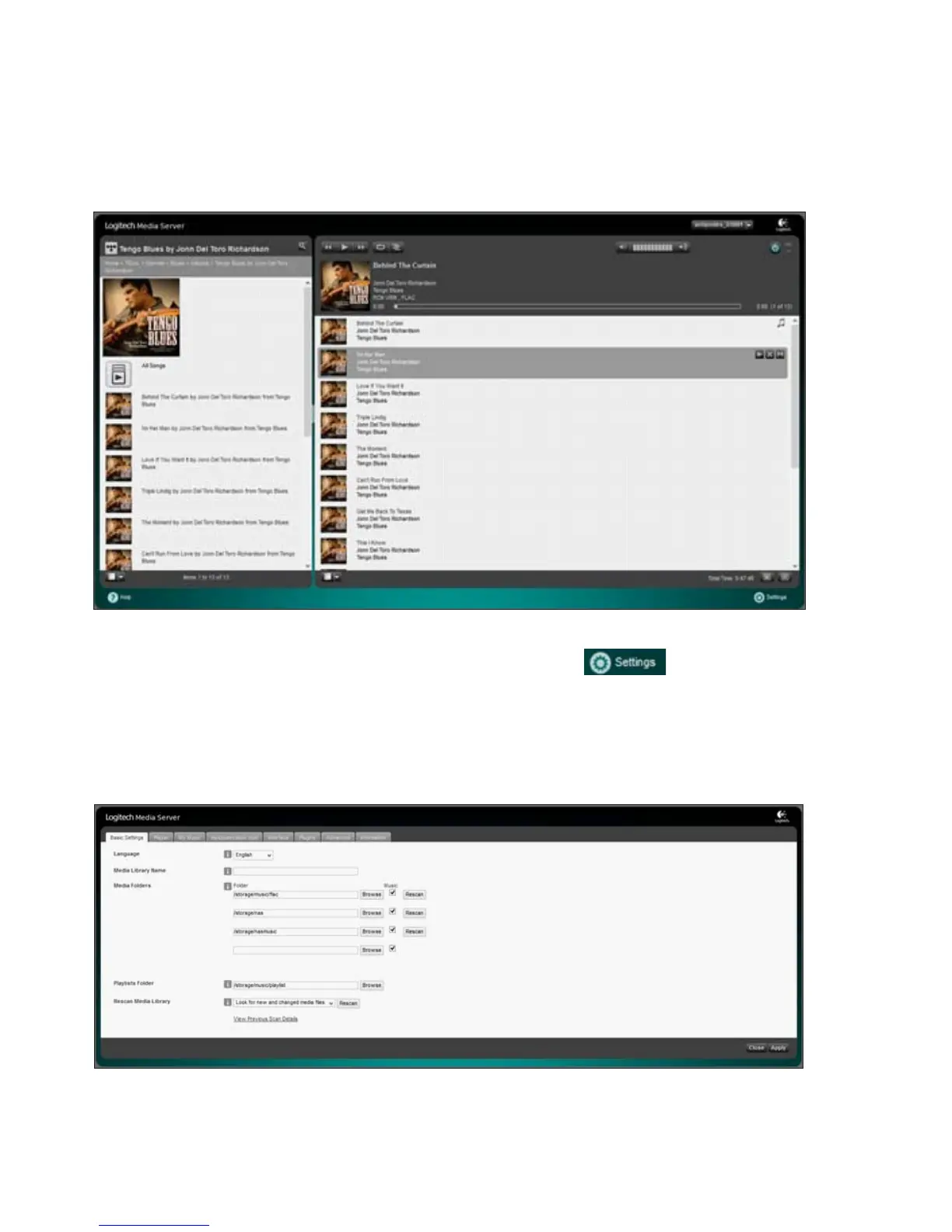
At the bottom right hand side of the Squeezebox Server control screen is a icon. Click on this to
make various settings for Squeezelite and Squeezebox Server. When you click this icon a new window will
open in your browser. Most of the settings have already been set to the commonly used options. However
you may wish to make changes as you become familiar with Logitech Media Server and its options.
You click the dierent tabs to access various settings. We will only cover library scanning in this guide. The
range of options available is too large to cover in this document.
Basic Settings
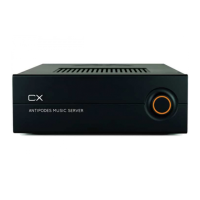
This window allows you to set the folders in your Antipodes to be included in the Squeezebox library. And
it allows you to force Squeezebox to scan for new additions. CDs ripped will be automatically added to the
library, but les copied to the Antipodes require a scan before they are included in the Squeezebox library.
Scanning options appear in the drop-down box at the bottom of the screen shown above.



 To Next Page