USER GUIDE | 5
4
Setup A Renderer
the only ones shown on the ‘Settings’ screen.
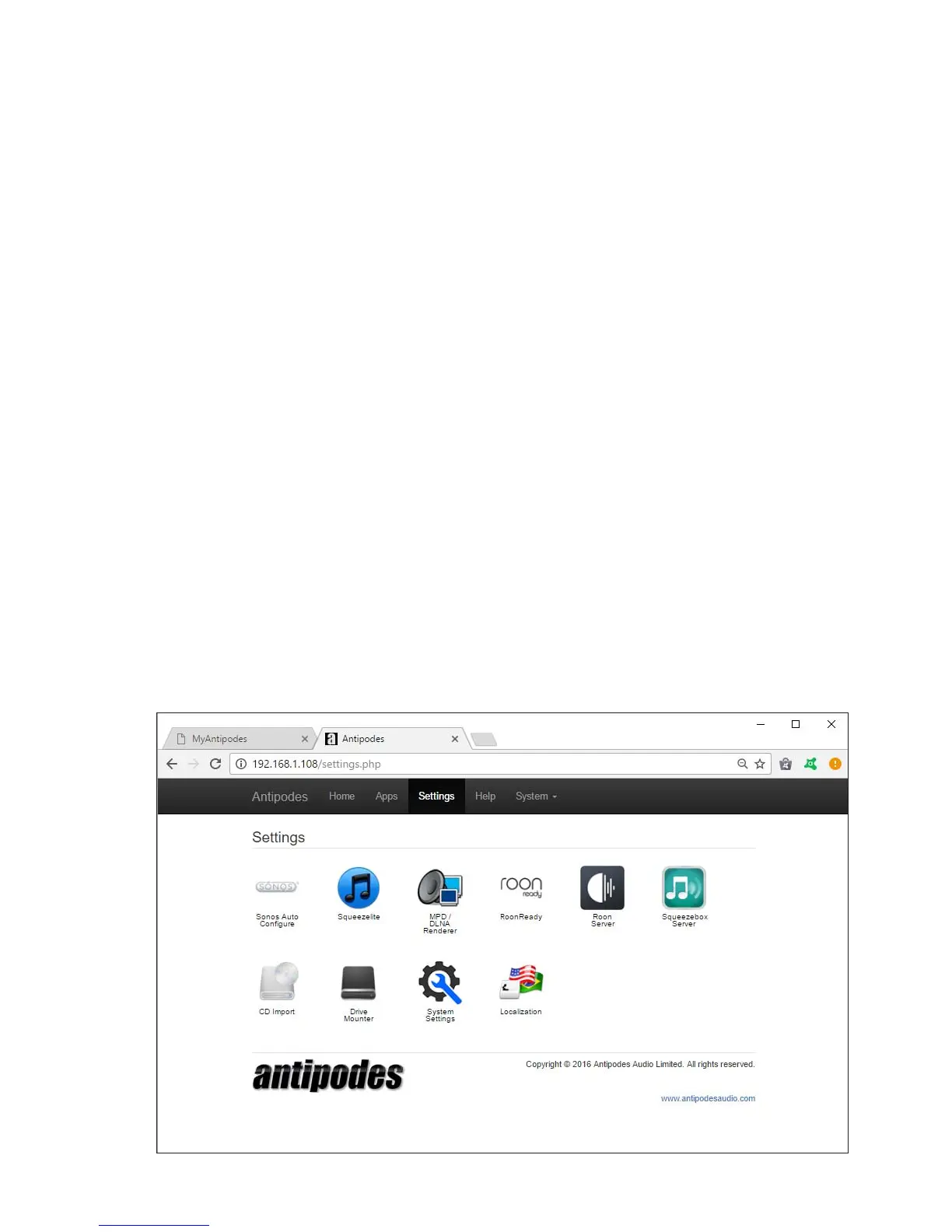
At the ‘Settings’ screen you will see icons for the
installed renderer apps. In the screen shot below,
these are Squeezelite, MPD and Roon Ready.
To setup one of these renderer apps, you begin by
clicking on the relevant icon, to open that application’s
settings.
Each renderer app settings screen is a little dierent,
but there are two main settings:
• Regardless of what physical audio outputs are
tted to your Antipodes, the renderer needs to
know whether to load the driver for Analog Output,
SPDIF (& AES3) Output, or USB Output.
• The renderer also needs to know how to send
DSD les to your DAC. For example, as PCM
les, DoP, Native DSD etc.
At the myantipodes.com screen, you will see the
Antipodes devices attached to your network.
Most users use a single Antipodes for both server
and renderer, and so it will be the only one shown
in myantipodes.com. Click on ‘Manage’ to open the
GUI for the Antipodes you will use as a renderer (the
one that sends a digital audio signal to your DAC over
USB, SPDIF or AES3, or the one that sends an Analog
signal to your amplier).
At the Antipodes GUI, select the menu item ‘Settings’.
You should now see a screen like the one shown
below.
Note that all Antipodes have the same application suite
available to them. In Section 8 of this guide, we cover
how you can install/uninstall apps whenever you wish.
Some installed apps have user settings and these are
INTRODUCTION



 To Next Page