Step 5 ( for
iX Auto only)
Enter into the Setting mode and select
About to verify if software version is
displayed.
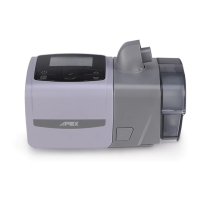
<The picture is only for reference>.
SD card function <applied for IX series 9S-015040 and 9S-010600>
Plug the power connector into the rear of
the device. Connect one end of the power
cord into the power supply unit and the
other end into the power outlet.
Open the SD card cover and push in the SD
card
Wait for a few seconds for loading the SD
card and check if the icon of SD card
displaying on the main screen.
<The picture is only for reference>



 To Next Page
 Loading...