Windows 10
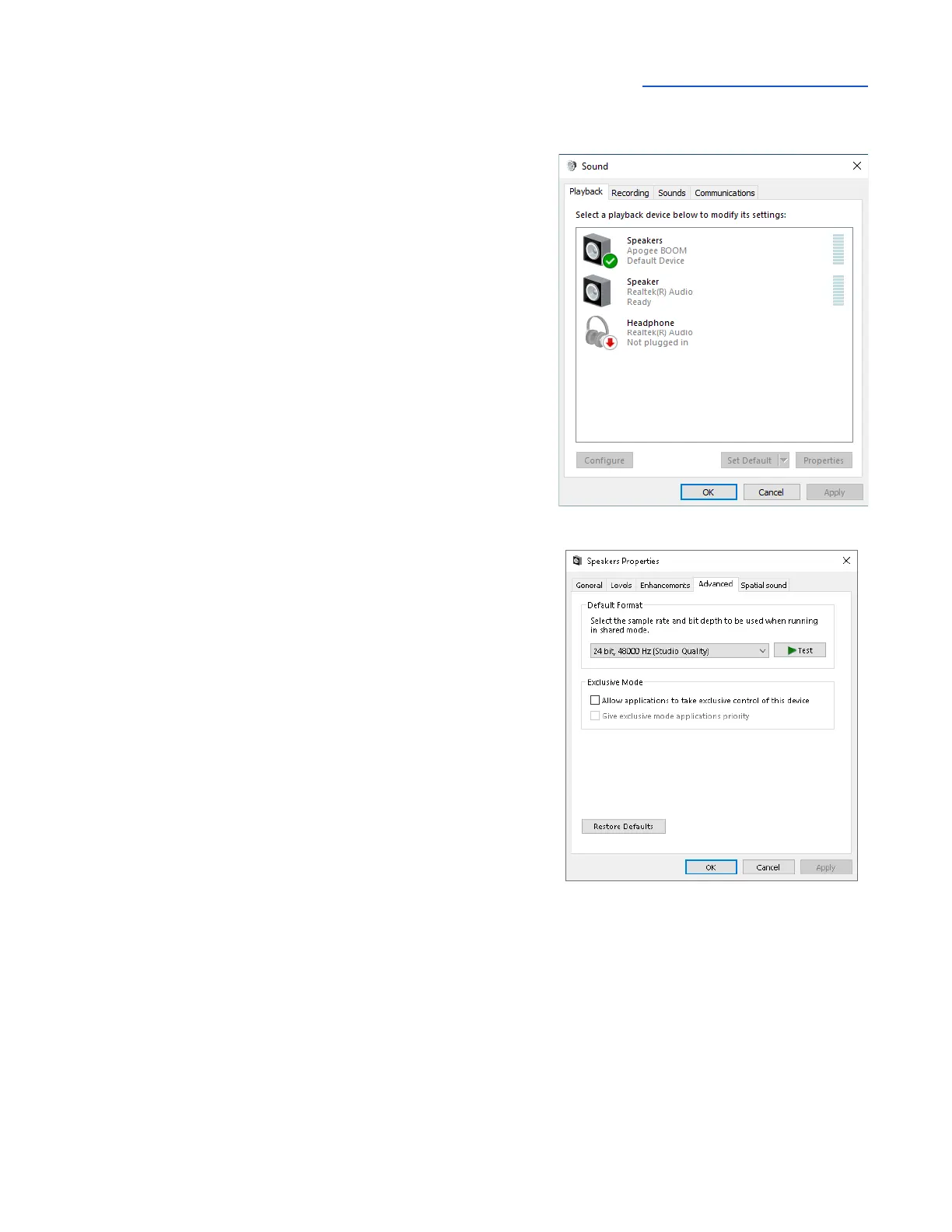
To choose BOOM as the audio interface for Windows
applications that don’t have specific audio hardware
preferences, such as Google Chrome, Spotify, and others:
1. Type Control Panel in the Windows search bar to open
the Control Panel. Double-click the Sound icon.
2. Click the Playback tab and select Speakers-Boom.
3. Click Properties, then click the Advanced tab.
4. Uncheck Exclusive Mode checkboxes. When using a
DAW and apps like Spotify simultaneously, match the
Default Format sample rate with the rate of the DAW
session.
5. Click Apply.
6. Click the Recording tab and repeat steps 2-5
Apple iOS
Apple iOS automatically chooses the most recently connected audio interface as the audio I/O device
for all applications. Simply connect BOOM to your iOS device’s Lightning or USB-C port as described
above.



 To Next Page