Ableton Live
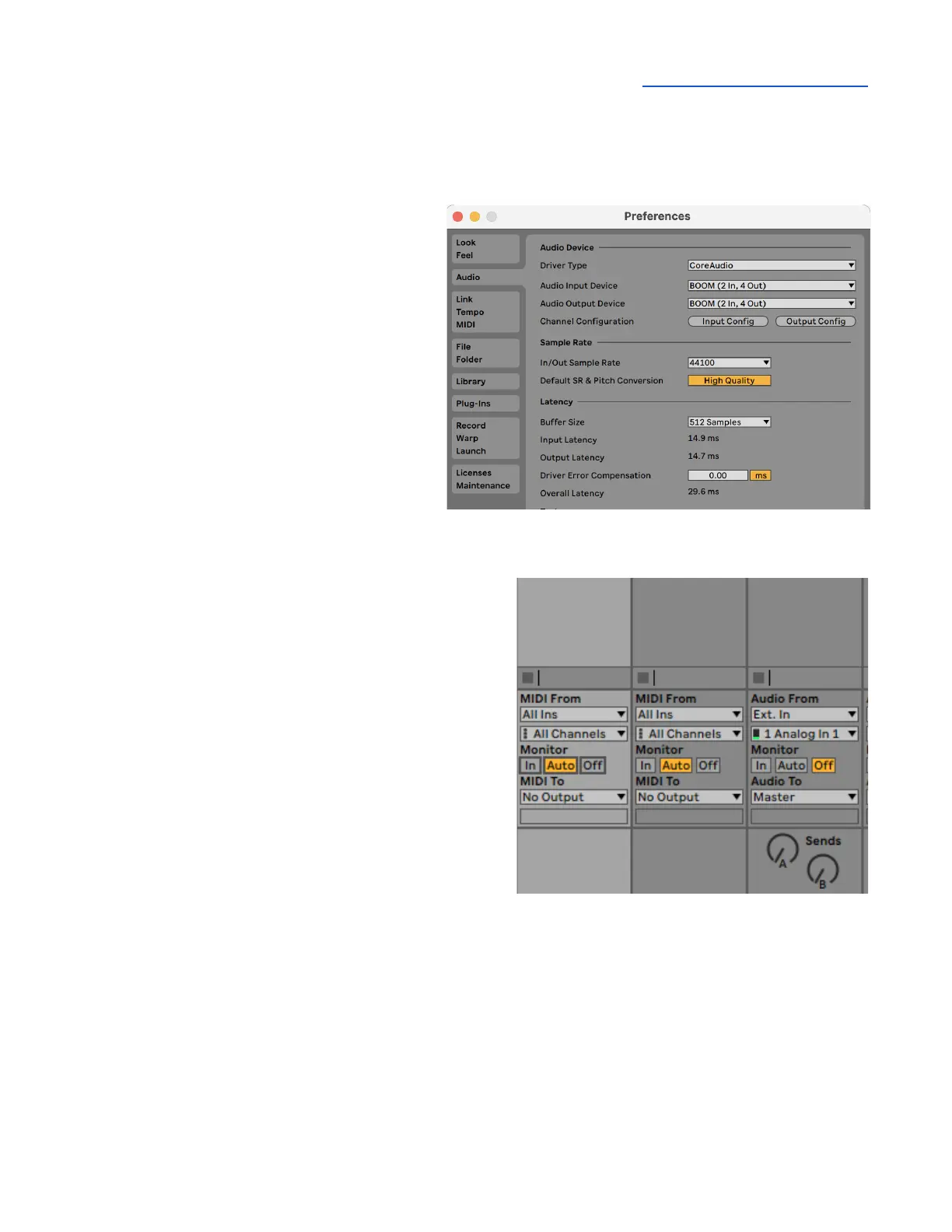
To configure Ableton Live to use Boom:
1. In the Live menu bar, choose Live >
Preferences and click the Audio tab.
2. Mac - set Driver Type to CoreAudio;
Windows - set Driver Type to Apogee
ASIO Driver.
3. Set Audio Input Device and Audio
Output Device to Boom.
4. Set Buffer Size to 128 Samples to start,
adjust for lower latency or more plugin
power.
To configure Ableton Live for Direct or
Software Monitoring Workflow:
1. Monitor settings in Ableton Live are configured for
each channel individually.
2. In the Ableton menu bar, choose View and verify
that In/Out is checked.
3. In each channel, set Monitor to Auto for Software
monitoring or Off for Direct monitoring.
4. In Apogee Control 2, set Main and Headphone
Sources.
● Set to Playback 1-2 for Software monitoring.
● Set to Mixer for Direct monitoring.



 To Next Page