Active tasks list: This list shows all tasks, except those delegated to your Task Server, that are
currently running or queued to run but haven’t yet started.
History list: The History list shows a list of most recently run tasks, as dened in the
Remote Desktop preferences. You can inspect each task by double-clicking it. Once a task is
completed (whether successfully or not) it is moved to the History list.
Task status icon: These icons represent the current state of a task. See “Task Status Icons”
on page 175 .
Client status icon: Icon representing the current state of a client computer. See “Client Status
Icons” on page 174.
Customizable toolbar: The toolbar can be fully customized with icons of your most-used
Apple Remote Desktop features.
Task Dialogs
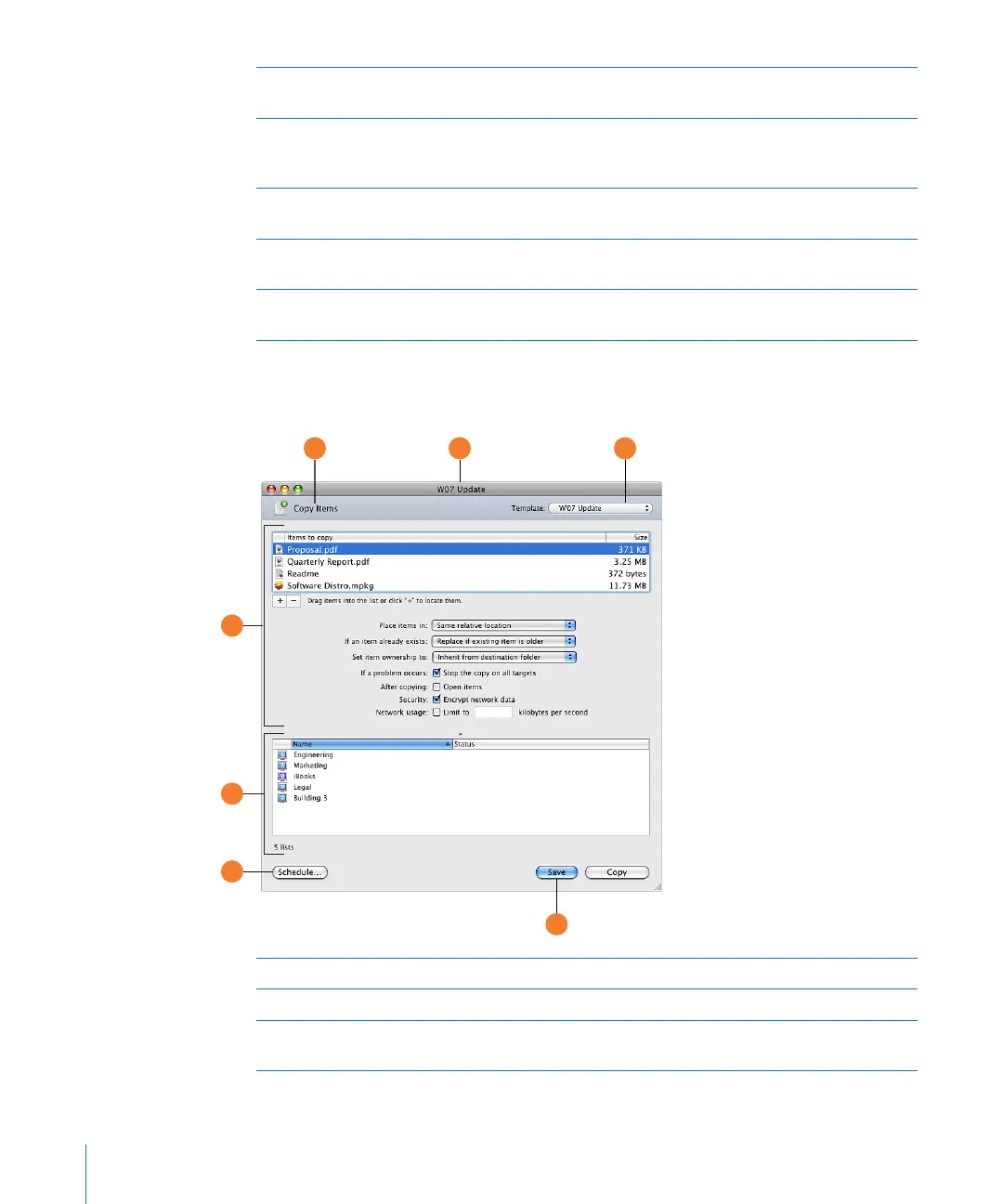
When you click a task, a dialog appears to let you set task parameters or conrm the task.
Task type header: This header area shows you the kind of task represented.
Saved task name: When you save a task, you name it for your own use.
Task conguration area This area is dierent for every task. It’s where you set operating
parameters for the task to be performed.
32 Chapter 2 Getting to Know Remote Desktop



 To Next Page